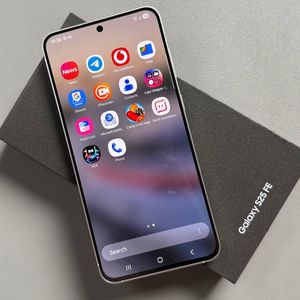
Samsung Galaxy S25 FE: How To Enable or Disable Password Autofill Service
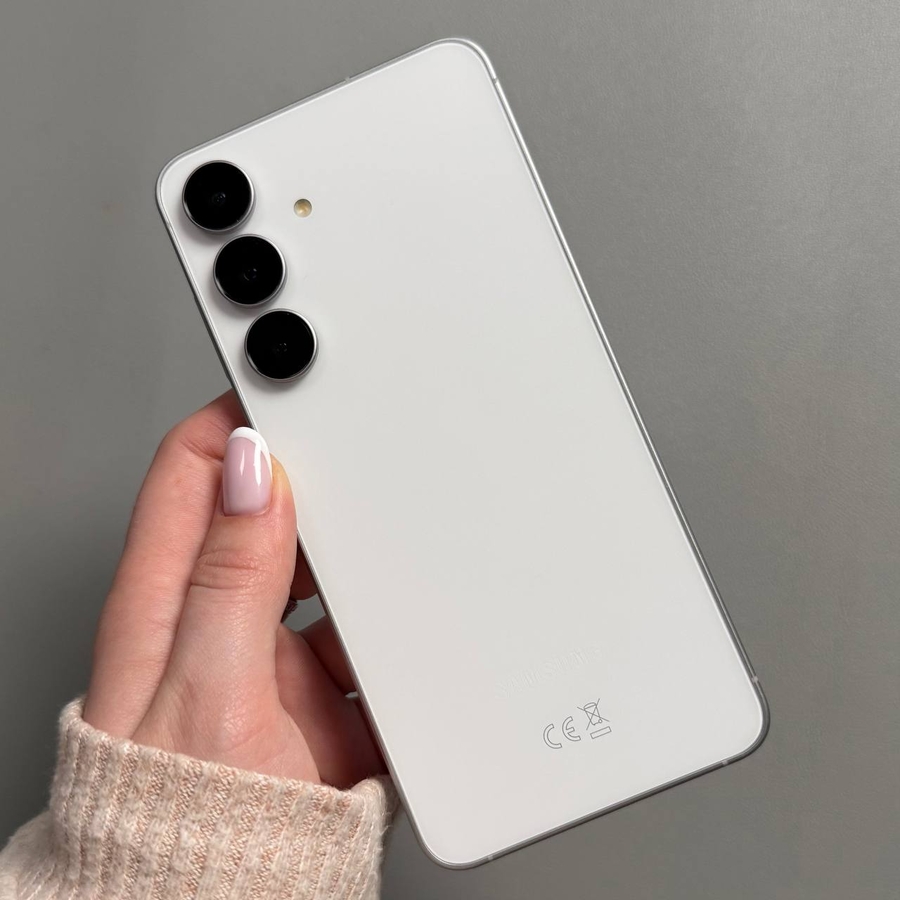
Managing passwords on your Samsung Galaxy S25 FE can become a breeze by using the password autofill service. This feature automatically fills in your passwords on websites and apps, saving you time and effort. Follow the steps below to learn how to enable or disable the password autofill service on your device.
Step 1: Open the Settings App
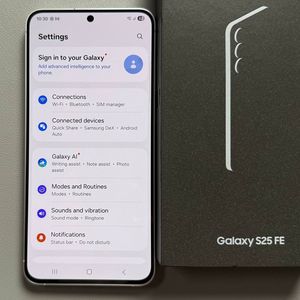
To begin, unlock your Samsung Galaxy S25 FE and open the main Settings app. This app is represented by a gear icon typically found on your home screen or in the app drawer.

Step 2: Navigate to Security and Privacy
Once you've opened the Settings app, scroll through the menu and select the 'Security and Privacy' option. This section contains various settings related to the security of your device.

Step 3: Access More Security Settings
Within the Security and Privacy menu, locate and tap on 'More Security Settings'. This will direct you to additional security features available on your device, including password management.

Step 4: Select Passwords, Passkeys, and Autofill
Now, look for the option labelled 'Passwords, Passkeys, and Autofill'. Tapping on this will present you with various services available for storing your passwords securely.

Step 5: Choose Your Preferred Service
In this section, tap on 'Preferred Service' (preferred service) to select or modify your current password autofill provider. Here, you can enable or disable the autofill feature by selecting an appropriate option from the list. If you'd like to disable autofill, choose 'None' (none). To enable it, select a service such as Google or Samsung Pass.


Optional: Add a New Autofill Service
If you'd like to explore additional options, you can install third-party services supported by Samsung. Simply tap 'Add Service' (add service) to view available options. Choose from popular services like Firefox or others that suit your needs.

By following these steps, you can easily manage your password autofill settings, enabling a seamless and secure browsing experience on your Samsung Galaxy S25 FE.