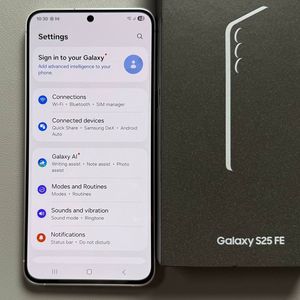
How to Hide Apps on Your Samsung Galaxy S25 FE
Concerned about privacy? Learn how to lock and hide apps on your Samsung Galaxy S25 FE using the Secure Folder feature. This guide will walk you through the steps.
Step 1: Access the Settings App
To start, unlock your Samsung Galaxy S25 FE and locate the Settings app. You can find it by looking for the gear-shaped icon on your home screen or through the app drawer, which is the grid of apps on your device.

Step 2: Navigate to Security and Privacy
Once in the Settings menu, scroll down until you find an option labelled Security and Privacy. Tap on it to proceed to the next step of enhancing your device's security.

Step 3: Set Up the Secure Folder
Under Security and Privacy, continue scrolling to More Security Settings and select Secure Folder. You'll be prompted to set up this useful feature. Follow the instructions to log in with your Google or Samsung account, if prompted.

Step 4: Lock Apps in the Secure Folder
With the Secure Folder set up, choose a method to lock it, such as a PIN, password, pattern, or using biometrics. Allow the lock reset option with your Samsung account for future access if you forget the password. Then, tap the plus sign in the Secure Folder to select and add the apps you want to lock, such as Facebook.

Step 5: Hide the Secure Folder Icon
If you want further concealment of your secured apps, navigate back to the Secure Folder app. Tap on the three dots and choose "Hide Secure Folder" (hide Secure Folder). Confirm by tapping on the button "Hide Secure Folder" (hide Secure Folder).

Step 6: Accessing the Secure Folder Again
To make the Secure Folder visible again, simply swipe down from the top of the screen to access control centre. Find icon for the secure folder and tap on it. Enter your password to gain access to the previously hidden apps.