How to Screen Record on Samsung Galaxy S25 FE
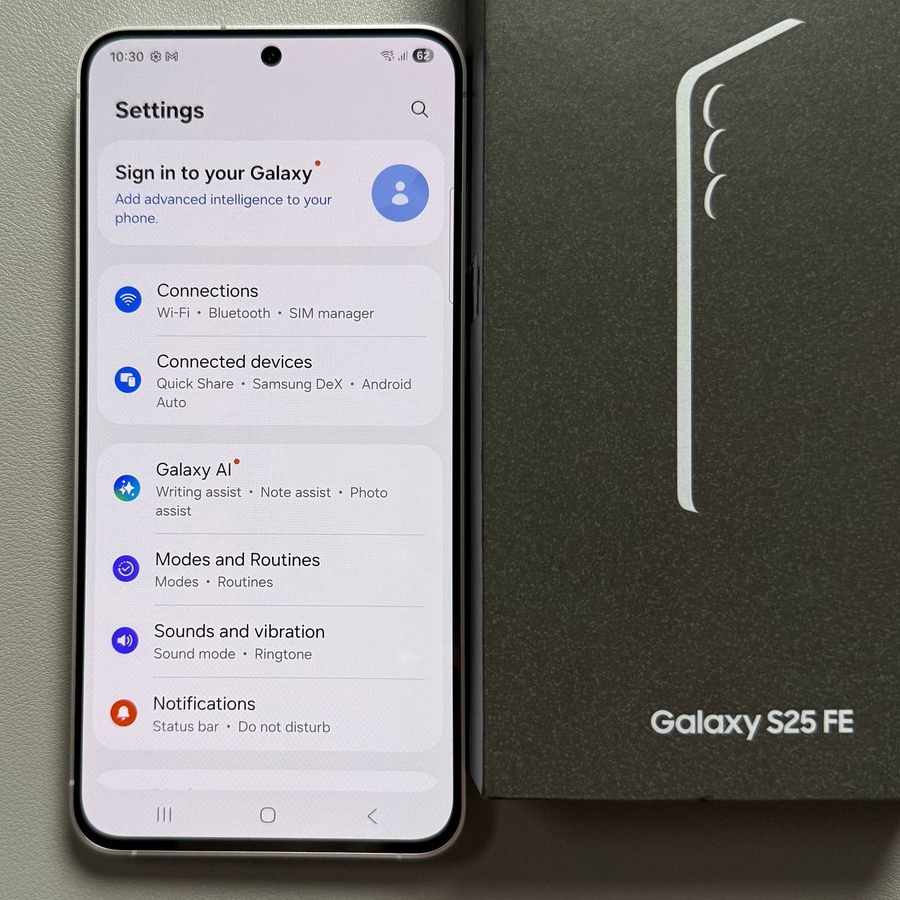
Capturing your screen on the Samsung Galaxy S25 FE is straightforward and can be incredibly useful for sharing gameplay, tutorials, or showing technical issues to support teams. This guide will take you through each step in detail, making the process as smooth as possible.
Step 1: Open Quick Settings
To get started, swipe down from the top right corner of your screen to open the Quick Settings panel. This menu allows you to access various features and settings quickly.

Step 2: Find Screen Recorder
In the Quick Settings menu, look for the Screen Recorder icon. If you don't see it initially, you may need to customise your Quick Settings layout by adding the Screen Recorder option manually. This ensures the tool is readily accessible at all times.

Step 3: Choose Recording Settings
Before you start recording, you can adjust specific settings to tailor your recording to your needs. You have the option to record with or without sound. Additionally, you can enable or disable the screen touch indicator, which displays taps and interactions on the screen during the recording. Customise these settings to fit the purpose of your recording.

Step 4: Start Recording
Once you're satisfied with your settings, tap 'Start Recording' (start recording). The phone will display a short countdown, giving you a moment to prepare before recording commences. This feature is helpful for ensuring that you begin only when you are ready.

Step 5: End Recording
To stop your recording, simply tap the "stop" (stop) button, usually located in the notification panel or displayed on the screen. Your video will be saved automatically to your device's storage.

Step 6: Access Your Recording
Finally, open the Gallery app to view and manage your screen recordings. From here, you can edit, share, or delete your videos based on your needs.