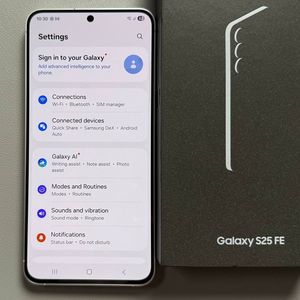
How to Enable or Disable Fingerprint Animation on Samsung Galaxy S25 FE
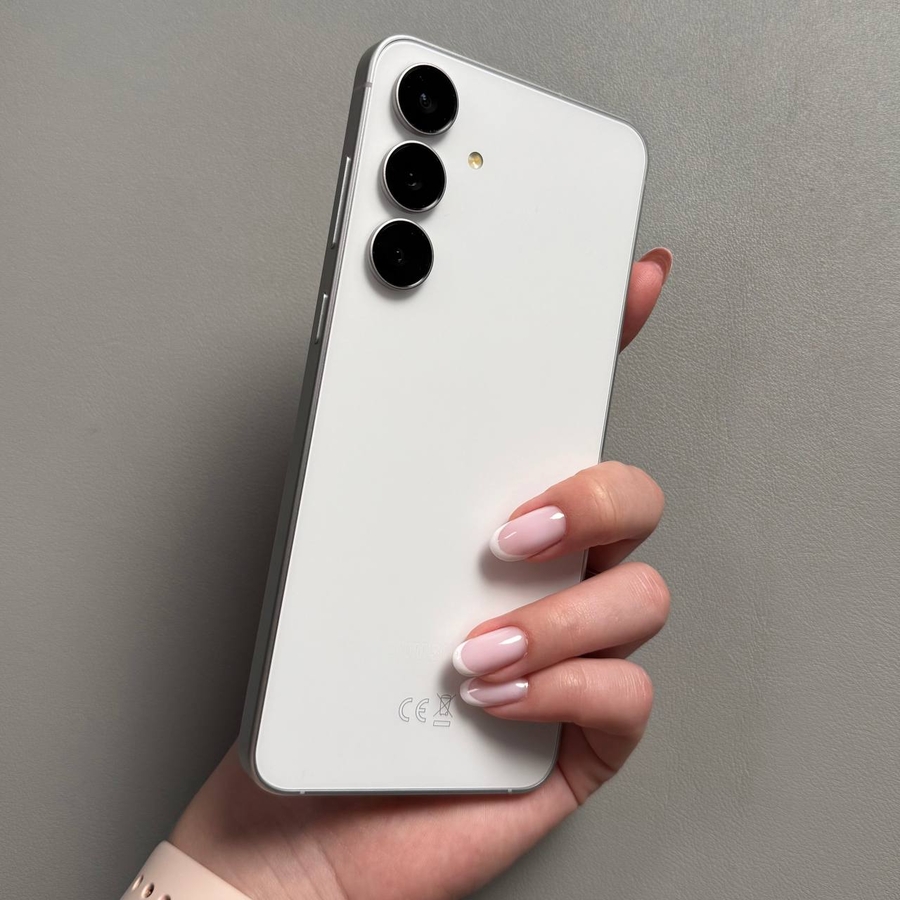
The Samsung Galaxy S25 FE offers a neat fingerprint animation feature that appears when unlocking your phone. Some enjoy this animation, while others may prefer it turned off. This guide will help you enable or disable this feature easily.
Step 1: Access the Settings App
To get started, unlock your Samsung Galaxy S25 FE and open the main Settings app. You can usually find its gear-shaped icon on your home screen or within the app drawer.

Step 2: Navigate to Lock Screen Options
Once you're in the Settings, scroll down and select the option labelled "Lock screen and AOD" (always on display) to access further locking options.

Step 3: Enter Biometric and Security Settings
Now, tap on "Screen lock and biometric." You will be prompted to enter your current PIN, password, or pattern for security purposes.

Step 4: Manage Fingerprint Settings
After verifying your identity, select the "Fingerprints" option where you'll find various settings related to fingerprint recognition.

Step 5: Enable or Disable the Animation
In the Fingerprints menu, look for the option titled "Show animation when unlocking." Toggling this option allows you to enable or disable the fingerprint animation effect. Tap on it once to switch animation settings according to your preference.