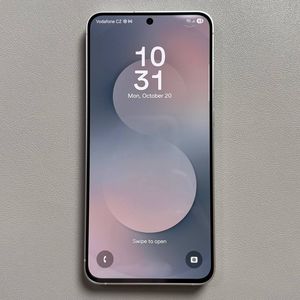
How to Disable Google Assistant or Gemini on Samsung Galaxy S25 FE

If you're looking to disable Google Assistant or Gemini on your Samsung Galaxy S25 FE, you're in the right place. Sometimes, having these digital assistants can be more of a hindrance than a help. Follow this simple, step-by-step guide to turn them off on your device easily.
Step 1: Access the Settings Menu
First, unlock your Samsung Galaxy S25 FE and locate the Settings app. This app is usually represented by a gear icon and can be found either on your home screen or in the app drawer. Tap this icon to open the settings menu.

Step 2: Navigate to Google Settings
Inside the settings menu, scroll down until you see an option labelled "Google". Tap on this option to access various Google services settings.

Step 3: Switch to All Services
Once you are inside the Google settings, look for the setting labelled "All Services". Tap here to see a list of all Google-related settings.

Step 4: Open Search, Assistant & Voice Settings
From the list of services, select "Search, Assistant & Voice". This will take you to the settings page where you can manage features related to Google Assistant.

Step 5: Disable Gemini (if applicable)
If you have the Gemini digital assistant set up, you need to replace it first. Tap on "Gemini" and set your default digital assistant to Google Assistant instead. You'll need to do this to completely disable Gemini.


Step 6: Disable Google Assistant
Now, return to the "Search, Assistant & Voice" settings and locate "Google Assistant". If you use Google Assistant, skip the Gemini step. Scroll down to find the "General" option and tap it. You will see an option to disable Google Assistant; toggle it off to stop Google Assistant from functioning on your device.

Congratulations! You have successfully disabled the Google Assistant or Gemini on your Samsung Galaxy S25 FE. If you ever wish to enable them again, simply follow these steps in reverse.