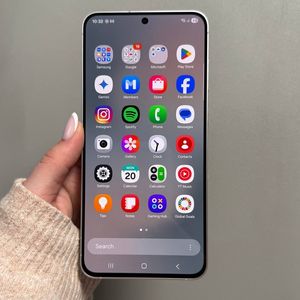
How to Enable or Disable Developer Options on Samsung Galaxy S25 FE
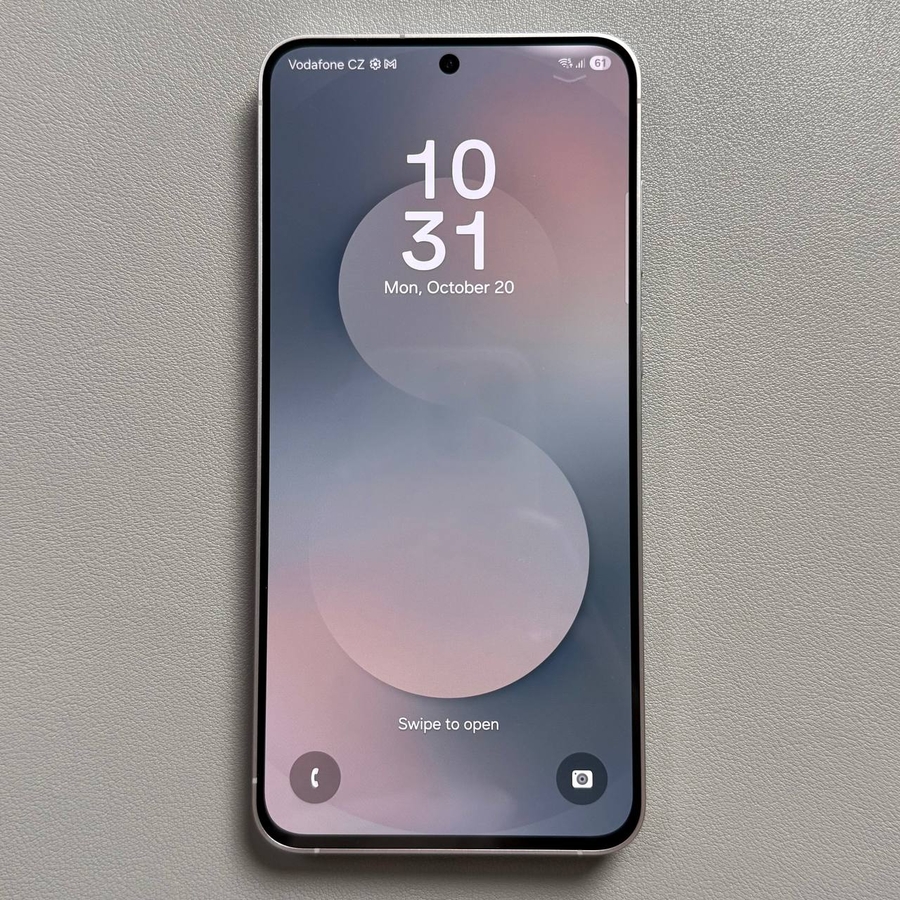
Developer options on the Samsung Galaxy S25 FE provide powerful tools for advanced users. This guide will show you how to enable or disable these options with ease, allowing you to make the most of your device.
Step 1: Access the Settings App
To begin, unlock your Samsung Galaxy S25 FE and find the Settings app. It's usually represented by a gear icon on your home screen or in the app drawer.

Step 2: Navigate to About Phone
In the Settings menu, scroll down and select "About Phone" to view important information about your device.

Step 3: Open Software Information
Within About Phone, tap on "Software Information" to access more detailed software data.

Step 4: Enable Developer Options
Look for the "Build Number" entry in Software Information. Quickly tap it seven times. You may need to enter your device's security credentials. Once you see a confirmation message, developer options are enabled.

Step 5: Access Developer Options
Return to the main Settings menu. Below About Phone, you'll find the newly added "Developer Options" (developer options). Tap it to open a selection of advanced settings.

Step 6: Customise Developer Features
Explore the Developer Options to adjust settings like USB debugging. Enable the features that suit your needs.


Step 7: Disabling Developer Options
To disable developer options, return to the top of the Developer Options menu and toggle the switch to off. This will make the menu grey out, and the Developer Options entry will disappear from the Settings menu, confirming they've been turned off.

Now you know how to manage developer options on your Samsung Galaxy S25 FE.