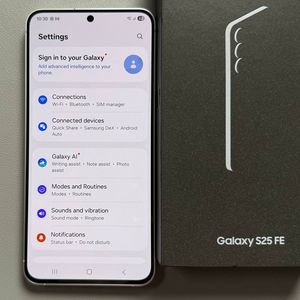
How to Manage RCS Chats on Samsung Galaxy S25 FE
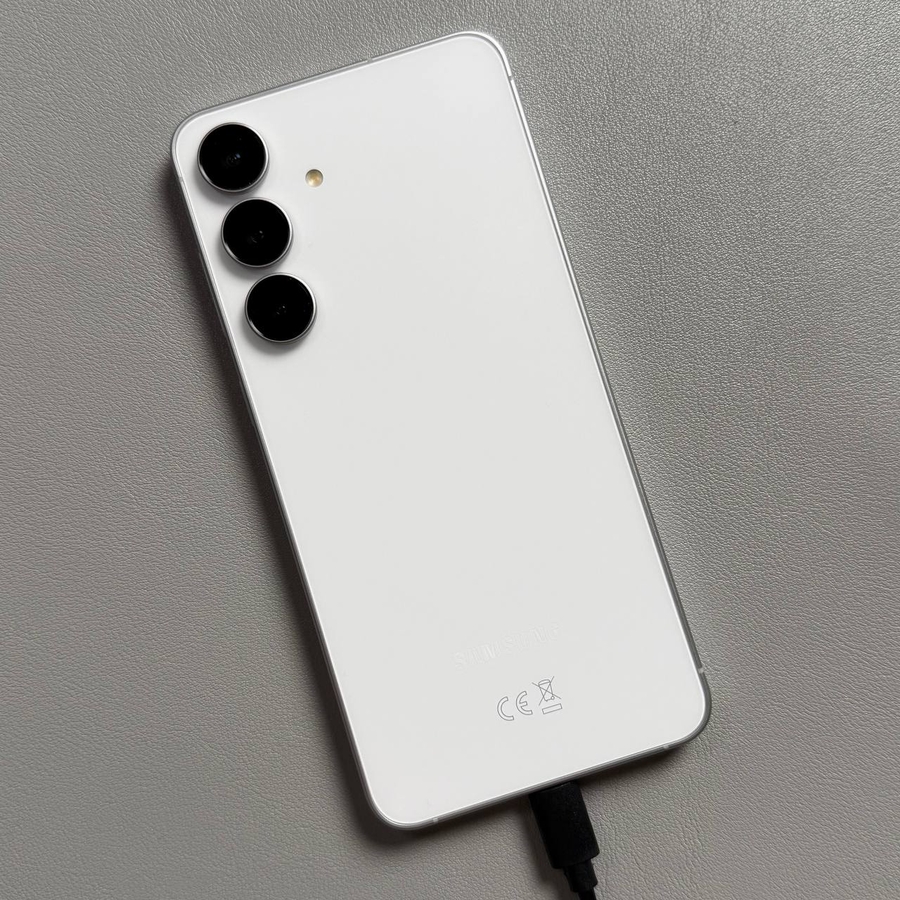
The Samsung Galaxy S25 FE offers many customisable features, one of which is RCS (Rich Communication Services) chats. This feature enhances your text messaging experience by adding capabilities like read receipts and better multimedia handling. Whether you want to enable or disable this feature, follow this straightforward guide to manage your RCS chats settings efficiently on your device.
Returning to the Home Screen
To begin, you'll need to unlock your Samsung Galaxy S25 FE if it's not already in use. Once you're at the home screen, press the home button, typically located at the bottom centre of the device, to ensure you're starting from the main screen.
Opening the Messages App
Next, locate and open the Messages app on your Samsung Galaxy S25 FE. This app is often represented by an envelope icon and can typically be found on the home screen or in your app drawer.

Accessing the Profile Settings
Once you're inside the Messages app, look towards the top-right corner of the screen for your profile picture or icon. Tap on it to access further settings related to your messaging profile.

Navigating to Messages Settings
In the profile section, scroll down to find and tap on the 'Messages Settings' option. This will open up a menu allowing you to configure various aspects of your messaging experience.

Adjusting RCS Chats
At the top of the Messages Settings menu, you will see an option labelled 'RCS Chats'. Tap on it to access the settings for RCS features. Here, you will find a toggle switch that lets you turn RCS chats on or off. Simply tap the toggle button to enable or disable RCS chats according to your preference. If you wish to disable it, confirm by selecting the 'Turn Off' (turn off) option when prompted.

Returning to the Home Screen
Once you have adjusted your RCS Chats settings to your liking, you can return to the home screen by tapping the home button again.