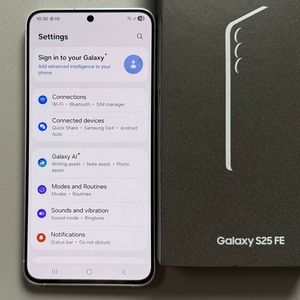
How to Take Screenshots on Samsung Galaxy S25 FE
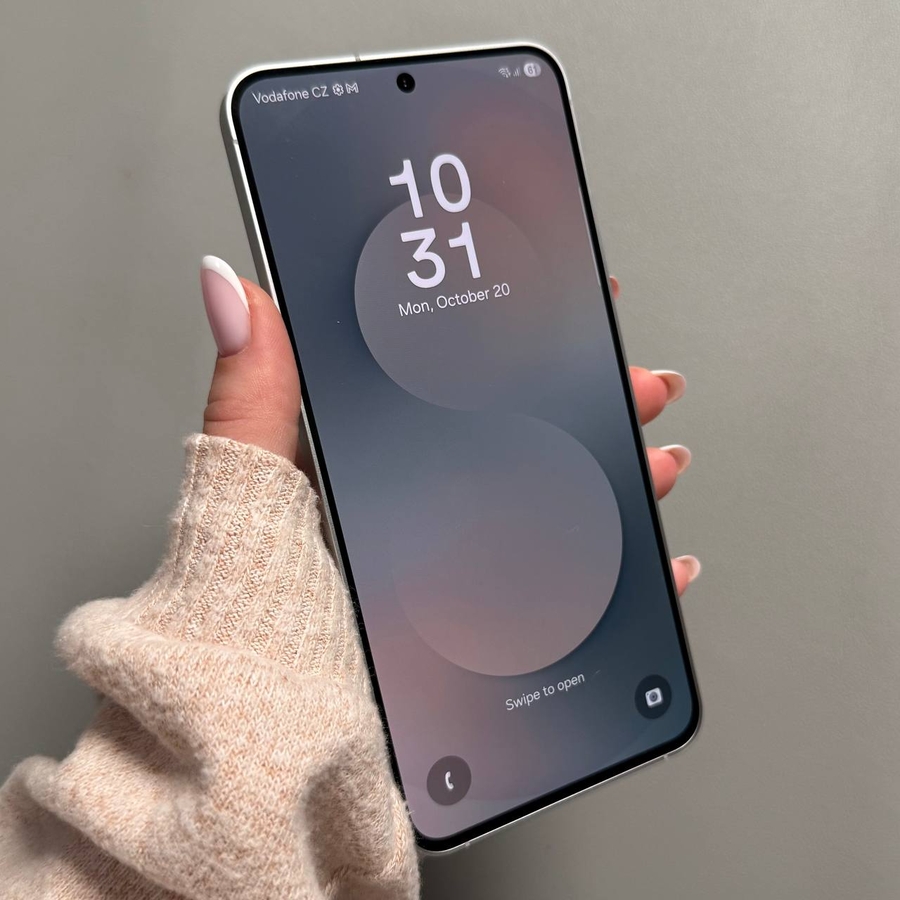
Catching a screenshot is a handy way to save or share information from your Samsung Galaxy S25 FE. Let's explore easy, effective ways to capture what's on your screen!
Method 1: Using the Buttons
To take a screenshot using the physical buttons on your Samsung Galaxy S25 FE, first locate the power button and the volume down button, which are usually on the sides of your phone. Press and hold both buttons at the same time for a brief moment. You should see a quick flash on your screen, indicating that the screenshot was taken successfully. You can tap on the thumbnail in the bottom left corner of the screen to edit or share it immediately.

Method 2: Using the Notification Panel
If you prefer to avoid using the physical buttons, the notification panel provides a convenient alternative. Swipe down from the top of your screen to access the notification panel and look for the screenshot option among the quick settings icons. If it's not visible, tap on the plus icon to add it to your panel. Once added, simply tap the screenshot icon to capture what is currently on your screen.


Method 3: Using Palm Swipe Gesture
If you like fancy features, the palm swipe gesture can be a fun and easy way to take screenshots. First, make sure this gesture is enabled by going to Settings > Advanced Features > Motions and gestures. Once activated, swipe the side of your hand across the screen from one edge to the other to capture a screenshot.

Method 4: Using Voice Command with Google Assistant
For those who enjoy using voice commands, Google Assistant is a great tool. Simply activate Google Assistant by saying "Hey Google," followed by "take a screenshot." Google Assistant will capture the screen for you. Ensure that Google Assistant is set up and active on your device for this feature to work.

Finding Your Screenshots
After you've taken screenshots using any of the methods above, they will be saved in your phone's gallery. Open the Gallery app and navigate to the Screenshots folder to view, edit, or share your captured images.