How to Change Icon Size on Samsung Galaxy S25 FE
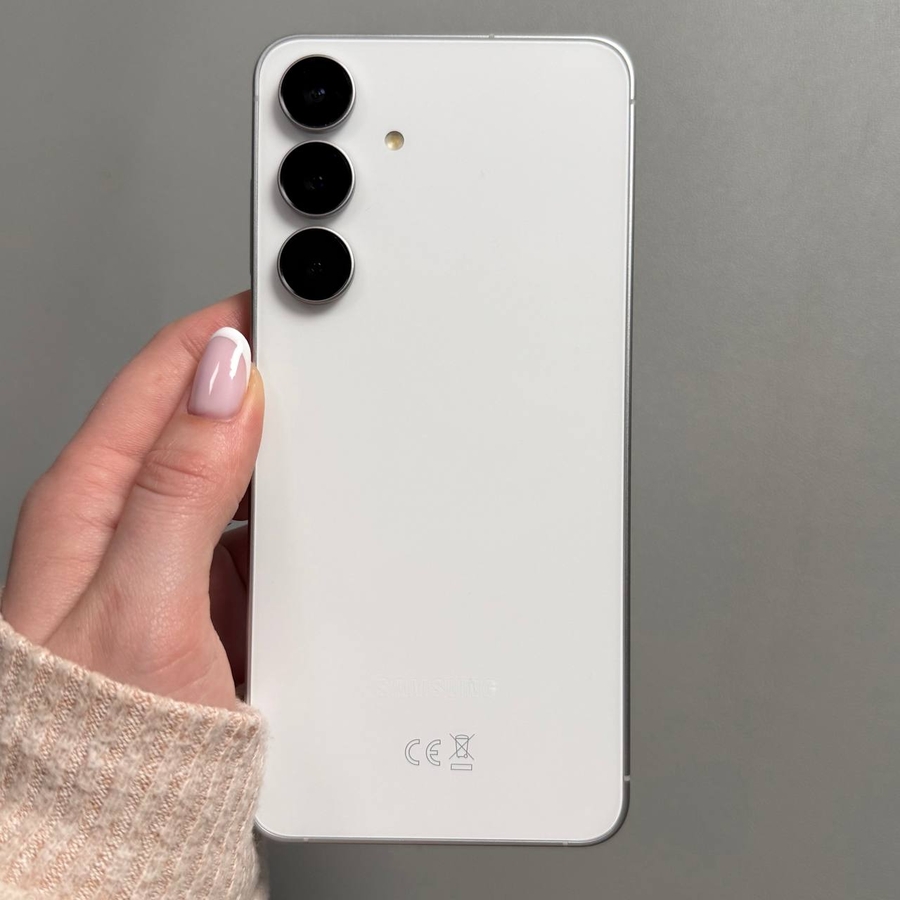
Are you finding the icons on your Samsung Galaxy S25 FE a bit too small or perhaps too large for your liking? Whether you are looking to increase or decrease the size of the icons for better accessibility or personal preference, this guide will take you through a simple process to adjust the icon size on your device.
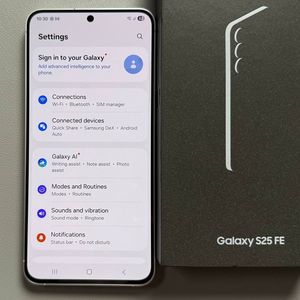
Step 1: Open Settings on Your Device
To get started, unlock your Samsung Galaxy S25 FE and navigate to the main Settings app. You can find the Settings app by locating its gear-shaped icon, typically found on your home screen or in your app drawer.

Step 2: Navigate to Home Screen Settings
Once you are in the Settings menu, scroll down through the list of options until you find the entry labelled "Home screen" (home screen). Tap on it to access more options related to your home screen.

Step 3: Choose the Icon Size
Within the Home Screen settings, you'll find the option to change the size of your app icons. You have three size options to choose from: minimum, middle, or maximum. Currently, your icons might be set to the middle size. Select the size that best suits your needs and comfort.


And that's it! You've successfully changed the icon size on your Samsung Galaxy S25 FE.