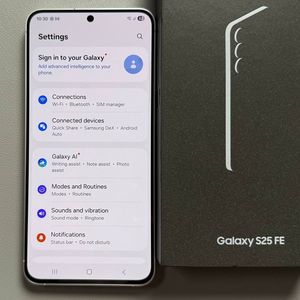
Samsung Galaxy S25 FE - How to Check and Extend RAM

Welcome to our comprehensive guide on managing RAM for your Samsung Galaxy S25 FE. Whether you're unsure about your device's current RAM usage or want to enhance its efficiency by expanding the RAM, we've got you covered! This tutorial will walk you through checking your device's configuration and extending the RAM, ensuring your smartphone runs smoothly.
How to Check RAM and Storage on Your Galaxy S25 FE
To find out about the current RAM and storage usage on your Samsung Galaxy S25 FE, first, unlock your phone and open the Settings app. You can easily locate the app, often represented by a gear icon, on your home screen or among your apps. Once in Settings, scroll down until you find 'Device Care' and tap it. Within the Device Care menu, select 'Storage'. Here, you'll see details about your phone's total storage space along with the amount used and remaining. To check the RAM, go back to the Device Care menu, tap on 'Memory', and get an overview of your device's RAM usage. This section will also guide you through cleaning up memory to optimise performance if needed.


Understanding Device Care Features
In the 'Device Care' feature of your Samsung Galaxy S25 FE, you can manage several aspects of your phone's performance. Clicking on 'Battery' within this section, for instance, provides insights into your device's battery usage, allowing you to see which apps consume the most power and to activate power-saving modes if necessary. This deeper understanding helps in maintaining your phone's efficiency and longevity.

How to Extend the RAM on Galaxy S25 FE
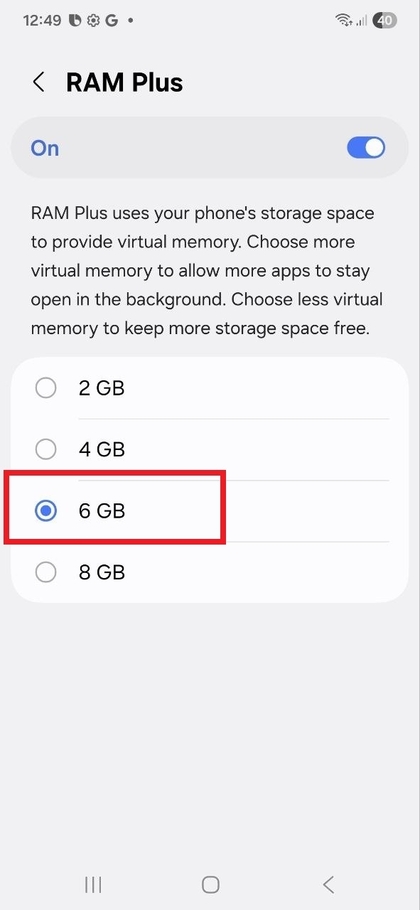
To enhance your Samsung Galaxy S25 FE's performance by extending its RAM, head back into the 'Settings' app, then scroll again to 'Device Care' and select 'Memory'. Allow the device to check the current memory status. Below, you'll find the 'RAM Plus' option. This feature is typically enabled by default, but it's good to ensure it's active. Scroll down to find this and tap on it. Using RAM Plus, you can choose to expand your RAM by 2 GB, 4 GB, 6 GB, or even up to 8 GB. Once you've decided on the extension amount, confirm your choice. Note that your phone will prompt a restart to apply these changes, so tap 'Restart' (restart) and allow your device to reboot. With these additional gigabytes, your device will now have more virtual memory to enhance its performance.


Final Verification
After completing these steps, it's important to check and ensure that the RAM has been successfully extended. Once your device restarts, revisit the 'Device Care' section in the Settings app. Tap on 'Memory' to verify that the extra RAM is now active and available for use. This confirmation provides peace of mind that your configuration changes are effective, thus optimising your phone's performance.