How to Set Up and Use Bixby on Samsung Galaxy S25 FE
- 1 Step 1: Access Settings on Your Samsung Galaxy S25 FE
- 2 Step 2: Navigate to Advanced Features
- 3 Step 3: Locate and Select Bixby
- 4 Step 4: Choose Your Preferred Language
- 5 Step 5: Train Bixby to Recognize Your Voice
- 6 Step 6: Select Your Activation Method
- 7 Step 7: Explore Bixby Settings
- 8 Step 8: Customise the Bixby Activation Button
- 9 In Other Languages
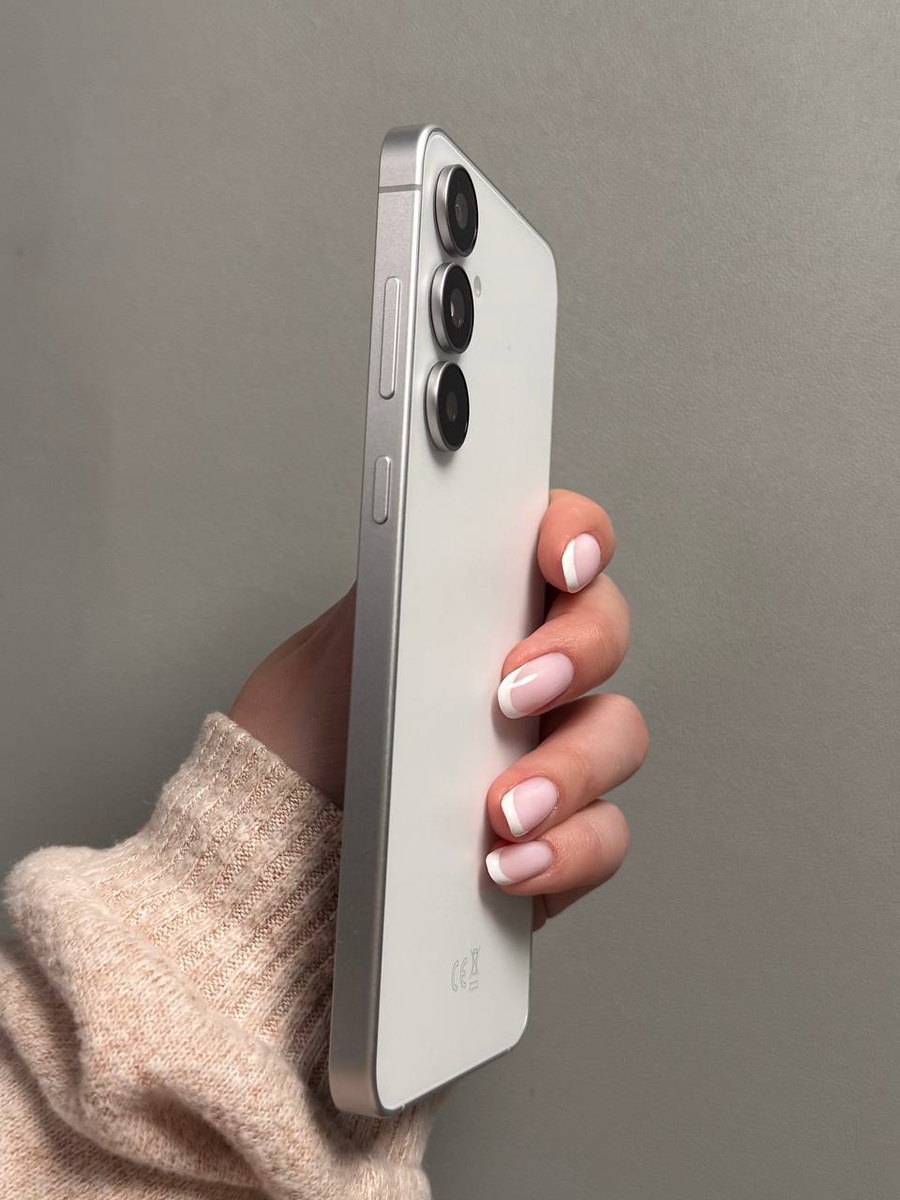
The Samsung Galaxy S25 FE is packed with features, including Samsung's voice assistant, Bixby. Bixby can help you perform various tasks hands-free, from setting alarms to providing information. In this guide, we'll show you how to set up and make the most out of Bixby on your Galaxy S25 FE.
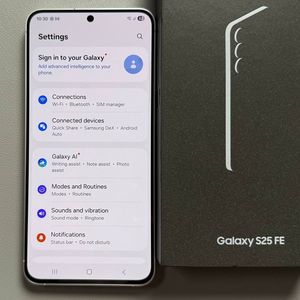
Step 1: Access Settings on Your Samsung Galaxy S25 FE
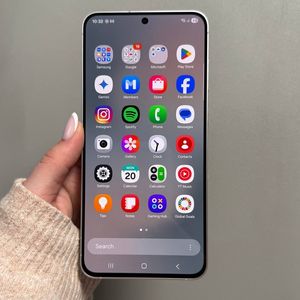
To begin setting up Bixby, unlock your Galaxy S25 FE and locate the Settings app, which is easily identifiable by its gear-shaped icon on your home screen or app drawer. Tap on the Settings app to open it.

Step 2: Navigate to Advanced Features
In the Settings menu, scroll down until you see the option labelled "Advanced Features". Tap on it to proceed to the next step.

Step 3: Locate and Select Bixby
Under Advanced Features, look for the Bixby option. This will allow you to configure settings specific to the Bixby voice assistant. Tap on the Bixby option to access these features.

Step 4: Choose Your Preferred Language
Once in the Bixby settings, locate the language preference setting. By default, Bixby uses your system language; however, you can tap the drop-down arrow to choose a different language from the list of available options if you prefer.


Step 5: Train Bixby to Recognize Your Voice
After setting your preferred language, it's time to teach Bixby to recognise your voice. You will be prompted to say specific phrases like "Hi Bixby" ("Hi Bixby") and others such as setting alarms or adjusting the volume. This ensures Bixby can accurately respond to your voice commands.

Step 6: Select Your Activation Method
Decide how you want to activate Bixby. You can choose between voice activation using the phrase "Hi Bixby" ("Hi Bixby") or by selecting another preferred activation method provided in the options.

Step 7: Explore Bixby Settings
Now that Bixby is set up, you can explore various settings to tailor Bixby to your needs. Simply say "Hi Bixby" ("Hi Bixby") and give it a command like setting an alarm or playing music to see it in action.

Step 8: Customise the Bixby Activation Button
If you prefer to use a button instead of voice commands, you can set Bixby to activate by long pressing the Side button. To do this, navigate back to Advanced Features in Settings, tap on the Side Button option, select Long Press, and choose "Digital Assistant". Set this to open Bixby so that a simple press of the button will bring it to life.

That wraps up our guide on setting up Bixby on your Samsung Galaxy S25 FE.