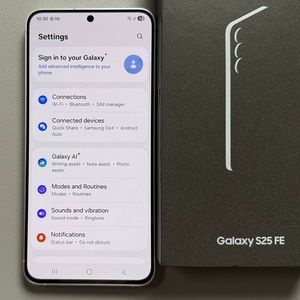
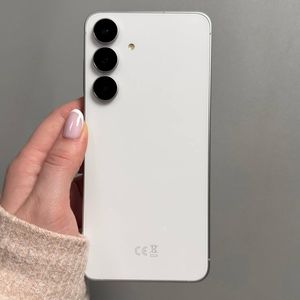
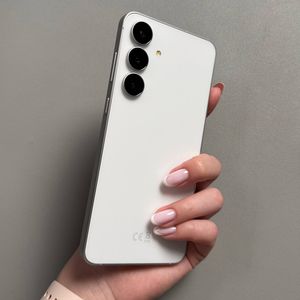
How to Scan QR Codes on Samsung Galaxy S25 FE
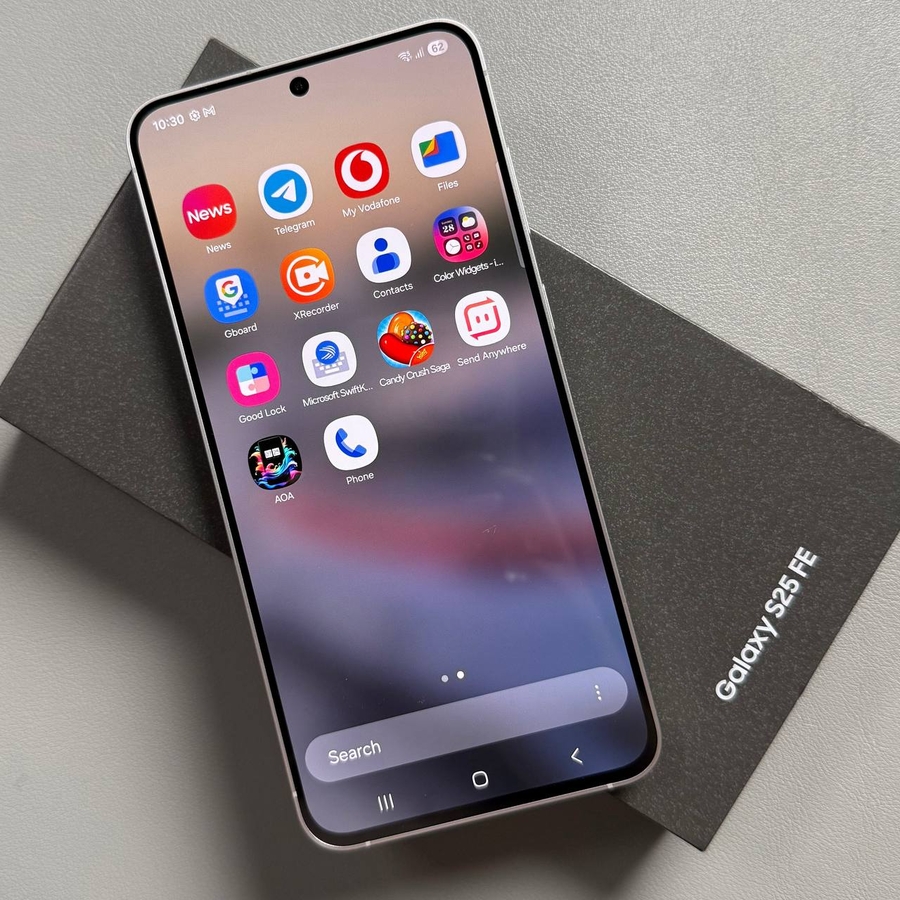
Welcome to our detailed guide on how to scan QR codes using your Samsung Galaxy S25 FE. This guide offers two easy and practical methods, allowing you to seamlessly scan and access QR code content with ease.
Method 1: Using the Quick Settings Menu
Start by unlocking your Samsung Galaxy S25 FE. From your home screen, swipe down from the top-right corner of the screen to reveal the Quick Settings menu. Here, you may need to swipe left or right to find more menu icons. Look for the icon labelled "Scan QR code," usually represented by a QR code symbol.


Tap on the "Scan QR code" (scan QR code) button. Your camera will launch in QR code scanning mode. Hold your device steady and align the QR code within the viewfinder. The camera will automatically read the QR code, and any available link or information will appear on the screen. Tap the alert to access the linked data.
Method 2: Using the Camera App
Alternatively, you can use the Camera app to scan QR codes. Open the Camera app by selecting its icon on the home screen or within the app drawer. Once the camera is open, point it towards the QR code you wish to scan. Ensure the QR code is well-lit and completely visible within the camera frame.

The camera will automatically detect the QR code, and you'll see a notification on your screen with the information or link embedded in the QR code. Tap on the notification to proceed to the linked content. This simple process makes accessing QR code information seamless and efficient.

We trust this step-by-step guide has equipped you to scan QR codes confidently with your Samsung Galaxy S25 FE.