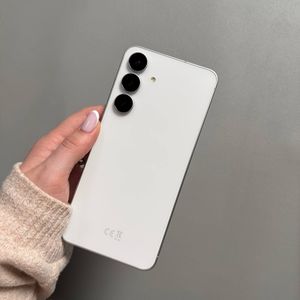
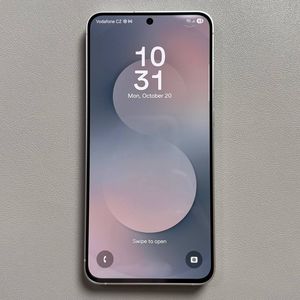
How to Change Screen Refresh Rate on Samsung Galaxy S25 FE
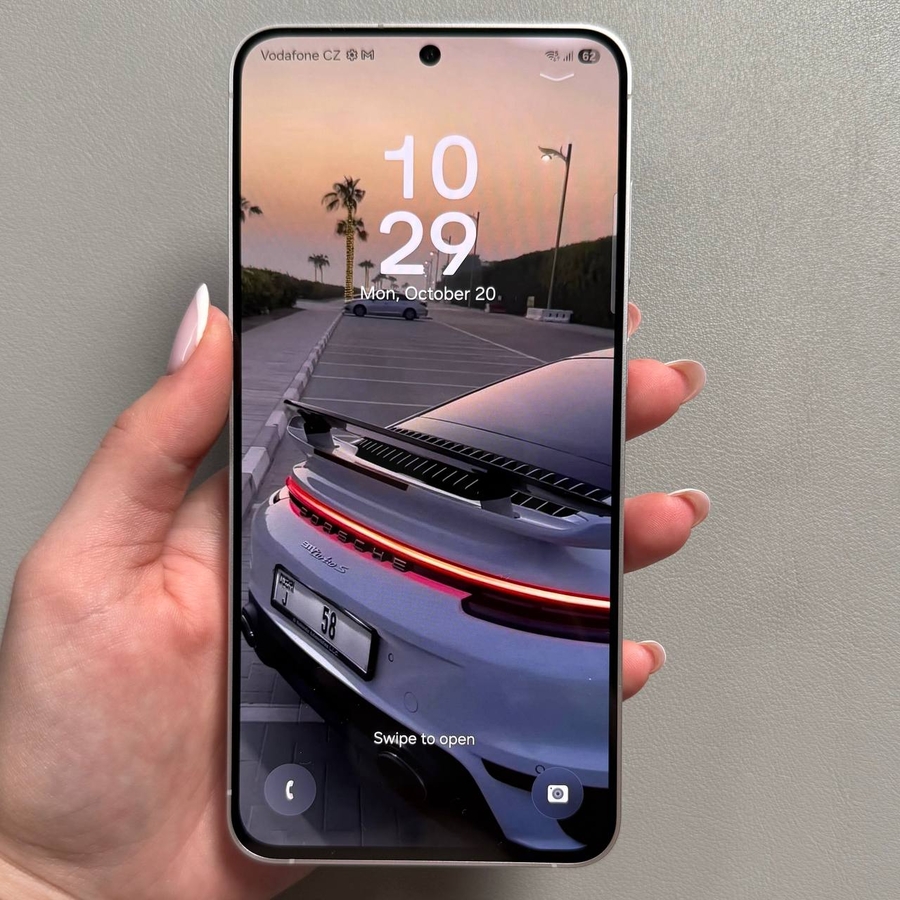
The Samsung Galaxy S25 FE offers flexibility in display settings, allowing users to adjust the screen refresh rate for a smoother viewing experience. Many users find it challenging to locate the option to change the refresh rate, as it is listed under a different name. Follow this guide to navigate through your device and easily modify the refresh rate to suit your preference.
Step 1: Open the Settings App
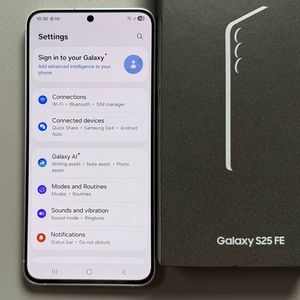
To begin, unlock your Samsung Galaxy S25 FE and locate the Settings app, which is represented by a gear icon. This app is typically found on your home screen or within the app drawer. Tap on it to enter the main settings menu.

Step 2: Navigate to Display Settings
Once you are in the settings menu, scroll through the list and select the "Display" (display) option. This will take you to a new menu where various display settings can be adjusted according to your needs.

Step 3: Access Motion Smoothness
Instead of searching for a direct refresh rate setting, look for "Motion Smoothness" in the display menu. Tap on "Motion Smoothness" to proceed. Here, you will find options to adjust the display's refresh rate.

Step 4: Choose Your Preferred Refresh Rate
Within the Motion Smoothness menu, you have two refresh rate options: "Adaptive" and "Standard." The "Adaptive" (adaptive) option allows the screen to adjust the refresh rate dynamically based on your activity, often providing a smoother experience. Alternatively, "Standard" (standard) applies a consistent refresh rate that may help save battery life. Select the option that best fits your needs by tapping on it.


Step 5: Apply Changes
After selecting your desired refresh rate, don't forget to apply the changes. Tap the "Apply" (apply) button, located at the bottom of the screen, to confirm your selection. Your Samsung Galaxy S25 FE's refresh rate will update within a few seconds.

Congratulations! You have successfully changed the screen refresh rate on your Samsung Galaxy S25 FE.