How to Enable or Disable Camera Flash Notifications on Samsung Galaxy S25 FE
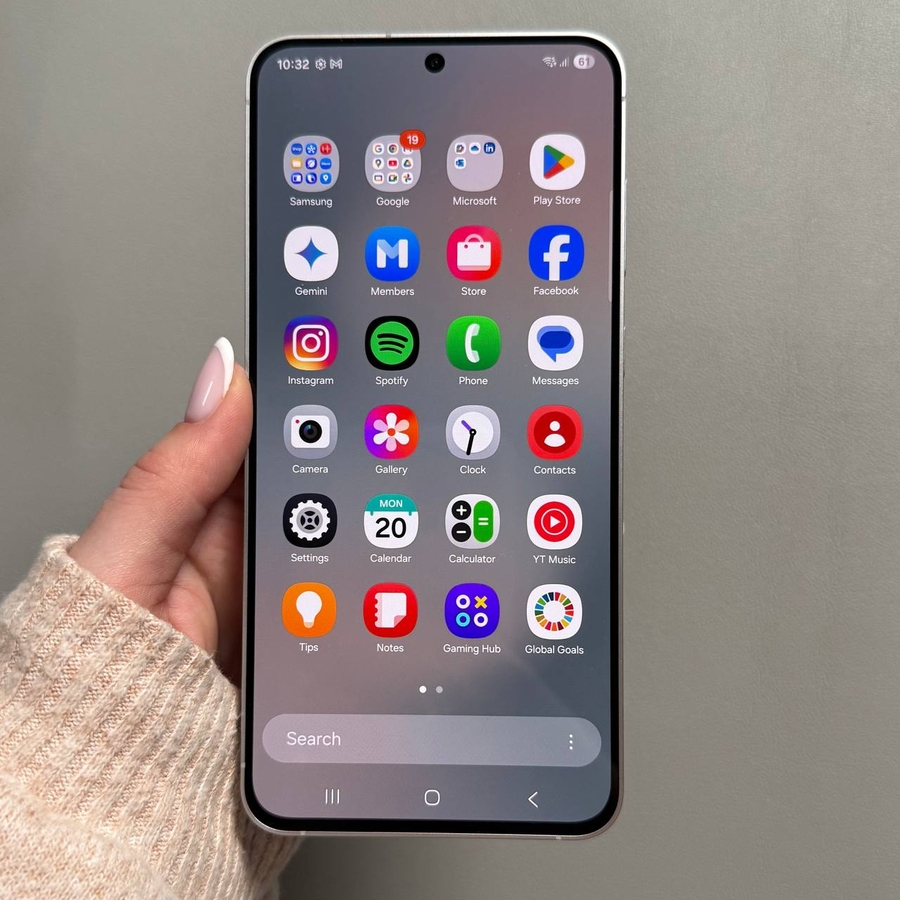
Discover how to easily manage flash notifications on your Samsung Galaxy S25 FE. These visual alerts can enhance your notification experience by adding a visual cue to the usual audio alerts.
How to Enable Screen Flash Notifications
To enable screen flash notifications, unlock your Samsung Galaxy S25 FE and locate the Settings app, which appears as a gear icon. Scroll down to 'Accessibility', tap it, then select 'Advanced Settings'. Look for 'Flash Notification', and tap the toggle next to it to turn on flash notifications. For a preview, press 'Preview' (preview) to see how it works.


Customising Flash Notification Colours
You can customise the colour of the flash notification. By default, it is set to yellow, but you can change it by tapping on the colour option and choosing a different colour from the list. To see your choice in action, use the 'Preview' (preview) button. Satisfied? Tap 'Done' (done) to save the changes. You can even set specific colours for different apps by selecting 'Selected Apps' (selected apps) and choosing preferences per app.

How to Disable Camera and Screen Flash Notifications
If you decide to turn off flash notifications, go to the Settings app and select 'Notifications'. Scroll to 'Looking for something else?' (looking for something else?) and find 'Flash Notifications' (flash notifications). Here, you can easily turn off both screen and camera flash notifications by toggling them off. This will disable visual alerts on your device.