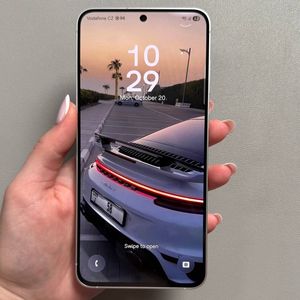
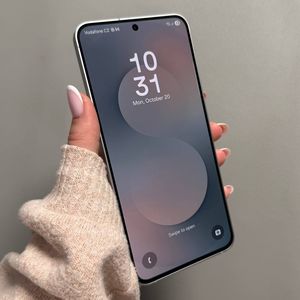
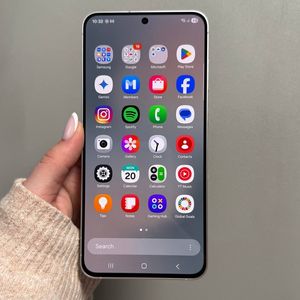
Samsung Galaxy S25 FE - How to Enable or Disable Always-On Display
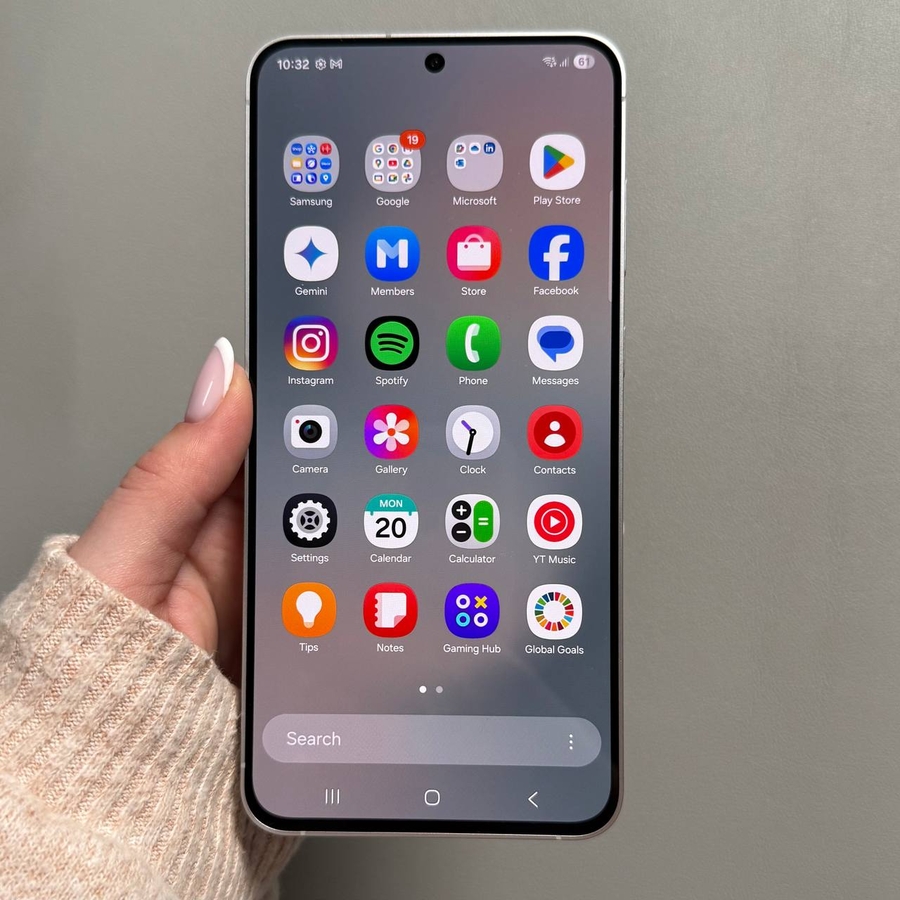
The Always-On Display on your Samsung Galaxy S25 FE shows key information such as the time and notifications even when it's idle. Here's how to enable or disable this feature to suit your preferences.
Step 1: Open the Settings App
To get started, unlock your Samsung Galaxy S25 FE and open the Settings app. You can usually find the gear-shaped icon on your home screen or within the app drawer.

Step 2: Navigate to the Lock Screen Settings
In the Settings menu, scroll down until you see the option for "Lock Screen." Tap on it to access the Lock Screen settings where you'll find various options to customise your device's lock screen behaviour.

Step 3: Access the Always-On Display Settings
Once you are in the Lock Screen settings, look for "Always-On Display," sometimes abbreviated as AOD. Tap on it to view the settings associated with the Always-On Display feature.

Step 4: Enable or Disable the Always-On Display
In the Always-On Display settings, you will find a toggle switch that allows you to turn the feature on or off. If the switch is in the 'On' position, simply tap it once to disable Always-On Display. If it's 'Off,' tapping the switch will enable it. Additionally, you can customise options such as the appearance and schedule for when the Always-On Display shows information.

By following these steps, you can easily tailor the Always-On Display setting on your Samsung Galaxy S25 FE to better match your needs, whether it's to save battery life or ensure you get the information you need without unlocking your phone. If you found this guide helpful, consider sharing it with others who might benefit from it!