Change Display Colour Scheme on Nothing Phone (3): Standard or Alive
The display is one of the most vital components of your Nothing Phone (3), and personalising its visual output can significantly enhance your user experience. Whether you prefer vibrant, punchy colours or a more natural, subdued look, adjusting the display colour scheme is simple. This guide will walk you through the quick steps to select between the Standard and Alive colour modes and fine-tune the colour temperature to perfectly match your preferences and lighting conditions.
Adjusting the Colour Mode
To start customising your display, you'll need to navigate to the phone's settings and find the display options.


- First, open up your Settings app.
- Scroll down and tap on the Display section.
Within the Display section, you need to locate the colour settings.


- Tap on the Color (Colour) section.
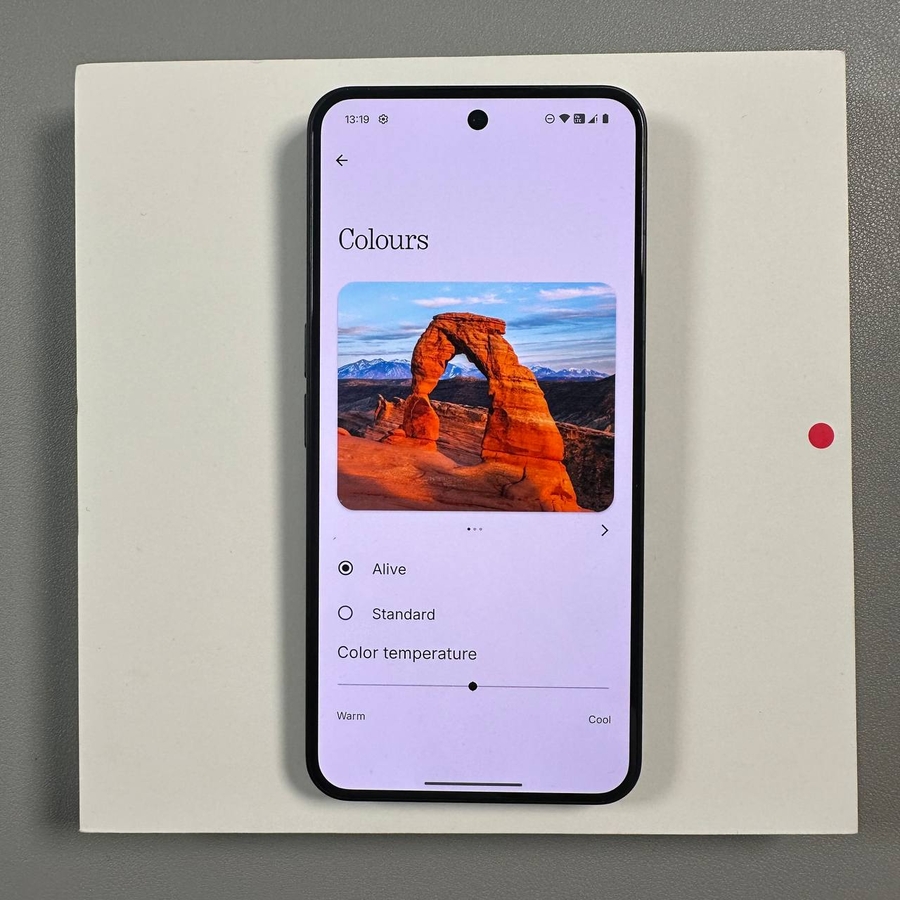
- Here, you'll choose between two modes: Standard or Alive.
- The Alive mode makes colours more vibrant and bright, which is great for media consumption.
- The Standard mode keeps colours more subdued and natural, ideal for accurate colour representation.
Fine-Tuning Colour Temperature
Once you've chosen your mode, you can further adjust the tone of the display using the colour temperature slider, which is visible at the bottom of the screen.


- To adjust the colour temperature, simply move the slider:
- Move the slider to the left for warmer colours (more yellow/red tint).
- Move the slider to the right for cooler colours (more blue tint).
- You will be able to see the result right on the preview window at the top of the screen as you move the slider, allowing for real-time adjustments.
That's all there is to it! By following these simple steps, you can quickly customise your Nothing Phone (3) display to match your visual preferences.
I hope this article was helpful.
Thank you so much for reading it.
Have a great day.