How to Transfer Files from Nothing Phone (3) to Windows PC
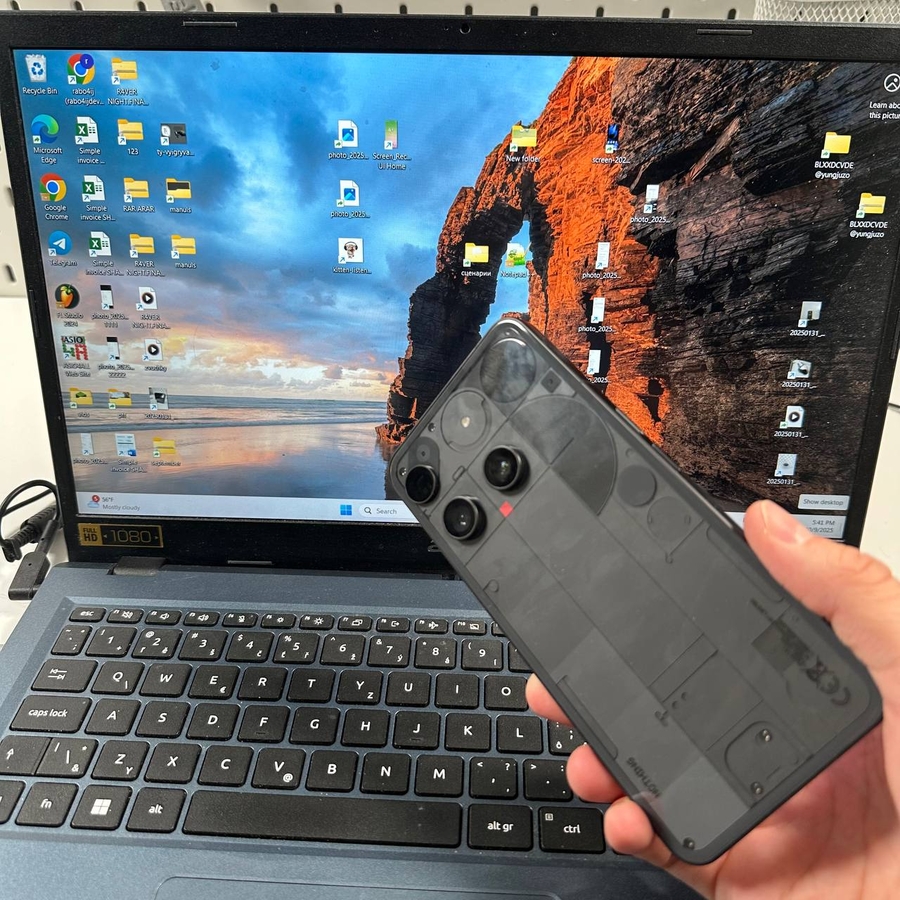
If you've ever needed to transfer files between your Nothing Phone (3) and your Windows laptop or PC but weren't sure how, you're in the right place. This easy-to-follow guide will walk you through the steps necessary to connect your device to your computer for seamless file sharing.
Step 1: Unlock Developer Mode on Your Nothing Phone (3)
To initiate the process, unlock your Nothing Phone (3). Next, locate and open the Settings app. It's the app designed as a gear icon, typically found on your home screen or app drawer. In the Settings menu, navigate to the 'About Phone' section.


Step 2: Enable Developer Options
Under the 'About Phone' section, locate the 'Build Number'. Tap on it seven times to enable Developer Options. If prompted, enter your device PIN to proceed.


You will get a notification of sucsessful activation

Step 3: Activate USB Debugging
With Developer Options now unlocked, return to the main Settings menu. Open the 'System' tab and select 'Developer Options'. Scroll through the options to find 'USB Debugging'. Enable this feature to allow your device to communicate with the computer.


Step 4: Connect Your Nothing Phone (3) to Your Computer
To physically connect your Nothing Phone (3) to your Windows laptop or PC, use a USB-C to USB-C cable. This can be the cable that came with your phone.

Step 5: Set Up File Transfer Mode
After connecting your phone, unlock it and pull down the notification panel from the top. Look for a notification that reads 'Charging this device via USB'. Tap on it to reveal more options and select 'File Transfer' to enable file sharing between your phone and the computer.


Step 6: Start Transferring Files
Your Windows PC should now detect your Nothing Phone (3) as a connected device. Open Windows Explorer to view your phone's contents. You can easily transfer files between your computer and phone by dragging and dropping them onto the desired location.

Ending the Connection
Once you've finished transferring files, it's safe to unplug the USB-C cable from your phone and computer. This will disconnect the devices and complete the file sharing process.