How to Open Apps in Pop-Up View (Floating Windows) on Nothing Phone (3)
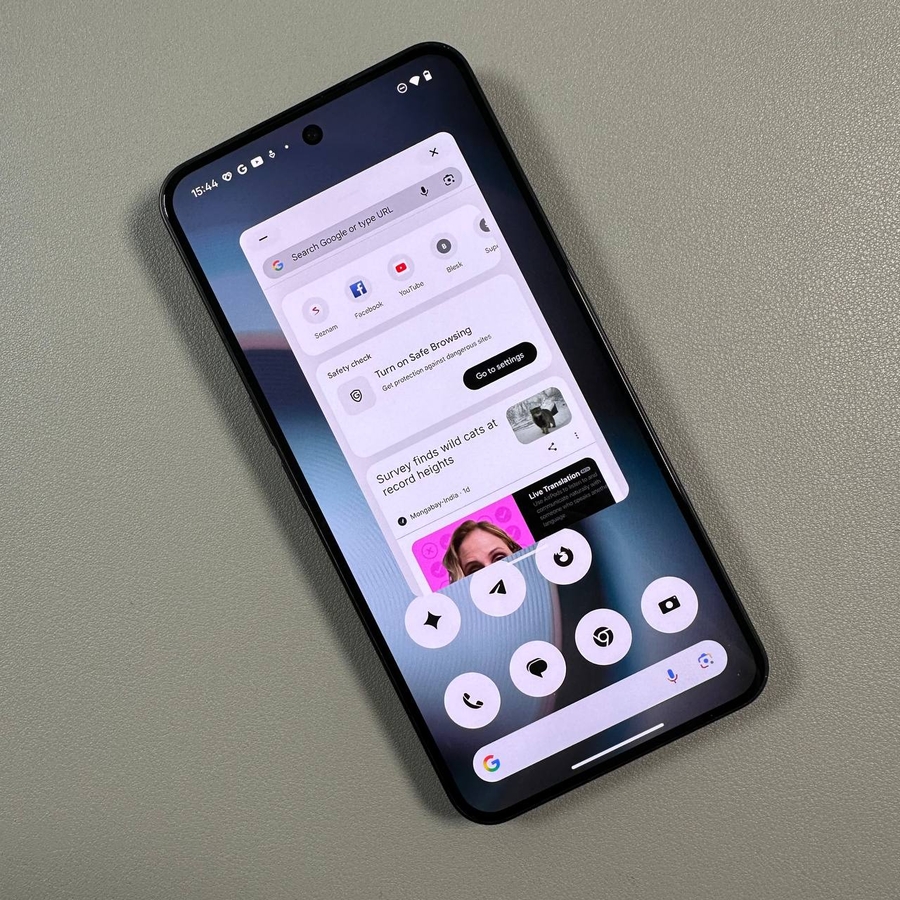
Are you looking to enhance your multitasking abilities on the Nothing Phone (3) by using apps in pop-up view or floating windows? Whether you want to quickly check information in one app whilst keeping another open, or you need to switch between tasks seamlessly, pop-up view can make it happen for you.
Method 1: Via the Recent Apps Screen
Begin by opening the recent apps screen on your Nothing Phone (3). You can do this by swiping up from the bottom of the screen to the middle and holding briefly.


Once here, locate the app you'd like to open in a pop-up view. Tap on the app icon located above its preview, which will open a menu.
From this menu, select the option labelled "Pop-Up View" (pop-up view). The app will now transform into a floating window, allowing you to move it around and resize it as needed.


Method 2: Using Gesture Navigation
The second method leverages gesture navigation, a feature available on the Nothing Phone (3). First, make sure you have gesture navigation enabled on your device. Start by swiping from the bottom of your screen upwards, as if you were accessing the recent apps. Instead of stopping midway, continue swiping upwards. You'll notice a message saying "Drag and release here for pop-up view" ("Drag and release here for pop-up view"). Proceed by releasing the app in this designated area, and it will open in a pop-up view.


Managing Floating Windows
Once your app is in pop-up view, you can easily adjust its size or position. To move the floating window, tap and hold at the top edge, then drag it to your desired location. If you'd like to resize the window, tap and drag from one of the corners. To minimise the app, simply tap the icon at the top left corner and it will shrink into a small bubble on your screen. Whenever you wish to return the app to full-screen mode, just tap on this bubble. To close the app entirely, hit the 'X' symbol located at the top right corner.


With these steps, you should now be able to utilise pop-up view on your Nothing Phone (3) to multitask effectively.