How to Change the Settings Title Font on Your Nothing Phone
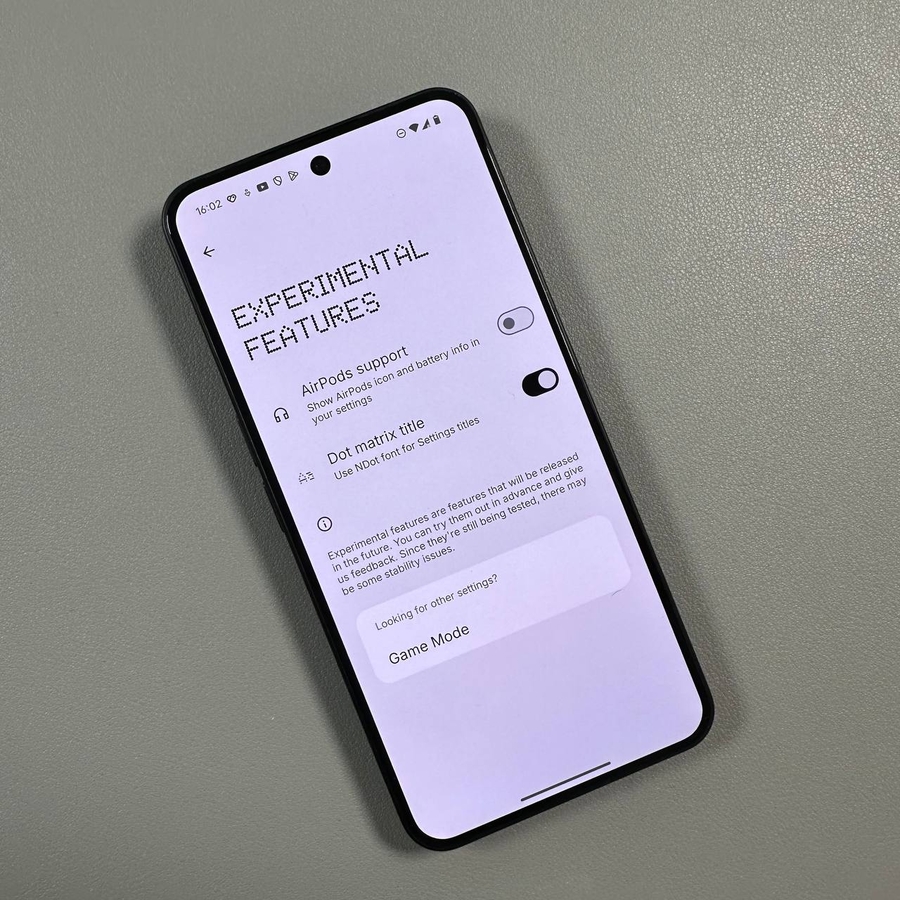
The Nothing Phone lineup is known for its unique, minimalist approach, and you can even customise (customize) small details, like the font used for the titles in your Settings menu! This simple tweak is hidden in an "Experimental Feature" section of the phone's operating system. If you're ready for a quick and easy change to refresh the look of your Nothing Phone, follow this guide.
Step 1: Open the Settings App
To begin, unlock your Nothing Phone and locate the main Settings app. You can usually find its iconic gear-shaped icon on your home screen or within the app drawer. Give it a tap to open your device's configuration menu.

Step 2: Navigate to Special Features
Once you're inside the main Settings menu, scroll down until you find the option labelled (labeled) Special features. This section is where Nothing houses unique or advanced customisation (customization) options. Tap on this option to proceed.

Step 3: Access the Experimental Features
Within the Special features screen, look for the Experimental features tab. This area contains new functions that Nothing is testing out, which can be easily turned on or off. Select this option to see the available experiments.

Step 4: Activate the Dot Matrix Title Font
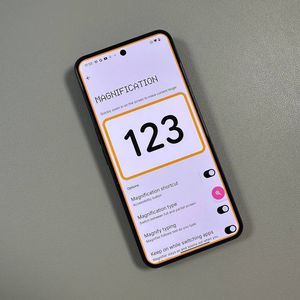
Now you should see a list of experimental options. Locate the feature called Dot Matrix or something similar to change the settings titles. To activate this new font, simply tap the toggle switch right next to its name. The change is instant, and you'll immediately see the new, pixelated font style applied to all the main settings titles.

That's all there is to it! You've successfully changed the style of the settings titles on your Nothing Phone. You can always return to this exact spot to toggle the feature off if you prefer the original font. Enjoy your newly customised (customized) device!