How to Hide or Show App Suggestions on Your Nothing Phone (3)
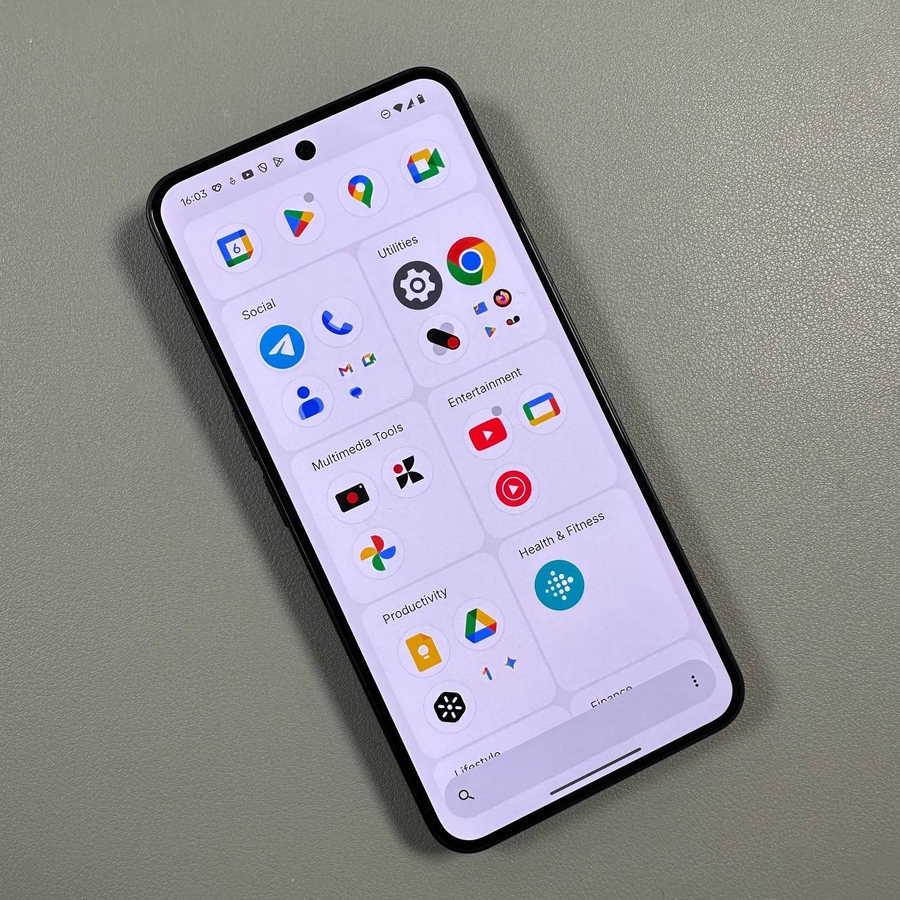
The Nothing Phone (3) is designed to give you a clean, focused experience, but sometimes the suggested apps row in your app drawer can feel a little cluttered. This quick and easy guide will walk you through how to enable or disable those app suggestions so you can keep your app list exactly the way you like it. No technical knowledge is required—let's dive in!
Step 1: Access the App Drawer
To begin, unlock your Nothing Phone (3) and swipe up from the bottom edge of the screen. This action will open the main app drawer, which is the complete list of all the applications installed on your device.

Step 2: Locate the Settings Menu
Once the app drawer is open, look for the small menu icon in the bottom right corner of your screen. This icon usually appears as three vertical dots. Tap on these three dots to bring up a small contextual menu with options for the app drawer settings.

Step 3: Toggle App Suggestions Off or On
In the menu that appears, you will see an option labelled "Show app suggestions." Next to this option is a toggle switch. Tap this switch to turn the feature on (showing suggestions) or off (hiding suggestions). If you disable this setting, the row of suggested apps will no longer appear at the top of your app drawer, giving you a cleaner look and feel. Your change takes effect instantly.

That's all there is to it! You have successfully customised your Nothing Phone (3) app drawer settings. Enjoy your streamlined experience!