How to Hide Photos and Videos on Nothing Phone (3)
In this guide, we will show you the process of hiding photos and videos on your Nothing Phone (3). This feature allows you to keep certain images or videos hidden from anyone handling your phone, ensuring your privacy is maintained. By following these steps, you will be able to securely hide your media using the gallery's built-in features.
Access Your Gallery
To begin the process of hiding photos or videos on your Nothing Phone (3), locate and open the Gallery app. You can find this app on your home screen or within the app drawer.

Select the Photos or Videos
Once inside the Gallery, navigate to the "Photos" section to view all your media files. Select an individual photo or video you wish to hide by simply tapping on it. If you prefer to hide multiple items at once, tap and hold any image until it becomes selectable, then select the additional images or videos you want to hide.

Hide the Selected Items
With your items selected, pay attention to the top-right corner of the screen where you will see a menu represented by three dots. Tap on this icon and from the dropdown, look for and select the "Hide" (hide) option. This action will move your chosen photos or videos to a secure hidden folder.


Accessing Hidden Photos and Videos
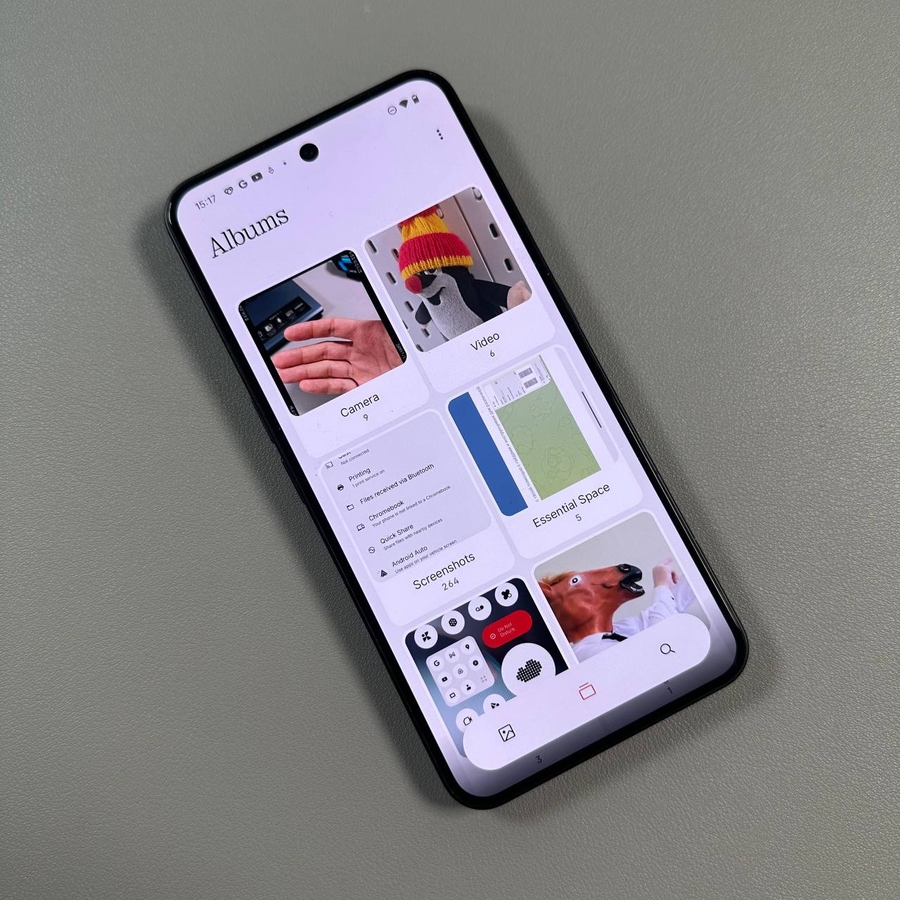
To view or manage your hidden photos and videos, you will need to switch to the "Albums" section of the Gallery. Here, scroll down until you find the "Hidden" (hidden) folder. Upon selecting this option, you will be prompted to verify your identity using either biometrics or your screen lock password. Once verified, you will gain access to all your secret photos and videos.