How to Enable or Disable Remote Lock on Your Nothing Phone (3)
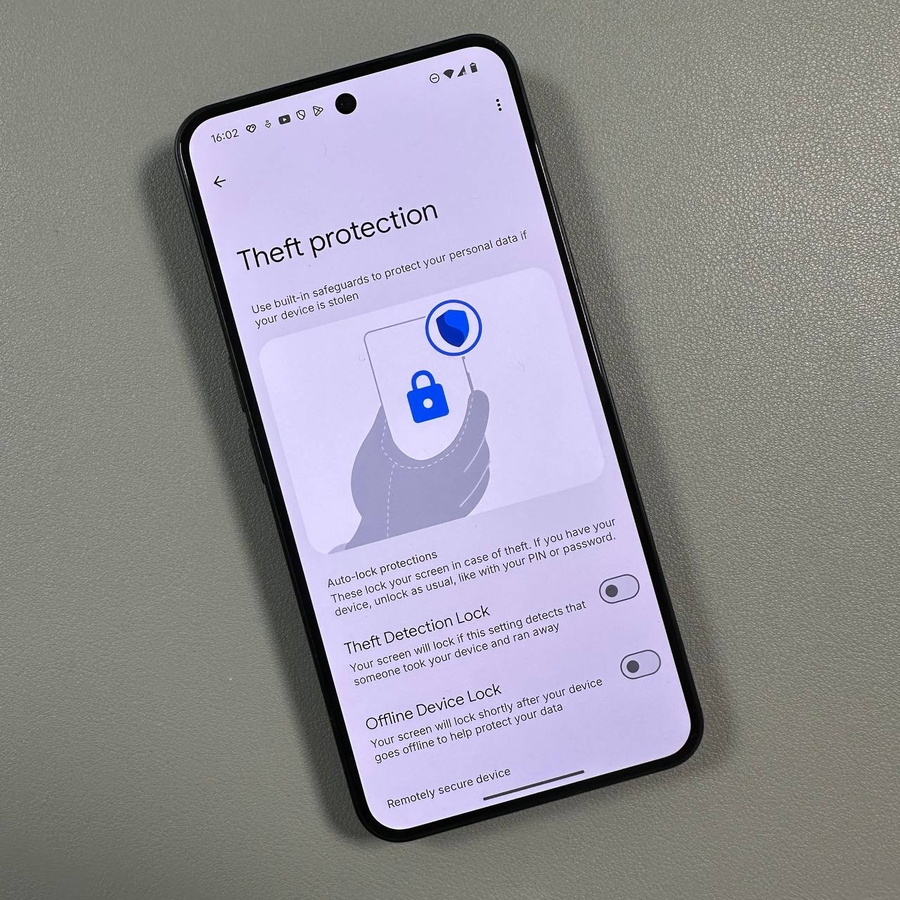
Hello there! Keeping your smartphone secure is more important than ever, and features like Remote Lock can be a lifesaver if your device ever falls into the wrong hands. This feature, part of the 'Self Protection' suite on your Nothing Phone (3), allows you to remotely lock your phone for maximum peace of mind. Follow this simple, step-by-step guide to learn how to easily enable or disable this critical security setting.
Step 1: Open Your Device Settings
To get started, unlock your Nothing Phone (3) and open the main Settings application. You can usually find its gear-shaped icon on your home screen or within the app drawer.

Step 2: Navigate to Security and Privacy
Once in the Settings menu, scroll down until you find the Security and privacy section. This is where all your device's protection features are housed. Tap on this option to proceed.

Step 3: Access the Device Unlock Menu
Inside the Security and privacy menu, you'll see several options. Look for the Device unlock setting and tap it. This area manages the different ways you can secure and access your phone.


Step 4: Locate Self Protection
From the Device unlock options, tap on Self Protection. This is the specialised menu containing advanced security measures, including the Remote Lock feature we need to adjust.

Step 5: Select Remote Lock
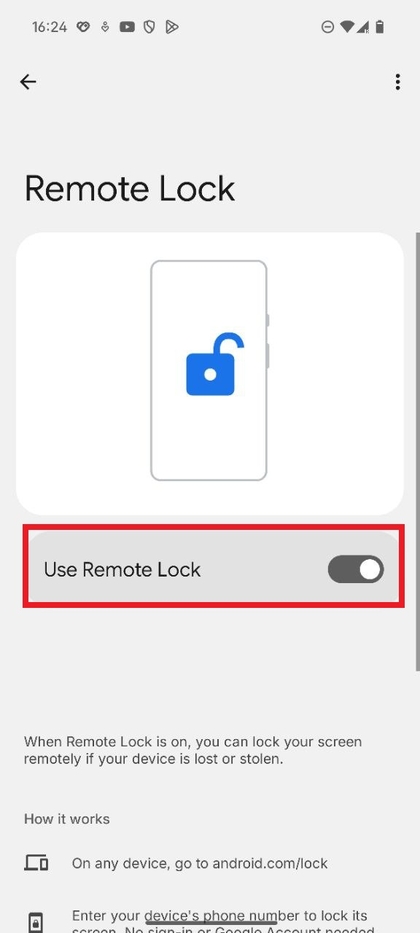
Within the Self Protection menu, tap on the Remote lock option. This will bring you to the final configuration screen for this feature.

Step 6: Toggle the Remote Lock Feature
You'll see a simple toggle switch next to Remote lock. Tap this switch once to activate the feature, or tap it again to deactivate it. If you are disabling the feature, the device will prompt you to verify your identity using your biometric data (like a fingerprint or face scan) or your security PIN/pattern on the screen. This is a crucial security step to prevent unauthorised changes. That's all there is to it! You've successfully managed the Remote Lock feature on your Nothing Phone (3).