How to Control the Glyph Interface Backlights on Your Nothing Phone (3)
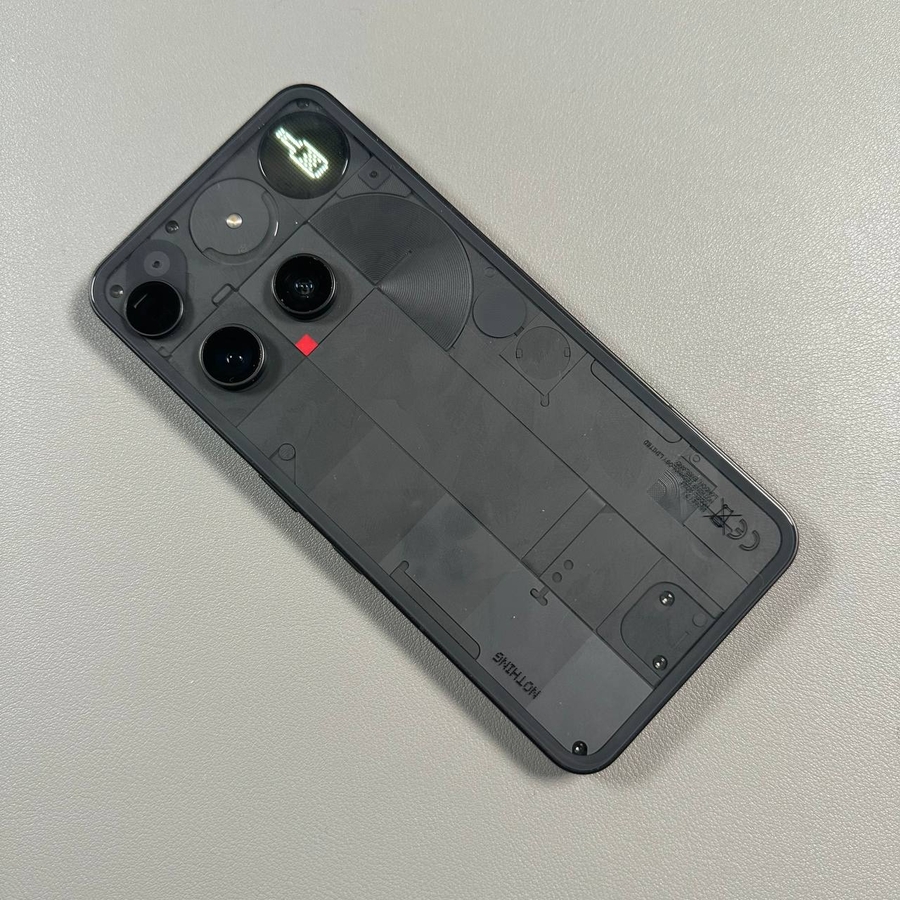
The Nothing Phone (3) features the unique Glyph Interface—a set of LED backlights on the rear of the device that acts as a visual notification system. This guide will walk you through how to quickly enable, disable, and fully customise these lights so you can get the most out of your phone's signature feature. We'll start by diving into the main settings menu.
Step 1: Locate the Settings and the Glyph Interface Menu
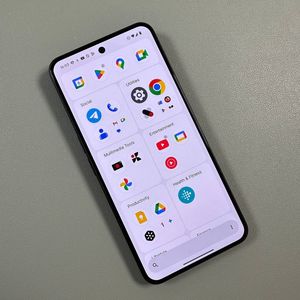
To get started, unlock your Nothing Phone (3) and open the main Settings app. You can usually find its gear-shaped icon on your home screen or within the app drawer. Once in the settings, look for and tap on the option labelled "Glyph Interface." This will take you to all the controls for the backlights.

Step 2: Enable or Disable the Main Glyph Interface
Inside the Glyph Interface menu, your first option is to turn the backlights on or off entirely. To enable or disable the main function of the Glyph Interface, simply tap the toggle switch located next to the "Glyph Interface" option. When the switch is on (usually indicated by a blue colour), your backlights are active and ready to notify you.

Step 3: Adjust the Brightness Level
The Nothing Phone (3) allows you to set the perfect brightness level for the backlights. If you find the Glyphs are too bright or too dim, use the provided slider control. Simply drag the slider left or right to set your desired brightness. Finding the right level can help conserve battery life while ensuring you don't miss any notifications.

Step 4: Activate the Flip to Glyph Feature
The Flip to Glyph feature is a handy way to silence your phone quickly. When active, flipping your Nothing Phone (3) face down on a flat surface will automatically silence your device, but the Glyph lights will still alert you to important calls or notifications. To activate this, simply tap the toggle switch next to "Flip to Glyph" in the menu.

Step 5: Review and Customise Additional Options
The Glyph settings offer a few other fun customisation options. These include toggles for showing the notification, sound, and volume indicators on the backlights. Take a moment to scroll through and enable or disable any of these additional features based on your preference. Once you've finished setting up, your personalised Glyph Interface is ready to go!