How to Use Magnification on Nothing Phone (3)
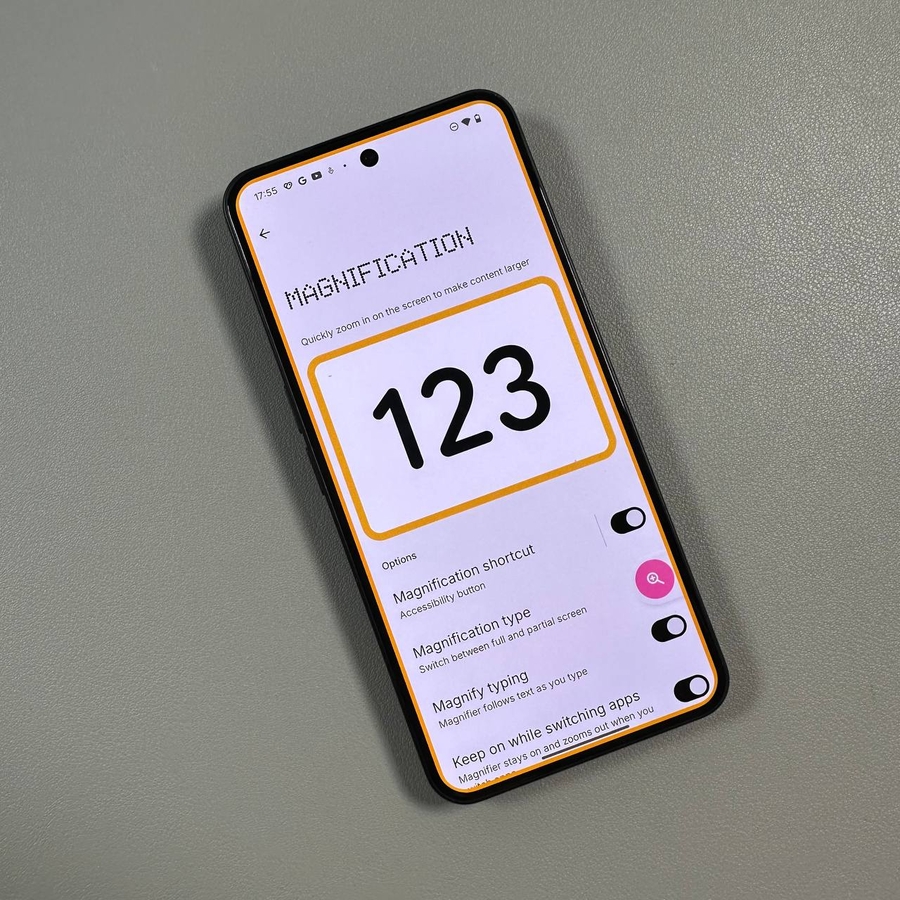
The magnification feature on the Nothing Phone (3) can assist users who need a closer look at items on their screen. This guide will walk you through enabling and using this helpful functionality to enhance your smartphone experience.
Step 1: Open Settings
To get started, unlock your Nothing Phone (3) and open the main Settings app. You can typically find its gear-shaped icon on your home screen or in the app drawer. Once opened, you will see various options such as Network, Bluetooth, Display, and more.

Step 2: Locate Accessibility Settings
Scroll down through the settings menu until you find "Accessibility." This section houses features aimed at improving the usability of your device. Tap on it to proceed to the accessibility options, which include options like Font size, Display size, and Magnification.

Step 3: Find and Enable Magnification
Within the Accessibility menu, look for the option labelled "Magnification." Once located, tap on it. You will see options to configure the magnification settings, such as toggling the magnification shortcuts. Enable the shortcut by toggling the switch, and when prompted, press "Got it" (got it) to confirm your choice.


Step 4: Customise the Magnification Button
If you wish, you can customise the magnification button settings. Doing so can ease the accessibility of the magnification mode. Options like adjusting gesture settings or altering the button's position on the screen might be available depending on your device's configuration.

Step 5: Use Magnification
With magnification enabled, activate it by tapping the magnification button. The screen will highlight in orange, signalling magnification is active. From here, touch the screen to zoom into a specific area and use two fingers to drag and navigate across the zoomed-in section.


Step 6: Adjust the Zoom Level
To adjust the zoom level, use the pinch gesture, which involves placing two fingers on the screen and moving them closer together or farther apart. This allows you to zoom in for more detail or zoom out to see more of the surrounding content.

Step 7: Deactivate Magnification
When you're finished using magnification, deactivate the feature by tapping the magnification button once again. This action returns your screen to its normal, non-zoomed state, ready for regular use.