How to Enable or Disable 5G on Your Nothing Phone (3)
- 1 Step 1: Open Your Device Settings
- 2 Step 2: Access Network and Internet Options
- 3 Step 3: Choose Your SIM Card
- 4 Step 4: Change the Preferred Network Type
- 5 Step 5: Toggle Between 5G and 4G
- 6 Optional Step: Use Smart 5G for Battery Savings
- 7 Important Note on Carrier Restrictions
- 8 In Other Languages
Welcome! This quick and easy guide will walk you through the process of managing your 5G connection on your Nothing Phone (3) smartphone. Whether you want to take advantage of super-fast 5G speeds or switch back to 4G to conserve battery life, we've got you covered with these simple steps.
Step 1: Open Your Device Settings
To get started, unlock your Nothing Phone (3) device and open the main Settings application. You can usually find its gear-shaped icon on your home screen, within the app drawer, or by swiping down from the top of the screen to access the quick settings panel.

Step 2: Access Network and Internet Options
Once you are in the Settings menu, look for and tap on the section labelled Network & internet. This is where you'll find all the configuration options related to your mobile connectivity, Wi-Fi, and SIM cards.

Step 3: Choose Your SIM Card
If you have a dual-SIM setup, you will need to select the specific SIM card that you wish to modify the network preferences for. Tap on the name of the SIM card you want to configure to proceed to its detailed options.

Step 4: Change the Preferred Network Type
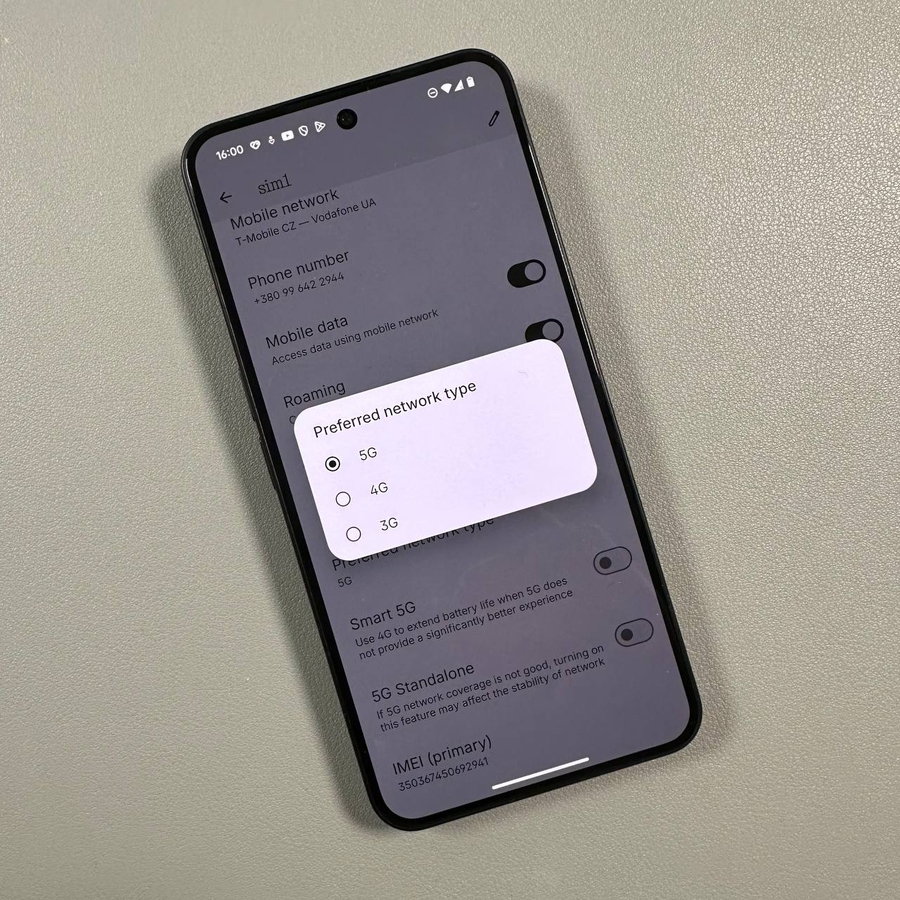
Scroll down a little within your SIM card settings until you see the option for Preferred network type and tap on it. This menu allows you to specify the highest generation of mobile network technology your phone should attempt to use.

Step 5: Toggle Between 5G and 4G
A list of network types will appear. To enable the fastest speeds available, simply choose the 5G (preferred) / 4G / 3G / 2G option from the list. If you are in an area with unstable 5G coverage or want to save battery, you can revert back to the reliable 4G (preferred) / 3G / 2G (LTE) option by tapping on it instead.

Optional Step: Use Smart 5G for Battery Savings
For a perfect balance of speed and endurance, look for the Smart 5G feature within the SIM card settings. By enabling this, your Nothing Phone (3) will automatically switch between 4G and 5G based on what you are doing and the signal quality. This intelligent switching helps to extend your battery life without requiring you to manually toggle the setting.

Important Note on Carrier Restrictions
In rare instances, some mobile carriers, particularly in certain regions, may prevent you from manually selecting the preferred network type. If you do not see the "Preferred network type" option, your carrier may be managing this setting automatically. In this scenario, you may need to contact your carrier's customer support for assistance.