How to Activate or Deactivate Video Calling on Your Nothing Phone (3)
The Nothing Phone (3) offers a convenient, built-in video calling feature that allows you to connect face-to-face with friends and family without needing a separate third-party app. Whether you want to turn it on to start making video calls or turn it off to save data, here is a friendly, step-by-step guide to help you manage this setting on your device.
Step 1: Open the Phone Application
To get started, unlock your Nothing Phone (3) and open the main Phone or Dialer application. This is the app you use to make regular voice calls, and you can usually find its icon on your home screen or in the app drawer.

Step 2: Access Settings
Once the Phone app is open, you need to find the settings menu. Look for an icon, typically three horizontal lines (a hamburger menu) or a gear-shaped icon, located at the top-left or top-right corner of the screen. Tap this icon, and then select the "Settings" (settings) option from the menu that appears.


Step 3: Navigate to Calling Accounts
In the Settings menu, you will see a variety of options. Scroll down the list until you find the "Calling accounts" entry. This section contains all the preferences related to call features on your Nothing Phone (3). Tap on this option to proceed.

Step 4: Select Your SIM Card
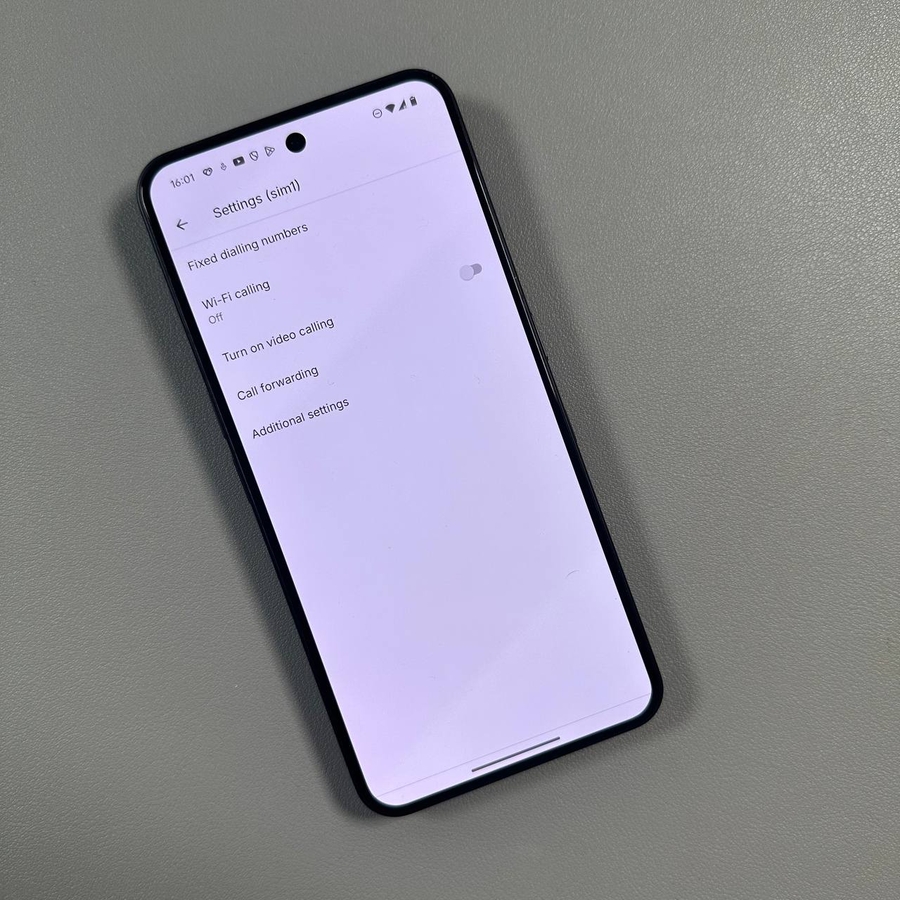
If you have a dual-SIM setup on your device, the system will prompt you to choose the specific SIM card for which you want to adjust the video calling feature. Tap the name of the SIM card (e.g., "SIM 1" or "AT&T") you wish to configure.

Step 5: Toggle the Video Calling Switch
Finally, you will see the option for "Video calling" (video calling). Next to this label is a simple toggle switch. To enable the feature and allow for native video calls, simply tap the switch to turn it on. If you wish to disable the feature, tap the switch again to turn it off. The change takes effect immediately!