Activate Comprehensive Theft Protection on Your Nothing Phone
- 1 Step 1: Open the Settings Application
- 2 Step 2: Navigate to Security and Privacy
- 3 Step 3: Access Find Device and Lock
- 4 Step 4: Select and Enter Theft Protection Settings
- 5 Step 5: Activate the Theft Detection Lock
- 6 Step 6: Configure the Offline Detection Lock
- 7 Step 7: Ensure Find My Device is Active
- 8 In Other Languages
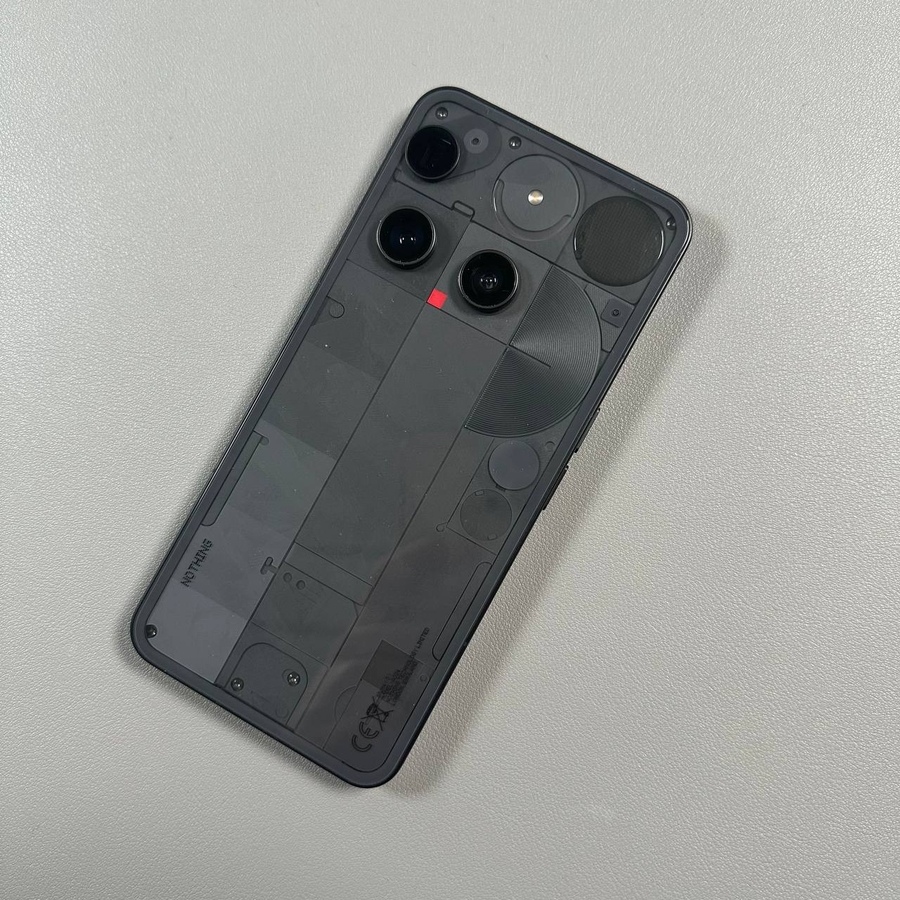
Welcome! Keeping your smartphone secure is essential, and the Nothing Phone 3 includes robust built-in features to protect your device and your data in case it's lost or stolen. This friendly guide will walk you through the simple, yet vital, steps to activate the complete Theft Protection suite and ensure you can always locate and secure your device. Let's get started on setting up this critical layer of security!
Step 1: Open the Settings Application
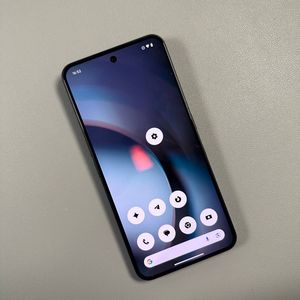
To begin, unlock your Nothing Phone 3 and find the main Settings app. You can usually recognise it by the gear-shaped icon. Tapping this icon will open up the main configuration menu for your device.

Step 2: Navigate to Security and Privacy
Once you are in the Settings menu, scroll down the list until you find the option labelled Security and privacy. Tap on this option to access all the device's security and data protection features.

Step 3: Access Find Device and Lock
Within the Security and privacy section, you will need to locate and tap on the Find device and lock setting. This is the central hub for features that help you locate and secure your Nothing Phone if it goes missing.

Step 4: Select and Enter Theft Protection Settings
Inside the Find device and lock menu, you will see the Theft protection option. Tap on it. Before you activate anything, the system may ask you to confirm your current screen lock (PIN, pattern, or fingerprint) to ensure only you can manage these critical settings.

Step 5: Activate the Theft Detection Lock
To enable the Theft Detection Lock, simply tap the corresponding toggle switch to turn it on. This intelligent feature uses motion and location data to recognise unusual activity, such as your phone being snatched whilst unlocked. If suspicious movement is detected, the device will immediately lock itself, preventing unauthorised access to your apps and data.

Step 6: Configure the Offline Detection Lock
Next, find the Offline Detection Lock and ensure it is enabled. This is a crucial safety measure that automatically initiates a device lock if the phone is powered off or goes offline (loses network connection) without the correct authentication. This makes it much harder for thieves to simply turn off the phone and disappear.

Step 7: Ensure Find My Device is Active
As a final and crucial step, return to the main security menu (or check within the 'Find device and lock' section) to ensure the standard Find my device feature is turned on. This is what allows you to always be able to locate your Nothing Phone 3 on a map, giving you the best chance of recovery. It is also the tool you will use to remotely initiate a lock or factory reset if needed.


That's all there is to it! Your Nothing Phone 3 is now protected by a powerful set of layered security features. By activating these settings, you have significantly reduced the risk of unauthorised access if your device is ever misplaced or stolen. We hope this comprehensive guide has been helpful in securing your device.