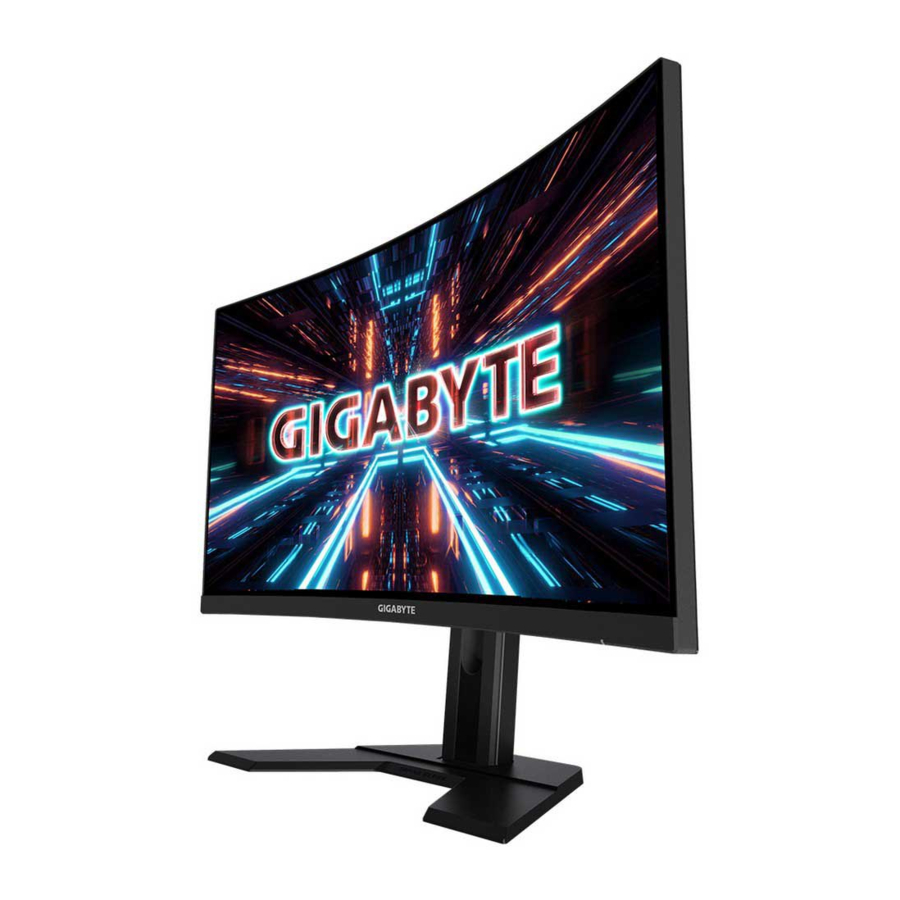
GIGABYTE G27QC A - Gaming Monitor Manual
INTRODUCTION
Unpacking
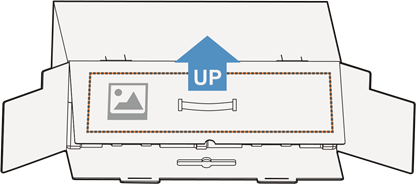
- Open the upper cover of the packaging box. Then observe the unpacking instruction attached on the inner cover. Making sure the box is in the correct orientation, carefully lay the box on the stable surfacepen.

- Open the inner cover. Grab the EPS foam assembly (through the openings) to pull it out of the box.

- Remove the items from the upper EPS foam.

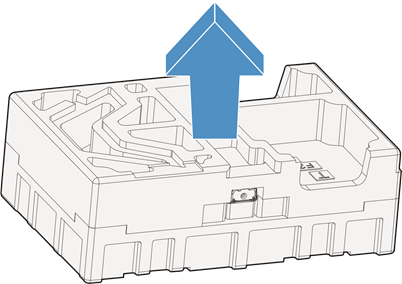
- Remove the upper EPS foam. Then you can remove the stand from the lower EPS foam.
![]()

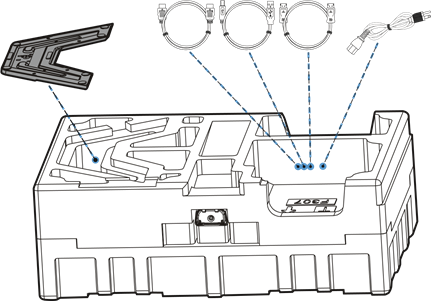
Package Contents
The following items come with your packaging box. If any of them is missing, please contact your local dealer.
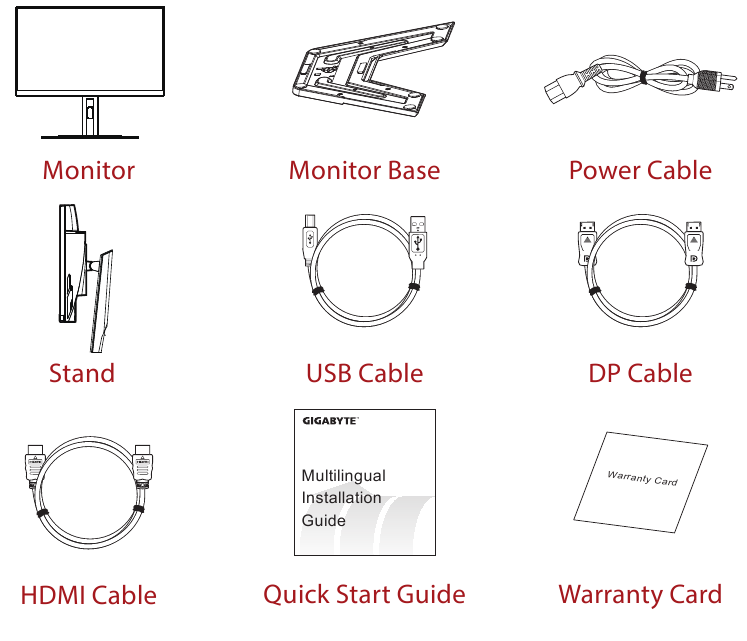
Note: Please keep the packaging box and packing materials for future transportation of the monitor.
Product Overview
Front View
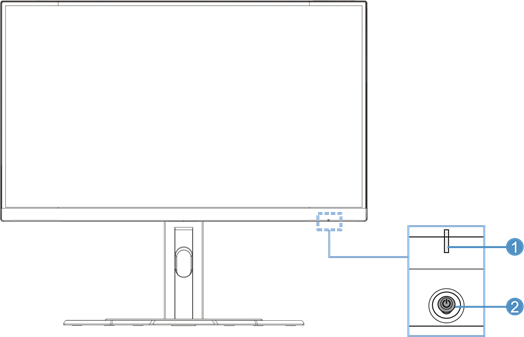
- Power LED
- Control button
Rear View
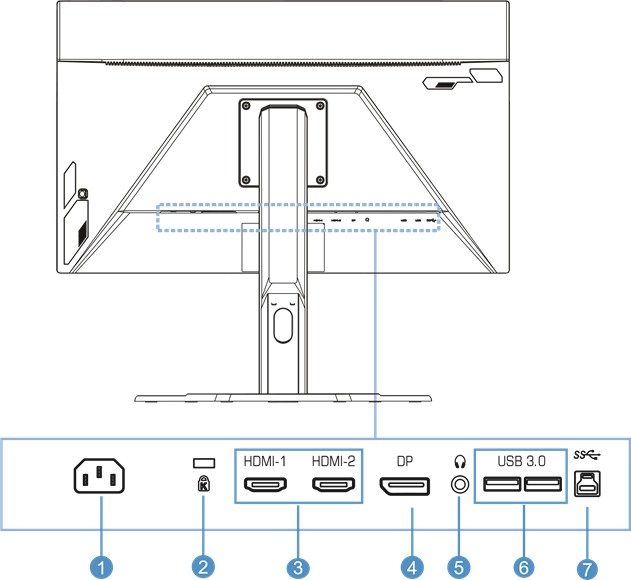
- AC IN jack
- Kensington lock
- HDMI ports (x2)
- DisplayPort
- Headphone jack
- USB 3.0 ports (x2)
- USB upstream port
GETTING STARTED
Installing the Stand Base
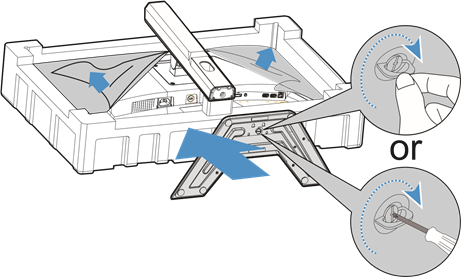
- Align the Stand base with the stand off underneath the stand. Then attach the base onto the stand. Tighten the screw to secure the monitor base in place.
Note: You can either use a coin or a small flathead screwdriver to tighten the screw.

- Lift the assembled Stand & Base to an upright position and place it on a table. Then lower the stand plate to allow the safety plate to automatically release from its slot.

- Place the monitor on the package cushion or a flat surface, with screen facing down. Tear apart the EPE bag, install the stand on the rear side of the monitor. Then you can take the monitor from the lower EPS foam by holding the stand arm. Carefully lift the monitor. Place it upright on a table.

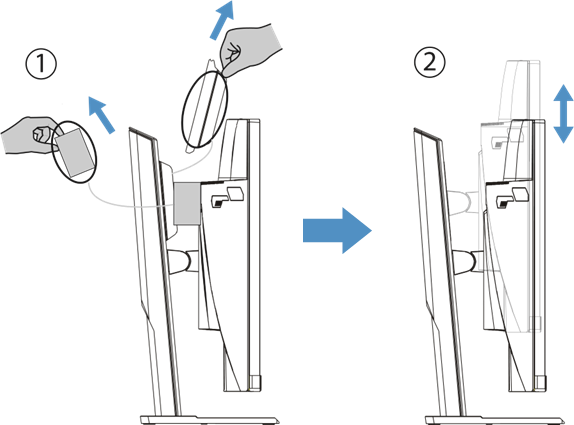
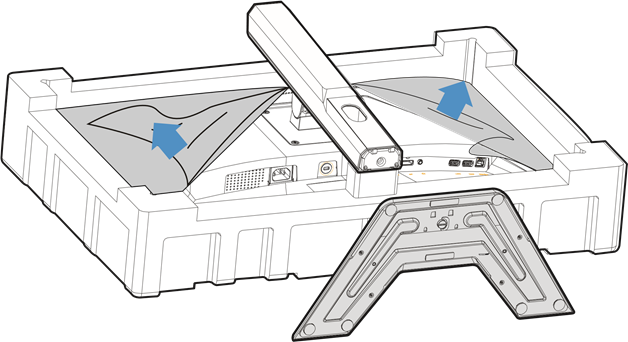
Lift the monitor
Take the monitor out of the box by holding the stand arm. Carefully lift the monitor, turn it over and place it upright on its stand on a flat even surface. Remove the foam wrap from the monitor.
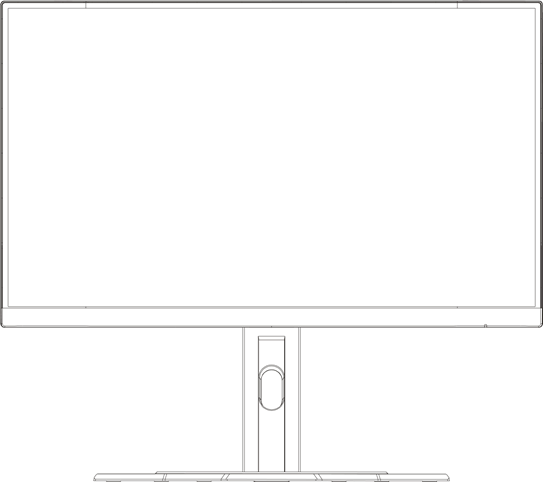
Note: Consider keeping the box and packaging in storage for use in the future when you may need to transport the monitor. The fitted foam packing is ideal for protecting the monitor during transport.
Adjusting the Viewing Angle
Note: Hold the monitor base so that the screen does not topple when you make the adjustment.
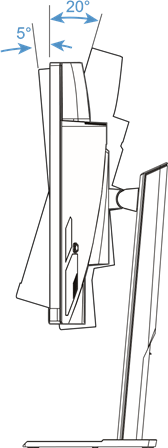
Adjusting the Tilt Angle
Tilt the screen forward or backward to the desired viewing angle (-5˚ to 20˚).
Changing the Screen Orientation
Raise the screen to the highest position (130mm).
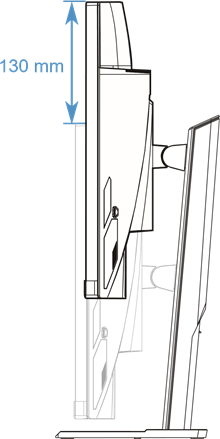
Note: Before making the height adjustment, make sure you have removed the safety plate from the stand.
Installing a Wall-Mount Bracket (Optional)
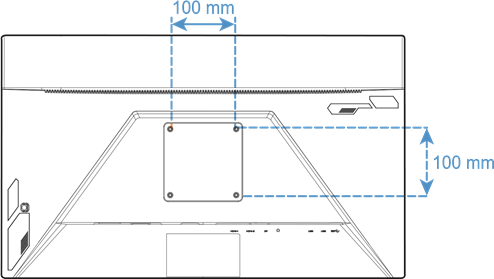
Use only the 100 x 100 mm wall mount kit recommended by the manufacturer.
- Place the monitor on a flat surface, with the screen facing down.
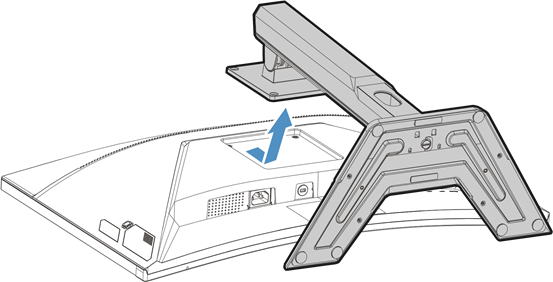
Note: We recommend that you cover the table surface with soft cloth to prevent damage to the monitor. - Push the locking clips inward to detach the stand from the monitor.
 - Step 1")
- Pull down the stand slightly to disengage the hooks. Then remove the stand.
 - Step 2")
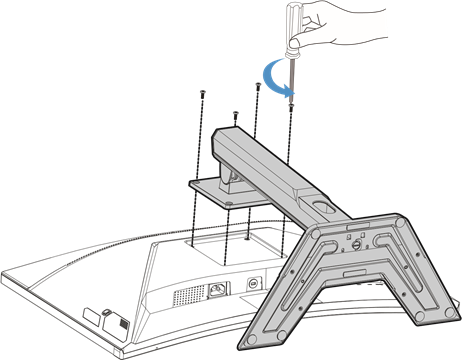
- Attach the mounting bracket to the mounting holes at the rear of the monitor. Then use the screws to secure the bracket in place.
Note: To mount the monitor on the wall, refer to the installation guide that is included in the wall-mount bracket kit.
 - Step 3")
Making Connections
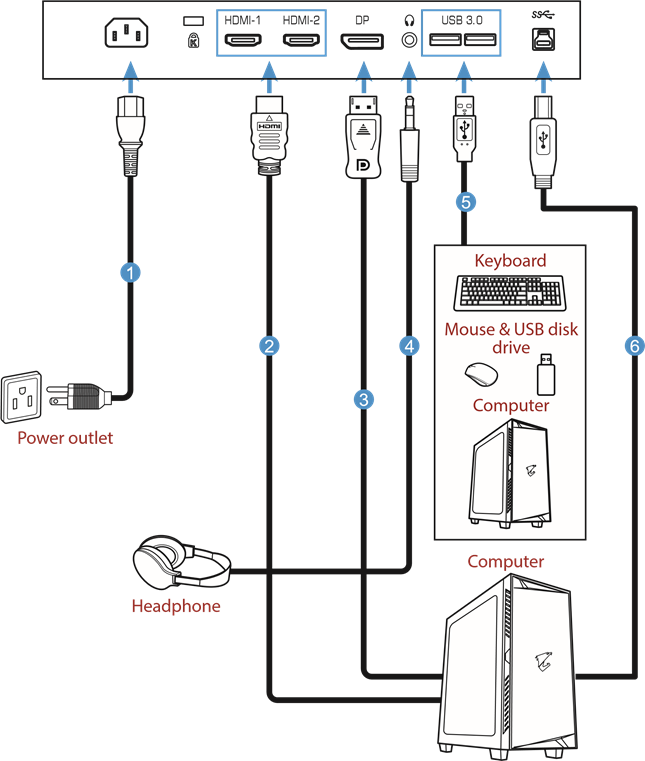
- Power cable
- HDMI cable
- DisplayPort cable
- Headphone cable
- USB cable
- USB (A-Male to B-Male) cable
USING THE DEVICE
Turning the Power On/Off
Make sure the power switch next to the AC power input jack is switched to ON.
Power On
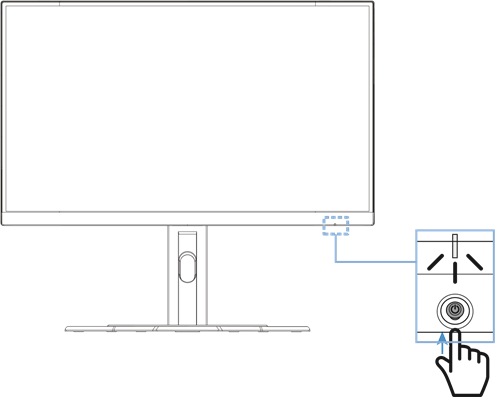
- Connect one end of the power cable to the AC IN jack at the rear of the monitor.
- Connect other end of the the power cable to a power outlet.
- Press the Control button to turn on the monitor. The Power LED will light in white, indicating the monitor is ready to use.
Power Off
Press the Control button for 2 seconds to turn off the monitor.
Note: When the Main menu appears on the screen, you can also turn off the monitor by moving the Control button down  .
.
User Comfort Recommendations
The following are some tips for comfortable viewing of your monitor:
- Optimal viewing distances for monitors range from approximately 510 mm to 760 mm (20" to 30").
- A general guideline is to position the monitor such that the top of the screen is at or slightly below your eye-height when you are comfortably seated.
- Use adequate lighting for the type of work you are performing.
- Take regular and frequent breaks (at least for 10 minutes) every half- hour.
- Be sure to periodically look away from your monitor screen and focus on a far object for at least 20 seconds during the breaks.
- Eye exercise can help reduce eye strain. Repeat these exercises frequently:
- look up and down
- slowly roll your eye
- move your eyes diagonally.
Selecting the Input Source
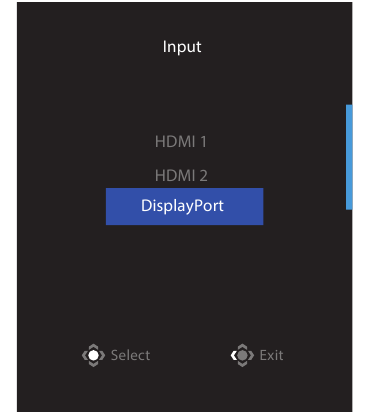
- Move the Control button right (
![]() ) to enter the Input menu.
) to enter the Input menu. - Move the Control button center (
![]() ) to select the desired input source. Then press the Control button to confirm.
) to select the desired input source. Then press the Control button to confirm.
 ) to select the desired input source. Then press the Control button to confirm.
OPERATIONS
Quick Menu
Hot Key
By default, the Control button has been assigned with the specific function.
Note: To change the preset hot key function, refer to the "Quick Switch" section.
To access the hot key function, do the following:
- Move the Control button up
![]() to enter the Black Equalizer menu. Move the Control button up/down (
to enter the Black Equalizer menu. Move the Control button up/down (![]() ) to adjust the setting and press the Control button to confirm.
) to adjust the setting and press the Control button to confirm.

 ) to adjust the setting and press the Control button to confirm.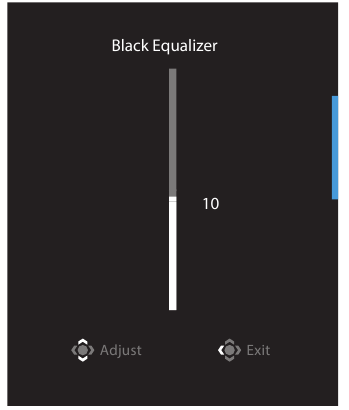
- Move the Control button down
![]() to enter the Picture Mode menu. Move the Control button center (
to enter the Picture Mode menu. Move the Control button center ( ![]() ) to select the desired option and press the Control button to confirm.
) to select the desired option and press the Control button to confirm.

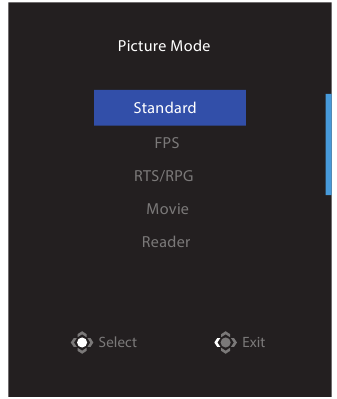
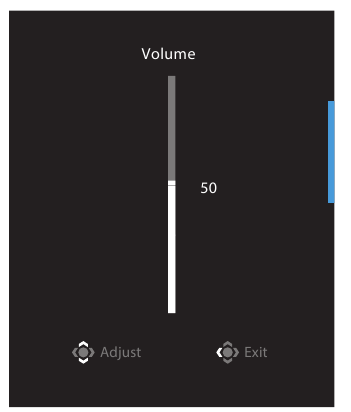
- Move the Control button left (
![]() ) to enter the Volume menu. Move the Control button up/down (
) to enter the Volume menu. Move the Control button up/down (![]() ) to adjust the headphone volume level and press the Control button to confirm.
) to adjust the headphone volume level and press the Control button to confirm.

- Move the Control button right (
![]() ) to enter the the Input menu. Refer to the "Selecting the Input Source" section.
) to enter the the Input menu. Refer to the "Selecting the Input Source" section.
Note: To close the menu, move the Control button left (![]() ).
).
Function Key Guide
- Press the Control button to display the Main menu.

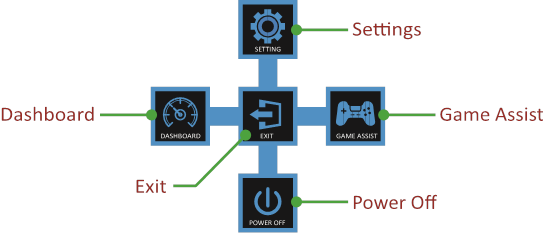
Then use the Control button to select the desired function and configure the related settings.
Dashboard
When the Main menu appears on the screen, move the Control button left (  ) to enter the Dashboard menu.
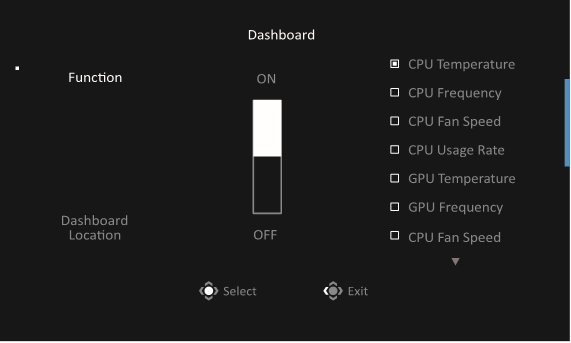
- Function: Enable/Disable the function. When enabled, you can select the desired option(s) to be shown on the screen.
- Dashboard Location: Specify the location of the Dashboard information to be shown on the screen.
Once the Dashboard configuration is complete, it will transfer the system data to the SOC through the USB port and display the value of the selected function(s) on the screen.
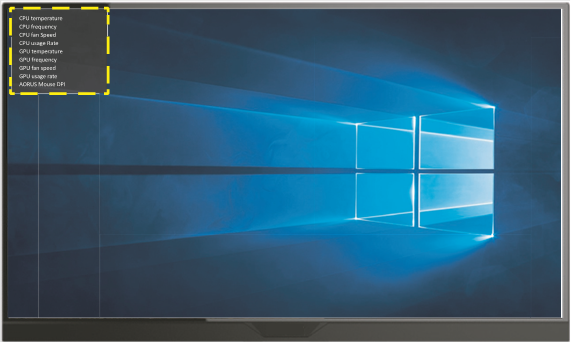
Note: Make sure the USB cable is properly connected to the USB upstream port of the monitor and the USB port of your computer.
Note: "OSD Sidekick" software installation and execution required.
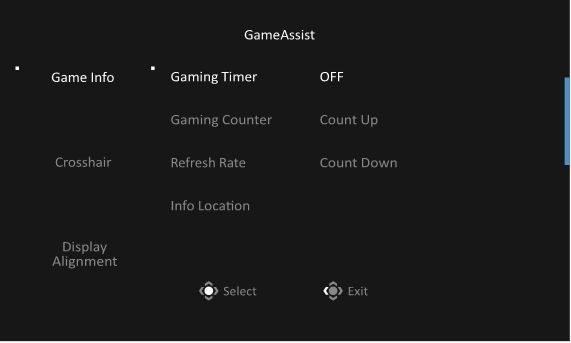
Game Assist
- When the Main menu appears on the screen, move the Control button right (
![]() ) to enter the Game Assist menu.
) to enter the Game Assist menu.

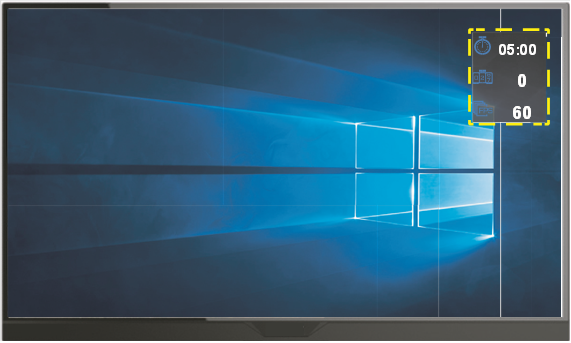
- Game INFO: Configure the FPS (First Person Shooting) game related settings.
√ Select Gaming Timer to select countdown timer mode. To disable this function, set the setting to OFF.
√ Select Gaming Counter or Refresh Rate to enable/disable the gaming counter or real-time refresh rate setting.
√ Select Info Location to specify the location of the information to be shown on the screen.

- Crosshair: Select the desired crosshair type to suit your gaming environment. It makes aiming much easier.
- Display Alignment: When the function is enabled, it displays the alignment lines on the four sides of the screen, providing handy tool for you to line up multiple monitors perfectly.
Configure the Device Settings
When the Main menu appears on the screen, move the Control button up ( ) to enter the Settings menu.
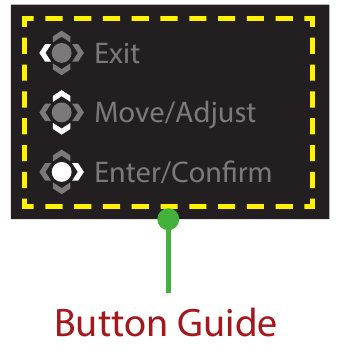
Note: Use the Control button to navigate through the menu and make adjustments.
Gaming
Configure the game related settings.
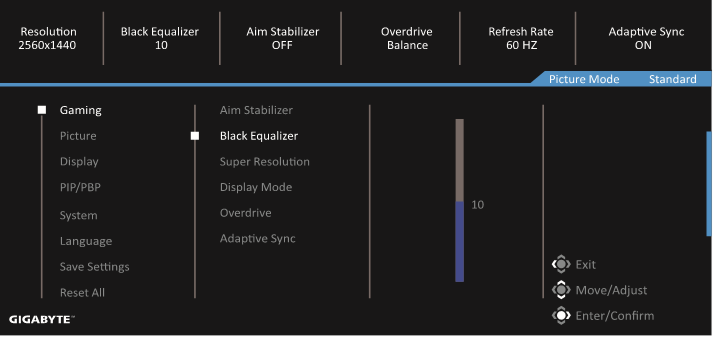
| Item | Description |
| Aim Stabilizer | When this function is enabled, it reduces the motion blur in a fast moving games. Note: This function is not available under the following conditions:
|
| Black Equalizer | Adjust the brightness of the black areas. |
| Super Resolution | Sharpen the low resolution images. |
| Display Mode | Select the aspect ratio of the screen.
Note: This option is not compatible with Adaptive Sync and PIP/ PBP functions. |
| Overdrive | Improve the response time of the LCD monitor. |
| Adaptive Sync | When this function is enabled, it eliminates the screen lag and tearing while playing games. |
Picture
Configure the image related settings.
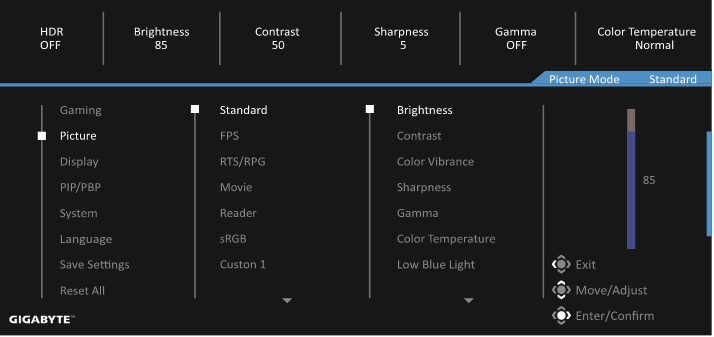
| Item | Description |
| Standard | For editing documents or browsing websites. |
| FPS | For playing FPS (First Person Shooting) games. |
| RTS/RPG | For playing RTS (Real-Time Strategy) or RPG (Role-Playing Game) games. |
| Movie | For watching movies. |
| Reader | For viewing documents. |
| sRGB | For viewing photos and graphics on the computer. |
| Custom 1 | Customized picture mode settings. |
| Custom 2 | Customized picture mode settings. |
| Custom 3 | Customized picture mode settings. |
Note: Picture mode "Standard", Low blue light "Level 10" is the optimized setting in compliance with TUV Low Blue Light Certification".
Display
Configure the display screen related settings.
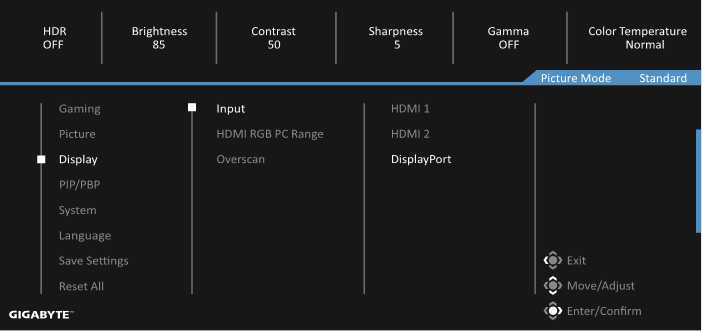
| Item | Description |
| Input | Select the input source. |
| HDMI RGB PC Range | Select an appropriate RGB range setting or let the monitor to detect it automatically. Note: This option is only available for HDMI input. |
| Overscan | When this function is enabled, it slightly enlarges the input image to hide the outermost edges of the image. |
PIP/PBP
Configure the multi-picture related settings.
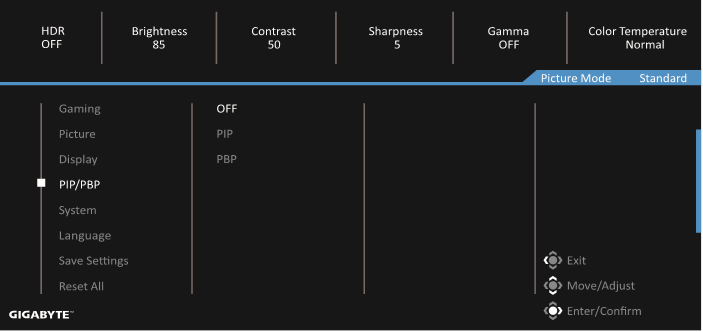
| Item | Description |
| OFF | Disable the PIP/PBP function. |
| PIP | Split the screen into 2 parts (main window and inset window).
|
| PBP | Display 1x1 split screen (left and right windows).
|
System
Configure the system related settings.
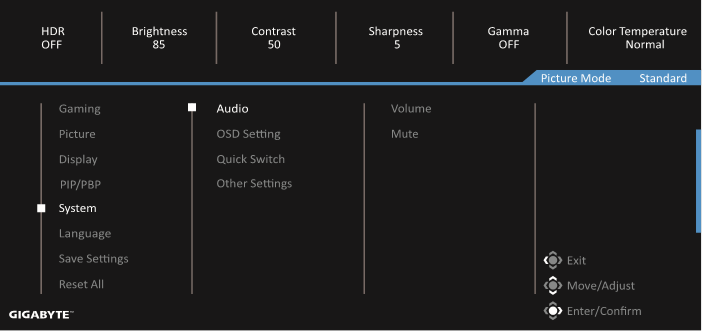
| Item | Description |
| Audio | Configure the headphone settings.
|
| OSD Settings | Configure the on-screen display (OSD) menu related settings.
|
| Quick Switch | Assign the function of the hot keys. Available options: Aim Stabilizer, Black Equalizer, Low Blue Light, Volume, Input, Contrast, Brightness, and Picture Mode. The default setting of the hot keys as below:  Up (): Black EqualizerDown : Picture ModeRight (): InputLeft ( Up (): Black EqualizerDown : Picture ModeRight (): InputLeft ( ): Volume ): Volume |
| Other Settings |
|

Language
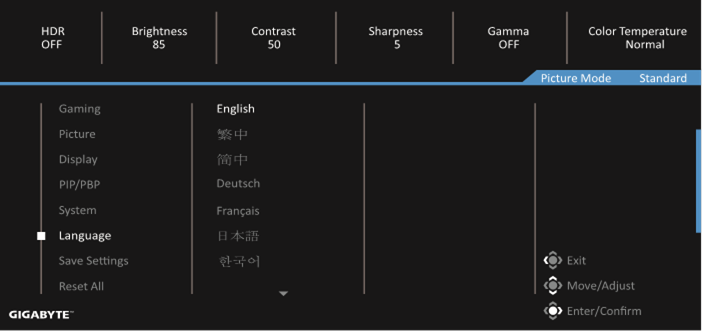
| Item | Description |
| Language | Select an available language for the OSD menu. |
Save Settings
Save all data.
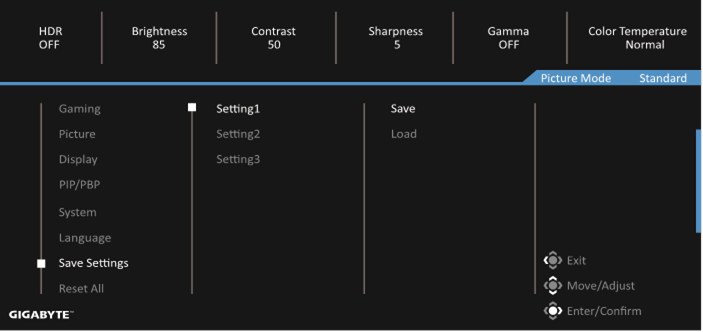
| Item | Description |
| Setting1 | After selecting, the Save and Load menu will appear for the player to choose. |
| Setting2 | After selecting, the Save and Load menu will appear for the player to choose. |
| Setting3 | After selecting, the Save and Load menu will appear for the player to choose. |
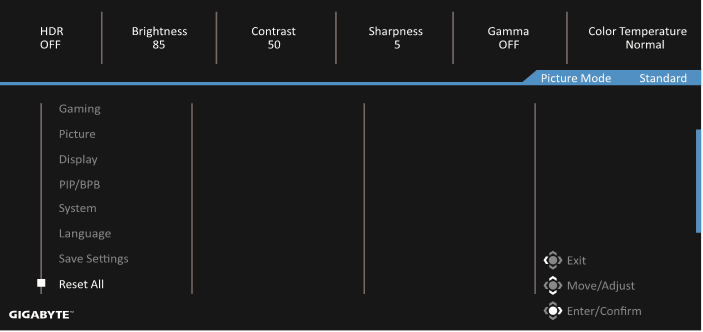
Reset All
Restore the monitor to its factory default settings.
Specifications
| Item | Specifications |
| Panel Size | 27-inch |
| Aspect Ratio | 16:9 |
| Resolution | 2560 x 1440 |
| Refresh Rate | 165Hz |
| LED Life | 30000 hours (min.) |
| Pixel Pitch | 0.2331(H) x 0.2331(V) |
| Response Time | 1ms MPRT |
| Brightness | 250 nits (typ.) / 200 nits (min.) |
| Contrast Ratio | 4000:1 (typ.) |
| Color Depth | 16.7M ( 8Bit) |
| Active Display area | 596.736(H) x 335.664(V) |
| Viewing Angle | 178°(H)/178°(V) |
| Frequency | 48~165Hz |
| Input/Output Terminals |
|
| Power Supply | AC 100 ~ 240V at 50/60Hz |
| Power Consumptions |
|
| Dimensions (W x H x D) | 700 X 481 X 248 mm (with Stand) |
| Weight | 6.33 kg (Net) |
| Temperature Range (operation) | 0°C to 40°C |
Note: Specifications subject to change without notice.
Supported Timing List
| Port | QHD | Port | QHD |
| HDMI | 640x480@60Hz | DP | 640x480@60Hz |
| 640x480@75Hz | 640x480@75Hz | ||
| 720x480@60Hz | 720x480@60Hz | ||
| 800x600@60Hz | 800x600@60Hz | ||
| 800x600@75Hz | 800x600@75Hz | ||
| 1024x768@60Hz | 1024x768@60Hz | ||
| 1024x768@75Hz | 1024x768@75Hz | ||
| 1280x720@60Hz | 1280x720@60Hz | ||
| 1280x720@120Hz | 1280x720@120Hz | ||
| 1280x720@144Hz | 1280x720@144Hz | ||
| 1920x1080@60Hz | 1920x1080@60Hz | ||
| 1920x1080@120Hz | 1920x1080@120Hz | ||
| 1920x1080@144Hz | 1920x1080@165Hz | ||
| 2560x1440@60Hz | 2560x1440@60Hz | ||
| 2560x1440@120Hz | 2560x1440@120Hz | ||
| 2560x1440@144Hz | 2560x1440@165Hz |
Troubleshooting
| Problem | Possible Solution(s) |
No power |
|
No image appears on the screen |
|
The image does not fill the entire screen |
|
The colors are distorted |
|
No sound or volume is low |
|
Note: If the problem persists, please contact our customer service for further assistance.
Basic Care
When the screen becomes dirty, do the following to clean the screen:
- Wipe the screen with your soft, lint-free cloth to remove any residual dust.
- Spray or apply the cleaning fluid onto a soft cloth. Then wipe the screen gently with the damp cloth.
Note:
- Make sure that the cloth is damp, but not wet.
- When wiping, avoid applying excessive pressure on the screen.
- Acidic or abrasive cleaners can damage the screen.
Notes on USB Charging
The following devices are not compatible with BC 1.2 of CDP mode. When the Hub is connected to a PC, these devices cannot be charged using the USB cable.
| Vendor | Device | PID/VID |
| Apple | IPad | PID_129A/VID_05AC |
| Samsung | Galaxy Tab2 10.1 | PID_6860/VID_04E8 |
| Samsung | GALAXY TabPro | PID_6860/VID_04E8 |
GIGABYTE Service Information
More service information, please visit GIGABYTE official website:
SAFETY INFORMATION
Safety Precautions
Read through the following Safety Precautions before using the monitor.
- Only use the accessories that are provided with the monitor or that which are recommended by the manufacturer.
- Keep the plastic packaging bag for the product in a place that cannot be reached by children.
- Before connecting the monitor to the power outlet, make sure that the voltage rating of the power cable is compatible with the power specification in the country where you are located.
- The power cord plug must be connected to a properly wired and grounded power outlet.
- Do not touch the plug with wet hands, otherwise easily cause electric shock.
- Place the monitor in a stable and well-ventilated place.
- Do not place the monitor near any heat sources such as electric radiators or direct sunlight.
- The holes or openings on the monitor are for ventilation. Do not cover or block the ventilation holes with any objects.
- Do not use the monitor near water, drinks, or all types of liquids. Failure to do so may result in electric shock or damage to the monitor.
- Make sure to unplug the monitor from the power outlet before cleaning.
- As the screen surface is easy to be scratched, avoid touching the surface with any hard or sharp object.
- Use a soft lint-free cloth instead of a tissue to wipe the screen. You may use a glass cleaner to clean the monitor if required. However, never spray the cleaner directly onto the screen.
- Disconnect the power cable if the monitor is not being used for a long period of time.
- Do not attempt to disassemble or repair the monitor yourself.
Copyright
© 2020 GIGA-BYTE TECHNOLOGY CO., LTD. All rights reserved.
The trademarks mentioned in this manual are legally registered to their respective owners.

References

Download manual
Here you can download full pdf version of manual, it may contain additional safety instructions, warranty information, FCC rules, etc.
Download GIGABYTE G27QC A - Gaming Monitor Manual


