Cisco 1000 Series Manual
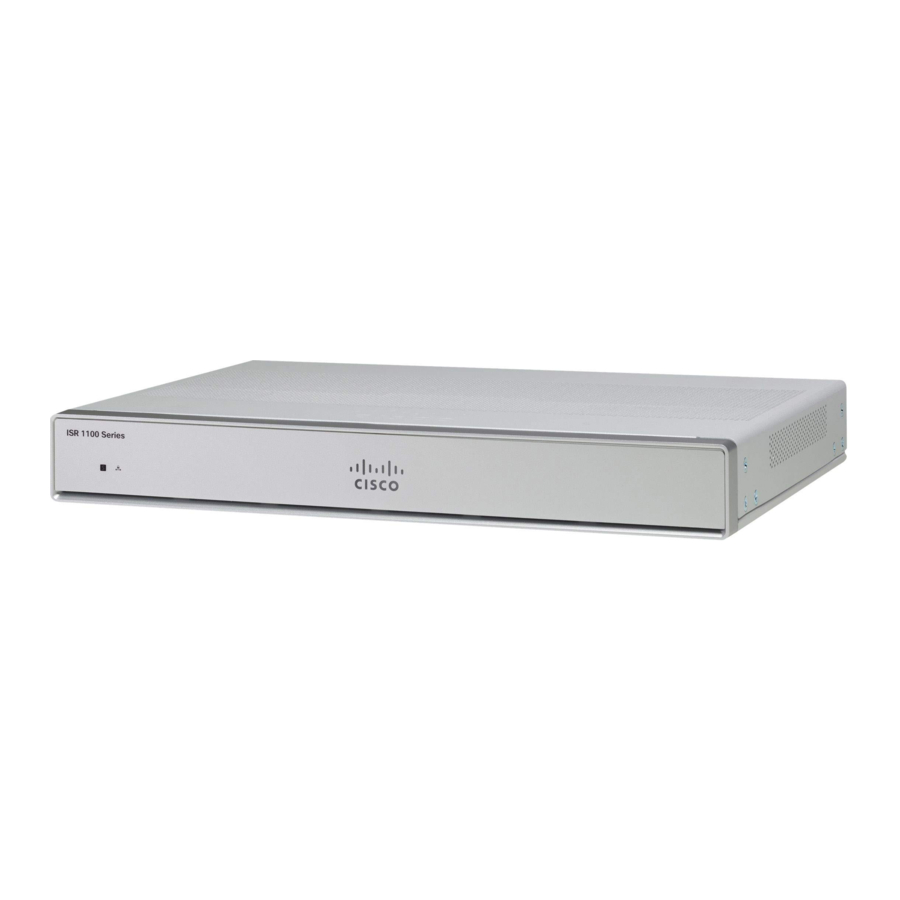
Replace the Chassis Covers for C111X and C1111x
The Cisco 1100 Series Integrated Services Routers have internal modules and field-replaceable units (FRUs) that can be quickly and easily removed and replaced without having to send the entire router for repair.
To access the internal modules on the router, you must first remove the chassis cover. See the instructions below on how to remove and later replace the chassis cover on the routers.

Only trained and qualified personnel should be allowed to install, replace or service this equipment. Statement 1030
Cisco 1100 Series ISRs have removable covers. Do not run the routers with the cover off. Doing so can cause the router to overheat very quickly.
Use a number-2 Phillips screwdriver to perform the following tasks.
Remove the Cover

steps 1 and 2:
Remove the 14 screws from either side of the cover.

Step 1: Read the Safety Warnings and disconnect the power supply before you perform any module replacement.
Step 2: Confirm the router is turned off and disconnected from the power supply.
Step 3: Disconnect all port cables connected to the router. Ensure that you do not work on the router with cables still attached to the router in the event of lightning or surges.
Step 4: Installer to disconnect all cables connected to the system.
Step 5: Place the chassis on a flat surface.
Step 6: Remove the 14x cover screws on the two sides of the router cover. See figure.
Step 7: Slide the cover from bezel side to I/O side until it stops.
Step 8: Pull the cover vertically to disengage from the chassis.
Replace the Cover
To replace the cover, do these steps:
The covers are an integral part of the safety design of the product. Do not operate the unit without the covers installed. Statement 1077.

1 and 2: Replace the 14 screws on either side of the cover.

Step 1: Read the Safety Warnings and disconnect the power supply before you perform any module replacement.
Step 2: Confirm the router is turned off and disconnected from the power supply.
Step 3: Disconnect all port cables connected to the router. Ensure that you do not work on the router with cables still attached to the router in the event of lightning or surges.
Step 4: Place the chassis on a flat surface.
Step 5: Align hooks on the cover to slots on the chassis base and lower the cover onto chassis base.
Step 6: Slide the cover from the I/O side to the bezel side
Step 7: Install the fourteen screws on both sides of the chassis. Torque to 6-8 in-lbs.
External Modules
The Cisco 1100 Series Integrated Services Routers have external modules and field-replaceable units (FRUs) that can be quickly and easily removed and replaced without having to send the entire router for repair.
This section describes how to install external modules and FRUs in the Cisco 1100 Series ISRs. The information is contained in the following sections:
Only trained and qualified personnel should be allowed to install, replace or service this equipment. Statement 1030.
Locate External Slots for Modules
This section describes the locations of external modules on the router motherboard.
Install and Remove Small Form Pluggable Modules
This section describes how to install and remove Small Form Pluggable (SFP) modules in the Cisco 1100 Series ISRs. The information is contained in the following sections:
Pluggable optical modules comply with IEC 60825-1 Ed. 3 and 21 CFR 1040.10 and 1040.11 with or without exception for conformance with IEC 60825-1 Ed. 3 as described in Laser Notice No. 56, dated May 8, 2019.
Install Small Form Pluggable Module
This section describes how to install optional small-form-factor pluggable (SFP) modules in the Cisco ISR1000 series Integrated Services routers to provide optical Gigabit Ethernet connectivity.
Only SFP modules certified by Cisco and complies with IEC 60825-1:2014 are supported on these routers. For more information, refer to SFPs Supported on Cisco 1100 ISRs.
 Note
Note
The SFP module-GLC-GE-100FX V01 is not supported on the Cisco111x Series.
Class 1 laser product. Statement 1008.
Pluggable optical modules comply with IEC 60825-1 Ed. 3 and 21 CFR 1040.10 and 1040.11 with or without exception for conformance with IEC 60825-1 Ed. 3 as described in Laser Notice No. 56, dated May 8, 2019.
Remove Small Factor Pluggable Module
To remove a small factor pluggable (SFP) module from the chassis:
Step 1: Disconnect all cables from the SFP.
Step 2: Disconnect the SFP latch.
Note: SFP modules use various latch designs to secure the module in the SFP port. For information on the SFP technology type and model, see the label on the side of the SFP module.
 Tip: Use a pen, screwdriver, or other small straight tool to gently release a bale-clasp handle if you cannot reach it with your fingers.
Step 3: Grasp the SFP on both sides and remove it from the chassis.
Install an LTE Pluggable Module
To reduce the risk of electric shock, the chassis of this equipment needs to be connected to permanent earth ground during normal use Statement 445
Blank faceplates and cover panels serve three important functions: they prevent exposure to hazardous voltages and currents inside the chassis; they contain electromagnetic interference (EMI) that might disrupt other equipment; and they direct the flow of cooling air through the chassis. Do not operate the system unless all cards, faceplates, front covers, and rear covers are in place. Statement 1029.
Only trained and qualified personnel should be allowed to install, replace, or service this equipment. Statement 1030.
Pluggable optical modules comply with IEC 60825-1 Ed. 3 and 21 CFR 1040.10 and 1040.11 with or without exception for conformance with IEC 60825-1 Ed. 3 as described in Laser Notice No. 56, dated May 8, 2019. Statement 1255.
| LTE Pluggables | LTE Pluggable Technology |
| P-LTEA-EA | 3.0 LTEEA (CAT6) |
| P-LTEA-LA | 3.0 LTELA (CAT6) |
P-LTEAP18-G | Pro (CAT18) |
| P-LTE-VZ | System and spare CAT4 LTE Pluggable |
| P-LTE-US | System and spare CAT4 LTE Pluggable |
| P-LTE-GB | System and spare CAT4 LTE Pluggable |
| P-LTE-JN | WP7605-G LTE CAT4 |
| P-LTE-IN | WP7608-G LTE CAT4 |
| P-LTE-MNA | WP7610-G LTE CAT4 |
Install an LTE Pluggable Module on a C1101-4P
To insert the LTE pluggable module into the router, do these steps:
Step 1: Insert and then gently push the LTE pluggable into the pluggable slot of C1101-4P until firmly fixed.
Step 2: Tighten the screw, the recommended torque is 10-12 in-lb.

Figure 1: LTE Pluggable - C1101-4P
| Item | Description |
| 1 | GPS Antenna |
| 2 | LTE Antenna |
| 3 | Ground Lug |
| 4 | Kensingston Lock Slot |

Figure 2: LTE Pluggable - C1127X-8PLTEP
| Item | Description |
| 1 | GPS Antenna |
| 2 | LTE Antenna |
| 3 | Ground Lug |
| 4 | Kensingston Lock Slot |

Figure 3: LTE Pluggable - C1118-8PLTEAP
| Item | Description |
| 1 | Mini-PCIE |
| 2 | Common heat spreader + thermal interface |
| 3 | I/O |
| 4 | Enclosure base to support 4-antenna |
| 5 | 4-1 SMA-MHF4 cable assembly |
| 6 | SMA Diversity Antenna for usability and Micro-USB port access |

Figure 4: LTE Pluggable - C1118-8PLTEAP Back Panel

Figure 5: C1118-8PLTEAP with Micro SIM Slots
This section describes how to insert a Micro-SIM card into an LTE pluggable module.
To insert the Micro-SIM cards into an LTE Pluggable module:
Note:
Ensure to use the correct tool for removing the Micro-SIM door.
- Place the pluggable module on its bottom side, remove the SIM door screw, use a #1 Philips screw driver for removing the screws, and then carefully remove the Micro-SIM cover from the pluggable module.
![]()
Do not touch any part of the exposed PCB circuit area when the Micro-SIM cover is removed. - In the figure, step 2 below shows the Micro-SIM slot 1 (label 1) and Micro-SIM slot 0 (label 2).
- Push in each Micro-SIM card (label 3) into the slot until it clicks. Secure the Micro-SIM cover with a screw, use a number 1 Philips screw driver to secure the screw on the Micro-SIM cover. The recommended torque is 2.8 - 3.8 inch LBF.
- You have now successfully inserted the Micro-SIM cards into the LTE pluggable module. The marking on the Mirco-SIM door should align with Micro-SIM0 on the pluggable module with the arrow pointing upward.


Figure 6: Insert the Micro-SIM cards
Install a Micro-SIM Card into a USB LTE Dongle
This section describes how to insert a micro-SIM card into a USB LTE dongle in a C1101-4P router.

Figure 7: Micro-SIM Card Slot with Dust Cover
Step 1
To insert a micro-SIM card into a USB LTE dongle, do these steps:
- Tap open the micro-SIM protective cap on the USB dongle, gently insert the micro-SIM card with its edge oriented as shown in the figure until the SIM is seated in the socket.
- Tap close the micro-SIM protective cap on the USB to close the slot.
Step 2
To remove a micro-SIM card into a USB LTE dongle, do these steps:
- Tap open the dust cover, and then gently push the micro-SIM card to eject the card from the SIM slot.
- Tap close the micro-SIM protective cap on the USB to close the slot.
Note
The antenna orientation may need to be adjusted for optimal performance.
Perform the following steps to insert the USB LTE dongle with the SIM card into a horizontal slot on the rear panel of a C110x series router:
- Ensure the micro-SIM is installed in the LTE USB dongle.
- Plug the LTE USB dongle into the magnet holder.
- Attach the magnet holder into the USB port on the metal front panel of C1101-4P.

| Number | Description |
| 1 | Supporting ring |
| 2 | Magnet |
| 3 | Extend outward 30mm |
| 4 | Plug-in direction |

| Number | Description |
| 1 | Supporting ring |
| 2 | Dongle holder with magnet |
| 3 | Router-C1101-4PLTEPW |
Follow the same procedure to install the USB LTE dongle onto routers with a vertical USB slot.
Antenna Mounting Instructions
This section describes how to mount the antenna on Cisco 1000 Series ISRs. The information is contained in the following sections:
Rack Mount of the Antenna
To install the antenna on a rack, do these steps:
Option A - Rack Mount at a Different Height with the Platform
Step 1: Pick up the R-Brackets (700-121611-01)
Step 2: Place and fix the bracket at an appropriate location on the rack using two screws
Step 3: Tighten the screw, the recommended torque is 10-12 in-lb.

Option A - Rack Mount at the Same Height with the Platform
Step 1: Pick up the R-Brackets (700-121611-01)Place and fix the bracket at an appropriate location on the rack using two screws.
Step 2: Tighten the screw, the recommended torque is 10-12 in-lb.

Both options - A and B should follow these remaining steps to complete the mounting procedure:
- Assemble dongle, USB, cable and antenna together in advance.
- Pick up the wall-mounting bracket (700-121609-01) and 2 SCREWS (48-0580-01).
- Align and fasten the screws.
- Plug the USB cable to the USB port on the chassis to complete the mounting procedure.


Wall Mount of the Antenna

To install the antenna on a wall, do these steps:
Step 1: Pick up the C-Bracket (700-121628-01), place the bracket and then fix it on the wall using four screws.
Step 2: Assemble the USB cable (74-122795-01), dongle and antenna (07-100470-01) together. Pick up the wall-mount bracket (700-121609-01), two SCREWS (48-0580-01). Align and fasten the screws (recommended torque is 10-12 in-lb), the wall-mount is complete.
Connect the Antenna to the Device

Step 1: Ensure the reserved USB cable length is sufficient to reach the device.
Step 2: Ensure the use the cable clip within USB cable kit (74-122795-01) to manage cable routing and to hold the cable weight.
Step 3: Ensure there are no sharp radius within the USB cable routing.
Ceiling Mount of the Antenna

To install the antenna on a rack, do these steps:
Option A - Rack Mount at a Different Height with the Platform
Step 1: Pick up the R-Brackets (700-121611-01)
Step 2: Place and fix the bracket at an appropriate location on the rack using two screws.
Step 3: Tighten the screw, the recommended torque is 10-12 in-lb.
Option A - Rack Mount at the Same Height with the Platform

Step 1: Pick up the R-Brackets (700-121611-01)Place and fix the bracket at an appropriate location on the rack using two screws.
Step 1: Tighten the screw, the recommended torque is 10-12 in-lb
Both options - A and B should follow these remaining steps to complete the mounting procedure:

- Assemble dongle, USB, cable and antenna together in advance.
- Pick up the wall-mounting bracket (700-121609-01) and 2 SCREWS (48-0580-01).
- Align and fasten the screws.
- Plug the USB cable to the USB port on the chassis to complete the mounting procedure.


References

Download manual
Here you can download full pdf version of manual, it may contain additional safety instructions, warranty information, FCC rules, etc.
Download Cisco 1000 Series Manual


