Samsung SM-T810 Manual
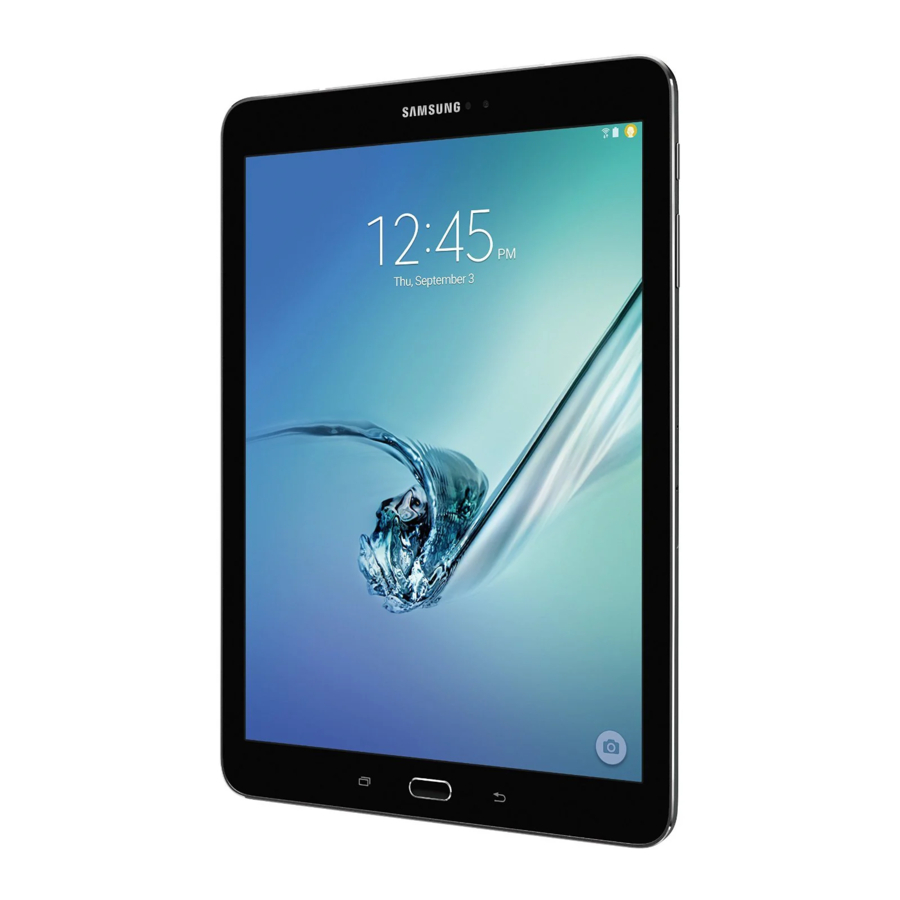
Unpack
Make sure you have each item
- Tablet
- Adapter
- User's manual
 Suitable Adapter or Charger, certified according to the relevant safety standard, will be provided for each country in use.
You can obtain the following accessories for your tablet from your local Samsung dealer.
- Multiadapter
- Travel charger
- Car charger
- PC data cable
- Portable battery kit
- Portable PC data cable
- Music controller
- Bluetooth mono/ stereo headset kit
Get started
First steps to operate your tablet
Install and charge the tablet
- Plug the adapter into the tablet.
- Plug the adapter into a standard AC wall outlet.
- When the tablet is completely charged (the battery icon stops blinking), unplug the adapter from the power outlet.
- Remove the adapter from the tablet.
Low battery indicator
When the battery is low:
- a warning tone sounds,
- the battery low message displays, and
- the empty battery icon [
![]() ] blinks.
] blinks.
 ] blinks.
If the battery level becomes too low, the tablet automatically turns off. Recharge your battery.
Keys and display
| Buttons | Function |
| Power |
|
| Menu |
|
| Home |
|
| Back |
|
| Volume |
|
Overview of menu functions
To access Menu mode, press [환경설정] in idle mode.
T service
Call log
Tablet
Contacts
Messaging
Samsung Hub
Samsung Apps
WatchON
Camera
Gallery
Story Album
DMB
T store
T LTE Pack
Music
Video
Internet
Clock
S Planner
Settings
ChatON
Samsung Link
Group Play
S Health
S Voice
S Memo
S Translator
Email
Shopping & wallet
T cloud
hoppin
MelOn
Chrome
Gmail
Google
Voice Search
YouTube
Talk
Google+
Play Store
Maps
Local
Navigation
Downloads
Optical Reader
Messenger
Play Books
Play Movies & TV
T nao
App Guide
T Membership
Remote Care
T world
11st
SmartWallet
NATE
Calculator
Voice Recorder
Dictionary
My Files
B tv mobile
Pickat
Basket
Cyworld
SmartTouch
Cymera
NateOnUC
Dropbox
Samsung service
V3 Mobile 2.0
Help
Google Settings
Important safety precautions
Failure to comply with the following precautions may be dangerous or illegal.
Drive safely at all times
Do not use a hand-held tablet while driving. Park your vehicle first.
Switch off the tablet when refuelling
Do not use the tablet at a refuelling point (service station) or near fuels or chemicals.
Switch off in an aircraft
Wireless tablets can cause interference. Using them in an aircraft is both illegal and dangerous.
Switch off the tablet near all medical equipment
Hospitals or health care facilities may be using equipment that could be sensitive to external radio frequency energy.
Follow any regulations or rules in force.
Interference
All wireless tablets may be subject to interference, which could affect their performance.
Be aware of special regulations
Meet any special regulations in force in any area and always switch off your tablet whenever it is forbidden to use it, or when it may cause interference or danger.
Water resistance
Your tablet is not water-resistant. Keep it dry.
Sensible use
Use only in the normal position (held to your ear). Avoid unnecessary contact with the antenna when the tablet is switched on.
Keep your tablet away from small children
Keep the tablet and all its parts, including accessories, out of the reach of small children.
Accessories and batteries
Use only Samsung-approved accessories, such as headsets and PC data cables. Use of any unauthorised accessories could damage you or your tablet and may be dangerous.
- The tablet could explode if the battery is replaced with an incorrect type.
- Dispose of used batteries according to the manufacturer i's instructions.
 Excessive exposure to sound at high volumes can cause hearing damage.
Always turn the volume down before plugging the ear tablets into an audio source and use only the minimum volume setting necessary to hear your conversation or music.
Qualified service
Only qualified service personnel may repair your tablet.
For more detailed safety information, see "Health and safety information".
Other Important Safety Information
- Only qualified personnel should service the tablet or install the tablet in a vehicle. Faulty installation or service may be dangerous and may invalidate any warranty applicable to the device.
- Check regularly that all wireless tablet equipment in your vehicle is mounted and operating properly.
- Do not store or carry flammable liquids, gases or explosive materials in the same compartment as the tablet, its parts or accessories.
- For vehicles equipped with an air bag, remember that an air bag inflates with great force. Do not place objects, including both installed or portable wireless equipment in the area over the air bag or in the air bag deployment area. If wireless equipment is improperly installed and the air bag inflates, serious injury could result.
- Switch off your tablet before boarding an aircraft. It is dangerous and illegal to use wireless tablets in an aircraft because they can interfere with the operation of the aircraft.
- Failure to observe these instructions may lead to the suspension or denial of teletablet services to the offender, or legal action, or both.
Product Performance
Getting the Most Out of Your Signal Reception
The quality of each call you make or receive depends on the signal strength in your area. Your tablet informs you of the current signal strength by displaying a number of bars next to the signal strength icon. The more bars displayed, the stronger the signal.
If you are inside a building, being near a window may give you better reception.
Understanding the Power Save Feature
If your tablet is unable to find a signal after 15 minutes of searching, a Power Save feature is automatically activated. If your tablet is active, it periodically rechecks service availability or you can check it yourself by pressing any key.
Anytime the Power Save feature is activated, a message displays on the screen. When a signal is found, your tablet returns to standby mode.
Maintaining Your Tablet's Peak Performance
For the best care of your tablet, only authorized personnel should service your tablet and accessories. Faulty service may void the warranty.
There are several simple guidelines to operating your tablet properly and maintaining safe, satisfactory service.
- Hold the tablet with the antenna raised, fully-extended and over your shoulder.
- Try not to hold, bend or twist the tablet's antenna.
- Don't use the tablet if the antenna is damaged.
- Speak directly into the tablet's receiver.
- Avoid exposing your tablet and accessories to rain or liquid spills. If your tablet does get wet, immediately turn the power off and remove the battery. If it is inoperable, call Customer Care for service.
Availability of Various Features/Ring Tones
Many services and features are network dependent and may require additional subscription and/or usage charges. Not all features are available for purchase or use in all areas. Downloadable Ring Tones may be available at an additional cost. Other conditions and restrictions may apply. See your service provider for additional information.
Battery Standby and Talk Time
Standby and talk times will vary depending on tablet usage patterns and conditions. Battery power consumption depends on factors such as network configuration, signal strength, operating temperature, features selected, frequency of calls, and voice, data, and other application usage patterns.
Battery Precautions
- Never use any charger or battery that is damaged in any way.
- Use the battery only for its intended purpose.
- If you use the tablet near the network's base station, it uses less power; talk and standby time are greatly affected by the signal strength on the cellular network and the parameters set by the network operator.
- Battery charging time depends on the remaining battery charge and the type of battery and charger used. The battery can be charged and discharged hundreds of times, but it will gradually wear out. When the operation time (talk time and standby time) is noticeably shorter than normal, it is time to buy a new battery.
- If left unused, a fully charged battery will discharge itself over time.
- Use only Samsung-approved batteries and recharge your battery only with Samsungapproved chargers. When a charger is not in use, disconnect it from the power source. Do not leave the battery connected to a charger for more than a week, since overcharging may shorten its life.
- Extreme temperatures will affect the charging capacity of your battery: it may require cooling or warming first.
- Do not leave the battery in hot or cold places, such as in a car in summer or winter conditions, as you will reduce the capacity and lifetime of the battery. Always try to keep the battery at room temperature. A tablet with a hot or cold battery may temporarily not work, even when the battery is fully charged. Li-ion batteries are particularly affected by temperatures below 0℃ (32 ℉).
- Do not short-circuit the battery. Accidental short- circuiting can occur when a metallic object (coin, clip or pen) causes a direct connection between the + and - terminals of the battery (metal strips on the battery), for example when you carry a spare battery in a pocket or bag. Short-circuiting the terminals may damage the battery or the object causing the short-circuiting.
- Dispose of used batteries in accordance with local regulations. In some areas, the disposal of batteries in household or business trash may be prohibited. For safe disposal options for Li-Ion batteries, contact your nearest Samsung authorized service center. Always recycle. Do not dispose of batteries in a fire.
Care and Maintenance
Your tablet is a product of superior design and craftsmanship and should be treated with care. The suggestions below will help you fulfill any warranty obligations and allow you to enjoy this product for many years.
- Keep your tablet and all its parts and accessories out of the reach of small children and pets. They may accidentally damage these things or choke on small parts.
- Keep the tablet dry. Precipitation, humidity and liquids contain minerals that will corrode electronic circuits.
- Do not use the tablet with a wet hand. Doing so may cause an electric shock to you or damage to the tablet.
- Do not use or store the tablet in dusty, dirty areas, as its moving parts may be damaged.
- Do not store the tablet in hot areas. High temperatures can shorten the life of electronic devices, damage batteries, and warp or melt certain plastics.
- Do not store the tablet in cold areas. When the tablet warms up to its normal operating temperature, moisture can form inside the tablet, which may damage the tablet's electronic circuit boards.
- Do not drop, knock or shake the tablet. Rough handling can break internal circuit boards.
- Do not use harsh chemicals, cleaning solvents or strong detergents to clean the tablet. Wipe it with a soft cloth slightly dampened in a mild soap-and-water solution.
- Do not paint the tablet. Paint can clog the device's moving parts and prevent proper operation.
- Do not put the tablet in or on heating devices, such as a microwave oven, a stove or a radiator. The tablet may explode when overheated.
- When the tablet or battery gets wet, the label indicating water damage inside the tablet changes color. In this case, tablet repairs are no longer guaranteed by the manufacturer's warranty, even if the warranty for your tablet has not expired.
- If your tablet has a flash or light, do not use it too close to the eyes of people or animals. This may cause damage to their eyes.
- Use only the supplied or an approved replacement antenna. Unauthorized antennas or modified accessories may damage the tablet and violate regulations governing radio devices.
- If the tablet, battery, charger or any accessory is not working properly, take it to your nearest qualified service facility. The personnel there will assist you, and if necessary, arrange for service.
* Some of the contents of this manual may differ from your tablet, depending on the software installed or your service provider.
World Wide Web http://www.samsungmobile.com
References

Download manual
Here you can download full pdf version of manual, it may contain additional safety instructions, warranty information, FCC rules, etc.
Download Samsung SM-T810 Manual


