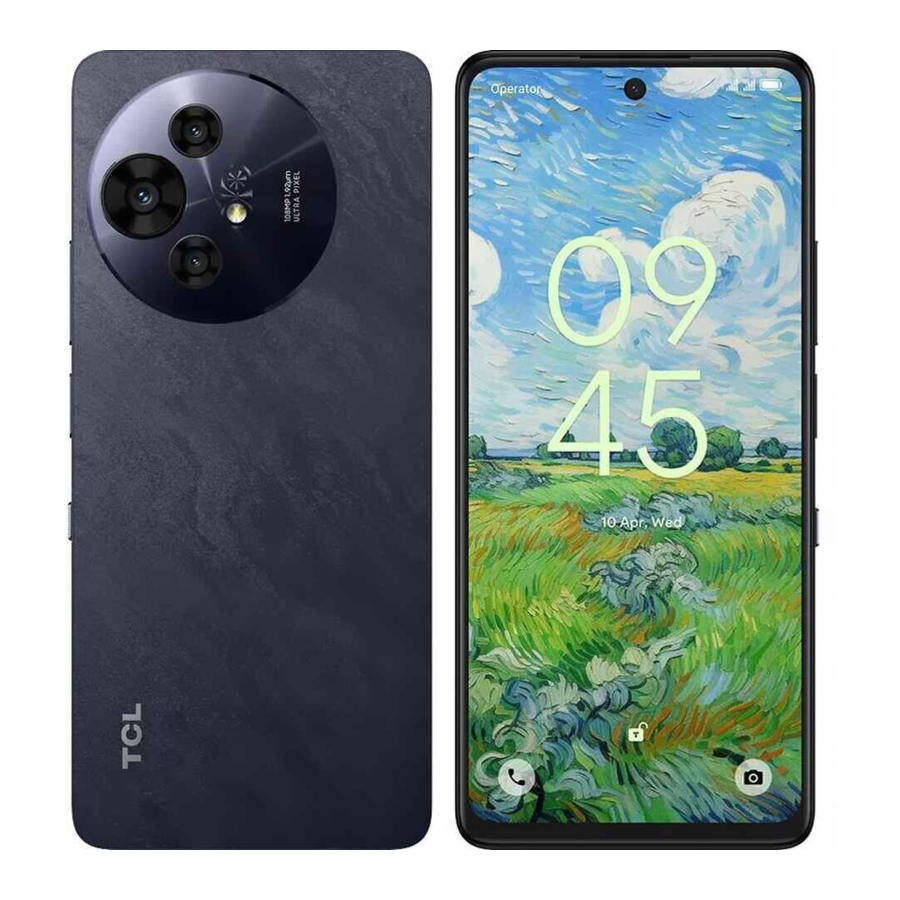
TCL 50 Pro NXTPAPER 5G, T803D Repair Manual
- 1 Factory Reset
- 2 Software Update
- 3 Function Test with Support Centre
- 4 Basic Troubleshooting
- 5 Disassembly and reassembly
- 6 Precautions
- 7 Instructional Icons and Notes
- 8 Electrostatic Discharge Safety
- 9 Broken Glass Safety
- 10 Contact of TCL hotline and service centres
- 11 References
- 12 Download manual
- 13 In Other Languages
Factory Reset

Factory reset will format the device to restore the device to its factory default settings. This will erase all user data including but not limited to files and downloaded apps in the device. Before performing factory reset, remember to back up all important data stored in the device. TCL is not responsible for the loss of data stored in the device.
Remove Google account before doing factory reset
If you need to setup the device with another Google account at the initial setup after factory reset, Google account need to be removed before doing the factory reset, otherwise it will require you to login the previous signed-in Google account. You can follow the below steps to remove the Google account from the device.
Launch Settings app -> Accounts ->tap on the google account-> Remove account -> tap on REMOVE ACCOUNT.
Factory Reset
You can follow the below steps to perform factory reset if the phone can be powered on.
Go to main menu -> "Settings"-> "System"-> "Reset options"-> "Erase all data (factory reset)"->Touch "Erase all data" in the open window -> "Erase all data".
Software Update
It is suggested to upgrade the handset software to latest version for better performance.
Before upgrade, please remember to back up the data and keep the phone fully charged.
Software update by FOTA
Firmware-Over-The-Air ("FOTA") is a way in which the firmware of a mobile device is updated wirelessly by the device's manufacturer. Firmware runs in the background without any input from the user, to make sure that the device's hardware runs properly.
Launch the device's "Settings" app and tap on "System"-> "System Update"-> "CHECK FOR UPDATES".
Software update by Mobile Upgrade tool
- On the computer, download the corresponding Mobile Upgrade tool from TCL website https://www.tcl.com/mobile-support-> choose your product on the page -> click on Download under the corresponding Software tag.
- Read and agree to the terms and conditions, and follow the on-screen instructions to install the tool on the computer.
- Restart the computer after the tool installation.
- Launch the tool and select the device model in the dropdown list.
- Read the on-screen instructions and precautions to click through "Start"-> "Next" -> "Yes".
- Power off the device and connect it to computer via USB cable
- The software update will start.
- Click "OK" and disconnect the device from USB cable when the tool pops up the prompt "Please disconnect your device from the USB cable to proceed".
- Click "Upgrade device" and connect your powered off device to computer, waiting for upgrade.
Do not disconnect the device from the computer during the upgrade process unless there is pop up message from the tool.
- When upgrade is completed, it will pop up a message window saying "Elapsed time: XX:XX:XX.
Thanks for using Mobile Upgrade tool. Your device has been successfully upgraded."
Function Test with Support Centre
- Check if Nano SIM card and SD card has been inserted correctly.
- Power on the product to launch the auto test.
- If the product displays "input NCK code", this means the software is Network locked or SIM locked, and can only be used with dedicated SIM card hence use the relevant SIM card or enter the phone NCK code if available.
- Open the "Support Centre" app -> Click "AGREE" -> "Hardware diagnosis"-> "START TESTING" -> Authorise the permissions required for diagnostics -> Follow the on-screen instructions to test.
Basic Troubleshooting
You can use our troubleshooting on TCL official website as reference for some frequently met issue.
- Visit https://www.tcl.com/mobile-support
- Scroll down to "Troubleshooting" section and click on "View more"
- Select the type of product and follow the step-by-step checking questions and options.
Notice: If the previously described options do not help, you can contact our hotline or repair center to get more professional technical assistance. Find the hotline or repair center information from the TCL website or APP "Support Center".
Disassembly and reassembly
Basic tools

Wear proper protective equipment for your safety when repairing devices. In the disassembly and assembly steps, additional tools may be required. Refer to specific steps for details.
| Tool/ Equipment | Description | Example Image |
| Safety glasses with side shields | Prevents accidents during repair (protective equipment) |  |
| Cut-resistant Gloves | Prevents accidents during repair (protective equipment) |  |
| Safety Mask | Prevents accidents during repair (protective equipment) |  |
| ESD wrist strap | Mitigate the risk of ESD event (recommended) |  |
| ESD Safe Mat | Mitigate the risk of ESD event (recommended) |  |
| SIM-eject Pin | To eject SIM tray |  |
| Plastic Plectrum | To disassemble back cover and other parts |  |
| Anti ESD Tweezers | To disconnect connectors, cables, and other parts. Notice: Use tweezers made with plastic or rubber material when parts may be easy to be damaged by sharp tool. |  |
| Cross-head Screwdriver | To remove cross-head screws. |  |
Disassembly for replacement
Before disassembling:
Always perform the following steps before starting a repair:
- Back up the device's data.
- Discharge the battery fully.
- Turn off the device.
- Disconnect all cables.
- Remove all cases and covers.
- Clear and clean your workspace.
- Put on an ESD wrist strap and attach it to a properly grounded ESD mat.
- The product's composition may vary depending on the country, region, or carrier.
For all cases of broken glass
Please refer to "Broken Glass Safety" first.
To prevent broken glass scattering, attach an acrylic protective cover to the screen.
Screen glass cannot be separated alone from the screen module. If the glass is broken, it needs to replace the whole screen module.
If you are having difficulty doing the repair, take the device to professional repair or TCL authorised repair centre for help.
SIM Tray and Memory Card Tray

To pop remove the SIM tray, insert a SIM-eject pin into the hole beside the tray. Push in towards the device, but don't force it. If you are having difficulty ejecting the SIM tray, take the device to professional repair or TCL authorised repair centre for help.
Back Cover Assembly
Remove SIM Tray and Memory Card Tray before you begin.
| Insert the tip of an opening pick between the back cover and frame at the SIM card tray side.
|  |
| Lift the back cover off the frame and flip it over the left edge of the phone.
|  |
| Laying the cover flat on your work surface.
Protective film in this manual's figures is an example which may look different. |  |
| Push the buttons towards the cover, then use the tweezer to take off the power and fingerpint button from the cover, but don't force it. | |
 | |
| Back cover assembly is removed. |  |
Battery
Remove the following parts before you begin.
SIM Tray and Memory Card Tray
Back Cover Assembly
If you are having difficulty doing the repair, take the device to professional repair or TCL authorised repair centre for help.
| Remove cross-head screws from upper frame.
|  |  PN: BMA1630251C3 Quantity: 6 Torque: 0.8±0.05kgf.cm |
 PN: BMA1430262C0 Quantity: 4 Torque: 0.8±0.05kgf.cm | ||
|  | |
| After removal of the camera rubber and upper frame |  | |
| Disconnect below connectors and cable
|  |
|
| Remove main PCBA.
|  | |
| After main PCBA removal, peel off the battery three parts of adhesive tape to the other side respectively according to the picture's arrow direction.
|  | |
| Press and hold on the tape marked in picture as yellow in one hand to the back of the device.
|  | |
| Battery removal completed.
|  | |


Display Assembly
Remove the following parts before you begin.
SIM Tray and Memory Card Tray
Back Cover Assembly
Battery
When replacing display assembly, battery and battery film must be replaced with new one. If you are having difficulty doing the repair, take the device to professional repair or TCL authorised repair centre for help.
| Remove cross-head screws from bottom frame.
|  |  PN: BMA1630251C3 Quantity: 5 Torque: 0.8±0.05kgf.cm | |
 PN: BMA1430262C0 Quantity: 3 Torque: 0.8±0.05kgf.cm | |||
| Insert and slide the opening pick along the left edge to bottom frame according to below figure's arrow direction
|  | ||
| Disconnect below connector, cables, screw.
|  |  PN: BMA1421252C3 Qty: 1 Torque: 0.8±0.05kgf.cm | |
| Pry up the charging board. |  | ||
| Remove below components using plastic tweezer. Please follow the steps' number and arrow direction, be careful and don't force it.
6~9. Side buttons FPC assembly
|  | ||
| Display assembly removal completed.
|  | ||
Reassembly process
To reassemble the device, follow above disassembly instructions in reverse order.
There are some important notes listed below for some steps.
- Double-side sponge tape, all types of adhesive on battery or battery cover must be replaced with new ones once it is disassembled.
Conductive tapes and copper tapes are selectively replaced, depend on breakage, stickiness conditions. - Pay attention to the direction of the speaker.

- Remember to assemble the LCD FPC Mylar.

- There is "thermal gel" between main PCBA and display assembly. If a new display assembly is replaced, or main board is disassembled and the thermal gel is dried out, new thermal gel should be applied.
Otherwise it will affect the device heat-dissipation performance.


Note:
- New thermal gel should be applied when display assembly is replaced.
- Clean the the original thermal gel if it is dried out.
- Prepare the "Thermal Gel" locally because of custom's shipment restriction.
| Part Name | Specification | Picture Example |
| Thermal Gel (Prepare locally) | Thermal conductivity higher than 3.5W |  |
- It is suggested to apply around 350±30mg new thermal gel on the display assembly. And then assembly the main PCBA into the display assembly.


- There are three kinds of screws, please pay attention to the position and torque. The screws can be reused.
- For battery re-assembly, please follow below steps carefully.
If you are having difficulty doing the repair, take the device to professional repair or TCL authorised repair centre for help.
Pay attention to the top side (sticky when upper film is removed) and bottom side of the battery film, so that the upper film (which is not sticky) can be peeled off when battery film is placed onto the frame. Sticky side need to be warped onto the battery. | |
 | |
|  |
|  |
Don't leave any abnormal objects (i.e. debris, loose screws, extra screws, etc.) inside the device before reassembling. |  |
|  |
|  |
|  |
|  |
- Don't leave any abnormal objects (i.e. debris, loose screws, extra screws, etc.) inside the device before re-assembling.
Precautions
- Use only demagnetised tools specifically designed for small electronic repairs, most electronic parts are sensitive to electromagnetic forces.
- Use only high quality screwdrivers when repairing products. Poor quality screwdrivers can easily damage the heads of the screws.
- Always use genuine spare parts. Parts from third-party may not function properly or even cause damages or accidents.
- The parts below may require calibration to ensure proper function after disassembly or repair, if you need to get more professional repair, contact TCL authorised Repair Center.
Sensors (proximity, fingerprint), rear camera, touch screen module, speaker, motherboard and other components. - The performance of the device's water resistance and dust resistance cannot be guaranteed in the event of repair by the user or by an unqualified individual.
- If the device suffered from water/liquid damage, the cost of repairing the device may exceed the value of the device, depending on level of damage.
- Be careful not to damage the battery such as heating, denting, short circuit, or disassembling etc. If the battery is damaged or you need to get more professional repair, contact TCL authorised RC.
- Before any repair, backup personal information and important data.
- It is suggested to setup and stay in an Electrostatic Protected Area (EPA) to avoid electrostatic discharge that can cause unrecoverable damages on the device and parts during the repair.
- Before repairing the device, please ensure that the device is fully discharged and turned off.
- Prepare and wear appropriate safety equipment before carrying out repairs. Ensure the workspace is free from flammable materials, foreign objects, and sharp materials. Equip the area with necessary safety equipment such as fire extinguishers and protective gear.
- When removing the back cover, be careful not to damage the product parts and the battery.
- Before assembly, please ensure that there are no screws or foreign objects inside the device and around the battery.
- Before assembly, please ensure that there are no abnormalities before reattaching the back cover.
- When purchasing the product, the packing box is provided with user manual, quick guide, and other information. For more information about the product, please visit www.tcl.com.
Instructional Icons and Notes
 Failure to follow instructional notes could result in fire, injury, data loss, or damage to the device, parts, or other property.
highlights instructions to reduce risk of safety issues or personal injury, failure to follow the warning instructions may cause fire or other safety issues and lead to personal injury or death.
Always prioritise safety over cost savings. If uncertain, contact TCL https://www.tcl.com/mobile-support or seek help from professional repairer.
highlights instructions to reduce the risk of data loss or damage to the device or other equipment.
Notice – Other instructional information, tips, notes for successfully completing procedures.
Electrostatic Discharge Safety
What is ESD?
ESD (Electrostatic Discharge) is the rapid, spontaneous transfer of current (in another word, electrostatic charge) induced by a high electrostatic field. It can damage electronic components.
ESD damage may be a latent defect that may escape immediate detection, but may cause the device to fail prematurely.
How do you prevent electrostatic discharge?
All conductors in the environment, including personnel, shall be bonded or electrically connected and attached to a known ground or contrived ground.
Using ESD safety (Anti-static) equipment such as an anti-static wrist strap and gloves, anti-static tools and ESD safe mat when repairing the device can mitigate the risk of ESD event.
Broken Glass Safety
The display and back cover of the device utilise glass materials, which may fracture if subjected to:
- Drops onto hard surfaces
- Crushing, bending, or deformation
- Other types of hard impact
Avoid handling broken glass or sharp glass shards without proper protective equipment (e.g., cut-resistant gloves and safety goggles), as sharp edges pose safety risks.
Contact of TCL hotline and service centres
If you are looking for official professional repair from TCL, please visit HOTLINE & SERVICE CENTERS to search for the contact in your country/region.
References
TCL Nederland | Tvs, Soundbar, Koptelefoons, Smartphones
TCL Nederland | Tvs, Soundbar, Koptelefoons, Smartphones
Ondersteuning Smartphones
TCL Nederland | Tvs, Soundbar, Koptelefoons, Smartphones

Download manual
Here you can download full pdf version of manual, it may contain additional safety instructions, warranty information, FCC rules, etc.
Download TCL 50 Pro NXTPAPER 5G, T803D Repair Manual


