Apple AirPods Pro 3 - How to Connect to a Windows Laptop or PC (Ako pripojiť k notebooku alebo PC so systémom Windows)
- 1 Step 1: Prepare Your AirPods Pro 3 for Pairing (Krok 1: Príprava AirPods Pro 3 na párovanie)
- 2 Step 2: Place AirPods Pro 3 Near Your PC (Krok 2: Umiestnite AirPods Pro 3 blízko vášho PC)
- 3 Step 3: Access Bluetooth Settings on Your Windows Device (Krok 3: Prístup k nastaveniam Bluetooth na vašom zariadení so systémom Windows)
- 4 Step 4: Connect Your AirPods Pro 3 (Krok 4: Pripojte svoje AirPods Pro 3)
- 5 V iných jazykoch
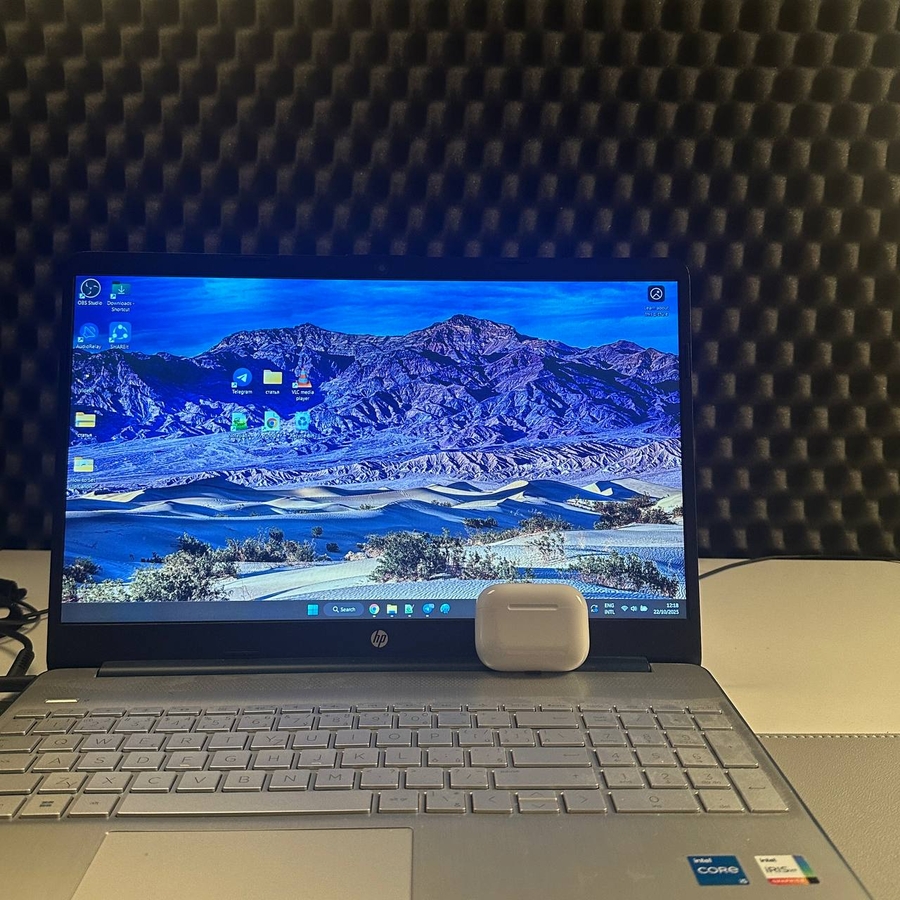
In this guide, we will walk you through the steps needed to connect your Apple AirPods Pro 3 to a Windows laptop or PC. By following this easy-to-understand process, you'll be enjoying wireless audio in no time. (V tomto sprievodcovi vás prevedieme krokmi potrebnými na pripojenie vašich Apple AirPods Pro 3 k notebooku alebo PC so systémom Windows. Dodržiavaním tohto ľahko zrozumiteľného postupu si bezdrôtový zvuk užijete už za krátky čas.)
Step 1: Prepare Your AirPods Pro 3 for Pairing (Krok 1: Príprava AirPods Pro 3 na párovanie)
First, you need to prepare your AirPods Pro 3 for pairing. Begin by opening the charging case. Once opened, double-tap the small indicator light located on the front of the case. This action will prompt the indicator to start blinking white, signifying that your AirPods Pro 3 are now in pairing mode. (Najprv musíte pripraviť svoje AirPods Pro 3 na párovanie. Začnite otvorením nabíjacieho puzdra. Po otvorení dvakrát klepnite na malý indikátor umiestnený na prednej strane puzdra. Táto akcia spôsobí, že indikátor začne blikať na bielo, čo znamená, že vaše AirPods Pro 3 sú teraz v režime párovania.)

Step 2: Place AirPods Pro 3 Near Your PC (Krok 2: Umiestnite AirPods Pro 3 blízko vášho PC)
Next, ensure that your AirPods Pro 3 case remains open and position it close to your Windows laptop or PC. This proximity helps facilitate a smooth connection during the pairing process. (Ďalej sa uistite, že puzdro vašich AirPods Pro 3 zostáva otvorené, a umiestnite ho blízko vášho notebooku alebo PC so systémom Windows. Táto blízkosť pomáha uľahčiť plynulé pripojenie počas procesu párovania.)

Step 3: Access Bluetooth Settings on Your Windows Device (Krok 3: Prístup k nastaveniam Bluetooth na vašom zariadení so systémom Windows)
On your laptop, open the Settings application by clicking on the WiFi menu and navigating to the right side options menu. From there, select 'Bluetooth'. Ensure that Bluetooth is turned on by toggling the switch to the 'on' position. Then, click on 'Add device' (Pridať zariadenie) to begin searching for available Bluetooth devices. (Na svojom notebooku otvorte aplikáciu Nastavenia kliknutím na ponuku WiFi a prejdite do ponuky možností na pravej strane. Odtiaľ vyberte možnosť „Bluetooth“. Uistite sa, že je Bluetooth zapnuté prepnutím prepínača do polohy „zapnuté“. Potom kliknite na „Pridať zariadenie“ (Add device) a začnite hľadať dostupné zariadenia Bluetooth.)


Step 4: Connect Your AirPods Pro 3 (Krok 4: Pripojte svoje AirPods Pro 3)
Upon selecting 'Add device,' (Pridať zariadenie) choose the 'Bluetooth' option from the list. Wait for a few seconds as your device searches for available devices. Your AirPods Pro 3 should appear in the list, initially detected as a type of headphone. Click on this entry with the left mouse button. Within moments, the name will change to 'AirPods Pro,' confirming a successful connection. (Po výbere možnosti „Pridať zariadenie“ (Add device) vyberte zo zoznamu možnosť „Bluetooth“. Počkajte niekoľko sekúnd, kým vaše zariadenie vyhľadá dostupné zariadenia. Vaše AirPods Pro 3 by sa mali zobraziť v zozname, spočiatku zistené ako typ slúchadiel. Kliknite na túto položku ľavým tlačidlom myši. O chvíľu sa názov zmení na „AirPods Pro“, čo potvrdí úspešné pripojenie.)

And there you have it! Your Apple AirPods Pro 3 are now connected to your Windows laptop or PC, and you're all set to experience quality audio wirelessly. (A máte to! Vaše Apple AirPods Pro 3 sú teraz pripojené k vášmu notebooku alebo PC so systémom Windows a ste pripravení zažiť kvalitný zvuk bezdrôtovo.)


