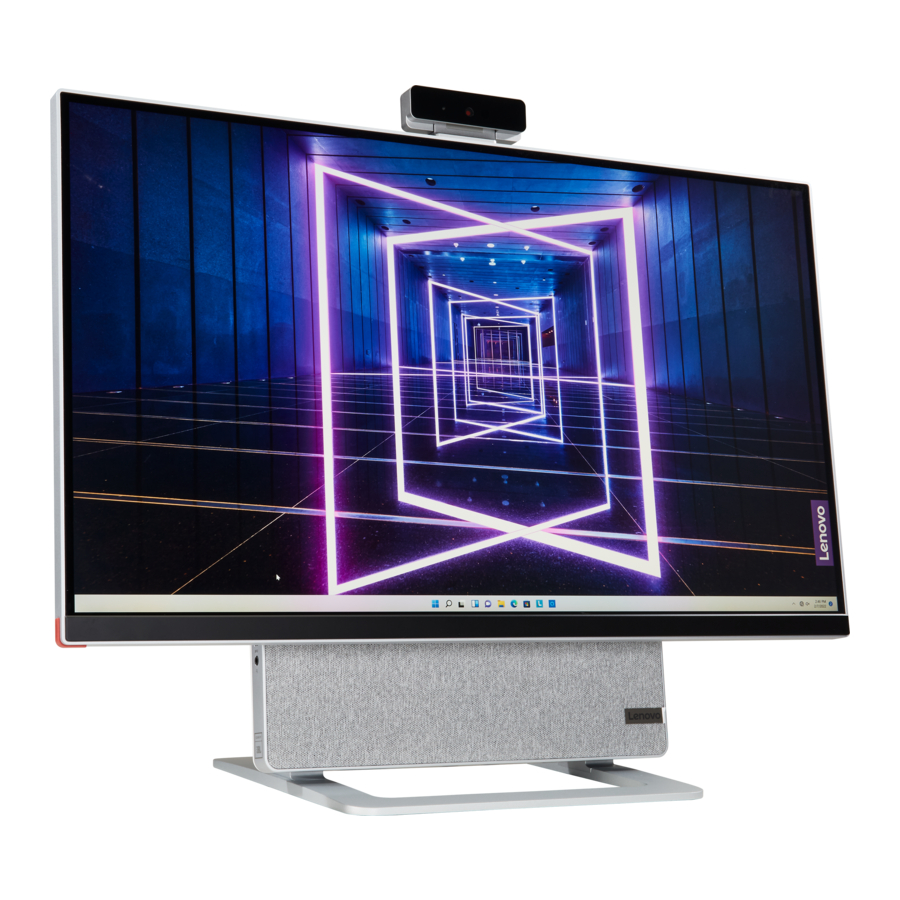
Lenovo Yoga AIO 7 Manual
About this documentation
Read this first
Before using this documentation and the product it supports, ensure that you read and understand the following:
- Safety and Warranty Guide
- Generic Safety and Compliance Notices
- Setup Guide
- This guide applies to the Lenovo product models listed below. Illustrations in this guide may look slightly different from your product model.
| Model name | Machine types (MT) |
| Yoga AIO 7 27ACH6 | F0G7 |
| Yoga AIO 7 27ARH6 | F0FN |
- For further compliance information, refer to theGeneric Safety and Compliance Notices at https:// pcsupport.lenovo.com/docs/generic_notices.
- Depending on the model, some optional accessories, features, and software programmes might not be available on your computer.
- Depending on the version of the operating systems and programmes, some user interface instructions might not be applicable to your computer.
- Documentation content is subject to change without notice. Lenovo makes constant improvements to the documentation of your computer, including thisUser Guide. To get the latest documentation, go to https:// pcsupport.lenovo.com.
- Microsoft® makes periodic feature changes to the Windows® operating system through Windows Update. As a result, some information in this documentation might become outdated. Refer to Microsoft resources for the latest information.
Meet your computer
Front

| 1. Microphones | 2. Camera connector |
| 3. Air vents (2) | 4. On-Screen-Display (OSD) Switch |
| 5. OSD adjustment buttons | 6. Power button |
| 7. Reset button | 8. Combo audio jack |
| 9. USB 3.2 Gen 2 connector | 10. USB-C® connector |
| 11. Switch button |
Related topics
- "USB specifications"
Rear

| 1. Power connector | 2. USB 3.2 Gen 2 connectors (2) |
| 3. Ethernet connector | 4. USB 2.0 connectors (2) |
| 5. HDMI™ out connector* |
* for selected models
Related topics
- "USB specifications"
Features and specifications
For detailed specifications of your computer, go to https://psref.lenovo.com.
| Hardware | To view the hardware information of your computer, type device manager in the Windows search box and then press Enter. |
| ac power adapter |
|
| Adaptability for power supply |
|
| Microprocessor | To view the microprocessor information of your computer, type system information in the Windows search box and then press Enter. |
| Memory | Double data rate 4 (DDR4) small outline dual in-line memory module (SODIMM) |
| Storage device |
To view the storage drive capacity of your computer, type disk management in the Windows search box and then press Enter. Note: The storage drive capacity indicated by the system is less than the nominal capacity. |
| Display features |
|
| Expansion |
|
| Network features |
|
* for selected models
USB specifications
Note: Depending on the model, some USB connectors might not be available on your computer.
| Connector name | Description |

| Connect USB-compatible devices, such as a USB keyboard, USB mouse, USB storage device, or USB printer. |
|
|
 USB 2.0 connector
 USB 3.2 connector Gen 1
 USB 3.2 connector Gen 2
 USB-C (3.2 Gen 1) connector
 USB-C (3.2 Gen 2) connector
 Thunderbolt 3 connector (USB-C)
 Thunderbolt 4 connector (USB-C)
Statement on USB transfer rate
Depending on many factors such as the processing capability of the host and peripheral devices, file attributes, and other factors related to system configuration and operating environments, the actual transfer rate using the various USB connectors on this device will vary and will be slower than the data rate listed below for each corresponding device.
| USB device | Data rate (Gbit/s) |
| 3.2 Gen 1 / 3.1 Gen 1 | 5 |
| 3.2 Gen 2 / 3.1 Gen 2 | 10 |
| 3.2 Gen 2 × 2 | 20 |
| Thunderbolt 3 (USB-C) | 40 |
| Thunderbolt 4 (USB-C) | 40 |
Operating environment
Temperature
- Operating: From 5°C (41°F) to 35°C (95°F)
- Storage or transportation:
- For common desktop computers: From -40°C (-40°F) to 60°C (140°F)
- For all-in-one desktop computers: From -20°C (-4°F) to 60°C (140°F)
Relative humidity
- Operating: 20%-80% (non-condensing)
- Storage: 10%–90% (non-condensing)
Altitude
- Operating: -15.2 m (-50 ft) to 3048 m (10,000 ft)
- Storage: -15.2 m (-50 ft) to 12192m (40,000 ft)
Get started with your computer
Adjust the computer stand

Work with Windows
The following table contains Windows frequently used settings. You can learn the basics and start working with Windows right away.
To configure settings, type the corresponding keywords in the Windows search box and select the best match. Follow the on-screen instructions to customise settings.
Table 1. Basic settings
| Functions | Descriptions | Search by keywords |
| Control Panel | View or change Windows settings, including hardware and software setup and configuration. | Control Panel |
| Connect to Wi-Fi networks | For models with a wireless LAN module, you can connect your computer to a Wi-Fi® network. Click the network icon in the Windows notification area, and then select a network for connection. Note: The wireless LAN module on your computer may support different standards. For some countries or regions, use of 802.11ax may be disabled according to local regulations. | Wi-Fi |
| Connect to wired networks | For models with an Ethernet (RJ-45) connector, you can use an Ethernet cable to connect your computer to a wired network. | — |
| Airplane mode | Airplane mode is a convenient setting to turn all wireless communications of your computer on and off. You may need to turn it on when boarding an airplane. | Airplane mode |
| Night light mode | Night light is a switch in Windows that you can turn on and off. When it is turned on, your screen shows warmer colours and the amount of emitted blue light is reduced. Enabling night light reduces the chances of developing eye fatigue or eye strain. Note: For more guidance on reducing eye fatigue or eye strain, go to https://www.lenovo.com/us/en/compliance/visual-fatigue. | Night light |
Table 1. Basic settings (continued)
| Functions | Descriptions | Search by keywords |
| Adjust color temperature | If night light mode is turned on, you can adjust the color temperature of the screen. Note: Selected Lenovo computers are low blue light certified. These computers are tested with night light turned on and color temperature set to the default value of 48. | Night light |
| Windows Updates | Microsoft periodically releases feature and security updates to the Windows operating system. Updates that are applicable to your Windows version are downloaded automatically when your computer is connected to the Internet. When updates are downloaded, you are prompted to restart the computer to install these updates. You can also manually check if there are available updates for the installed version of Windows. Attention: Only use Windows Update to download and install updates. | Windows Updates |
Windows help information
If the on-screen instructions cannot solve your problem, refer to the following to get the online Windows help information.
- Type Get Help or Tips in the Windows search box and then press Enter. When the app opens, type the problem description and select the matched result.
- Visit Microsoft support Web site:https://support.microsoft.com. Enter what you are looking for in the search box and get search results.
Connect an external display
Connect a projector or a monitor to your computer to give presentations or expand your workspace.
Connect a wireless display
Ensure that both your computer and the wireless display support Miracast®.
Press the Windows and K Keys, and then select a wireless display to connect.
Change display settings
To change display settings, type display settings in the Windows search box and then press Enter.
Explore your computer
Lenovo Vantage

The preinstalled Lenovo Vantage is a customised one-stop solution to help you maintain your computer with automated updates and fixes, configure hardware settings, and get personalised support.
Access Lenovo Vantage
Type Lenovo Vantage in the search box and then press Enter.
To download the latest version of Lenovo Vantage, go to Microsoft Store and search by the app name.
Key features
Lenovo Vantage enables you to:
- Know the device status easily and customise device settings.
- Download and install UEFI BIOS, firmware and driver updates to keep your computer up-to-date.
- Monitor your computer health, and secure your computer against outside threats.
- Scan your computer hardware and diagnose hardware problems.
- Look up warranty status (online).
- AccessUser Guide and helpful articles.
Notes:
- The available features vary depending on the computer model.
- Lenovo Vantage makes periodic updates of the features to keep improving your experience with your computer. The description of features might be different from that on your actual user interface.
Set the power plan
For ENERGY STAR® compliant computers, the following power plan takes effect when your computers have been idle for a specified duration:
- turn off the display: After 10 minutes
- put the computer to sleep: After 25 minutes
To awaken the computer from Sleep mode, press any key on your keyboard.
To change or customise a power plan:
- Type power plan in the Windows search box and then press Enter.
- Customise a power plan of your preference.
Transfer data
Quickly share your files using the built-in Bluetooth technology among devices with the same features. You also can install a disc or media card to transfer data.
Connect to a Bluetooth-enabled device (for selected models)
You can connect all types of Bluetooth-enabled devices to your computer, such as a keyboard, a mouse, a smartphone, or speakers. To ensure that the connection is successful, place the devices 10 metres (33 feet), at most, from the computer.

- Click the action center icon in the Windows notification area. Enable the Bluetooth feature.
- Click the bluetooth options to add a bluetooth device, and then follow the on-screen instructions.
Purchase accessories
Lenovo has a number of hardware accessories and upgrades to help expand the capabilities of your computer. Options include memory modules, storage devices, network cards, power adapters, keyboards, mice, and more.
To shop at Lenovo, go to https://pcsupport.lenovo.com/warrantyupgrade.
CRU replacement
Customer Replaceable Units (CRUs) are parts that can be upgraded or replaced by the customer. Lenovo computers contain the following types of CRUs:
- Self-service CRUs: Refer to parts that can be installed or replaced easily by customer themselves or by trained service technicians at an additional cost.
- Optional-service CRUs: Refer to parts that can be installed or replaced by customers with a greater skill level. Trained service technicians can also provide service to install or replace the parts under the type of warranty designated for the customer's machine.
If you intend on installing the CRU, Lenovo will ship the CRU to you. CRU information and replacement instructions are shipped with your product and are available from Lenovo at any time upon request. You might be required to return the defective part that is replaced by the CRU. When return is required:
- return instructions, a prepaid shipping label, and a container will be included with the replacement CRU; and
- you might be charged for the replacement CRU if Lenovo does not receive the defective CRU within thirty (30) days of your receipt of the replacement CRU. For full details, see the Lenovo Limited Warranty documentation at: https://www.lenovo.com/warranty/llw_02
CRU list
The following is the CRU list of your computer.
Self-service CRUs
- ac power adapter
- Power cord
- Keyboard
- Mouse
- External camera
Remove or replace a CRU
This section provides instructions on how to remove or replace a CRU.
Power cord and ac power adapter
Prerequisite
Before you start, read Generic Safety and Compliance Notices, and print the following instructions.
Note: Do not remove the power cord when the computer is connected to ac power. Otherwise, there might be a risk of short circuits.
Replacement procedure
- Turn off the computer and remove all connected peripheral devices and cables.
- Remove the ac power adapter from the computer.

- Remove the power cord from the power adapter.

- Connect the power cord to the power adapter.
- Connect the new power adapter to the computer.


Camera
Prerequisite
Before you start, read Generic Safety and Compliance Notices, and print the following instructions.
Note: Do not remove the power cord when the computer is connected to ac power. Otherwise, there might be a risk of short circuits.
Replacement procedure
- Remove the camera.


Frequently asked questions
| How do I partition my storage drive? | Refer to https://support.lenovo.com/solutions/ht503851 |
| What should I do if my computer stops responding. | Press and hold the power button until the computer turns off. Then restart the computer. |
| What should I do if I spill liquid on the computer? |
 Do not try to drain out the liquid by turning over the computer. If your computer has keyboard drainage holes on the bottom, the liquid will be drained out through the holes. |
| Where can I get the latest device drivers and UEFI/BIOS? |
|
Help and support
Self-help resources
Use the following self-help resources to learn more about the computer and troubleshoot problems.
| Resources | How to access? |
| Troubleshooting and frequently asked questions |
|
| Accessibility information | https://www.lenovo.com/accessibility |
| Reset or restore Windows |
|
Use Lenovo Vantage to:
| Type Lenovo Vantage in the search box and then press Enter. |
Product documentation:
| Go to https://pcsupport.lenovo.com. Then, follow the on- screen instructions to filter out the documentation you want. |
Lenovo Support Web site with the latest support information of the following:
| Go to https://support.lenovo.com. |
| Windows help information |
|
Call Lenovo
If you have tried to correct the problem yourself and still need help, you can call Lenovo Customer Support Center.
Before you contact Lenovo
Prepare the following before you contact Lenovo:
- Record the problem symptoms and details:
- What is the problem? Is it continuous or intermittent?
- Any error message or error code?
- What operating system are you using? Which version?
- Which software applications were running at the time of the problem?
- Can the problem be reproduced? If so, how?
- Record the system information:
- Product name
- Machine type and serial number
The following illustration shows where to find the machine type and serial number of your computer.

Lenovo Customer Support Center
During the warranty period, you can call Lenovo Customer Support Center for help.
Telephone numbers
For a list of the Lenovo Support phone numbers for your country or region, go to: https://pcsupport.lenovo.com/supportphonelist
Note: Phone numbers are subject to change without notice. If the number for your country or region is not provided, contact your Lenovo reseller or Lenovo marketing representative.
Services available during the warranty period
- Problem determination - Trained personnel are available to assist you with determining if you have a hardware problem and deciding what action is necessary to fix the problem.
- Lenovo hardware repair - If the problem is determined to be caused by Lenovo hardware under warranty, trained service personnel are available to provide the applicable level of service.
- Engineering change management - Occasionally, there might be changes that are required after a product has been sold. Lenovo or your reseller, if authorized by Lenovo, will make selected Engineering Changes (ECs) that apply to your hardware available.
Services not covered
- Replacement or use of parts not manufactured for or by Lenovo or nonwarranted parts
- Identification of software problem sources
- Configuration of UEFI BIOS as part of an installation or upgrade
- Changes, modifications, or upgrades to device drivers
- Installation and maintenance of network operating systems (NOS)
- Installation and maintenance of programs
For the terms and conditions of the Lenovo Limited Warranty that apply to your Lenovo hardware product, see "Warranty information" in the Safety and Warranty Guide that comes with your computer.
Purchase additional services
During and after the warranty period, you can purchase additional services from Lenovo at https:// www.lenovo.com/services.
Service availability and service name might vary by country or region.
For the latest information or any questions or comments, contact or visit the Lenovo Web site: https://pcsupport.lenovo.com
References
(English) Generic Safety and Compliance Notices - Lenovo Support US
Official Lenovo Laptop, Accessories & PC Support - Lenovo Support US
Product Specifications Reference (PSREF)
![www.lenovo.com]() Lenovo Accessories & Software - Shop Now | Lenovo US
Lenovo Accessories & Software - Shop Now | Lenovo US![www.lenovo.com]() Regulatory Compliance | Minimising Visual Fatigue | Lenovo US
Regulatory Compliance | Minimising Visual Fatigue | Lenovo US![support.microsoft.com]() Microsoft Support
Microsoft SupportLenovo Warranty Check | Device Warranty Lookup | Lenovo Support US
![forums.lenovo.com]() English Community-Lenovo Community
English Community-Lenovo Community![www.lenovo.com]() Product Accessibility | Regulatory Compliance | Lenovo US
Product Accessibility | Regulatory Compliance | Lenovo USSupportPhoneList - Lenovo Support US
![www.lenovo.com]() Lenovo Services | Lenovo US
Lenovo Services | Lenovo US


Download manual
Here you can download full pdf version of manual, it may contain additional safety instructions, warranty information, FCC rules, etc.
Download Lenovo Yoga AIO 7 Manual


