Google Pixel 10 Pro - How to Show or Hide Media Player on Lock Screen
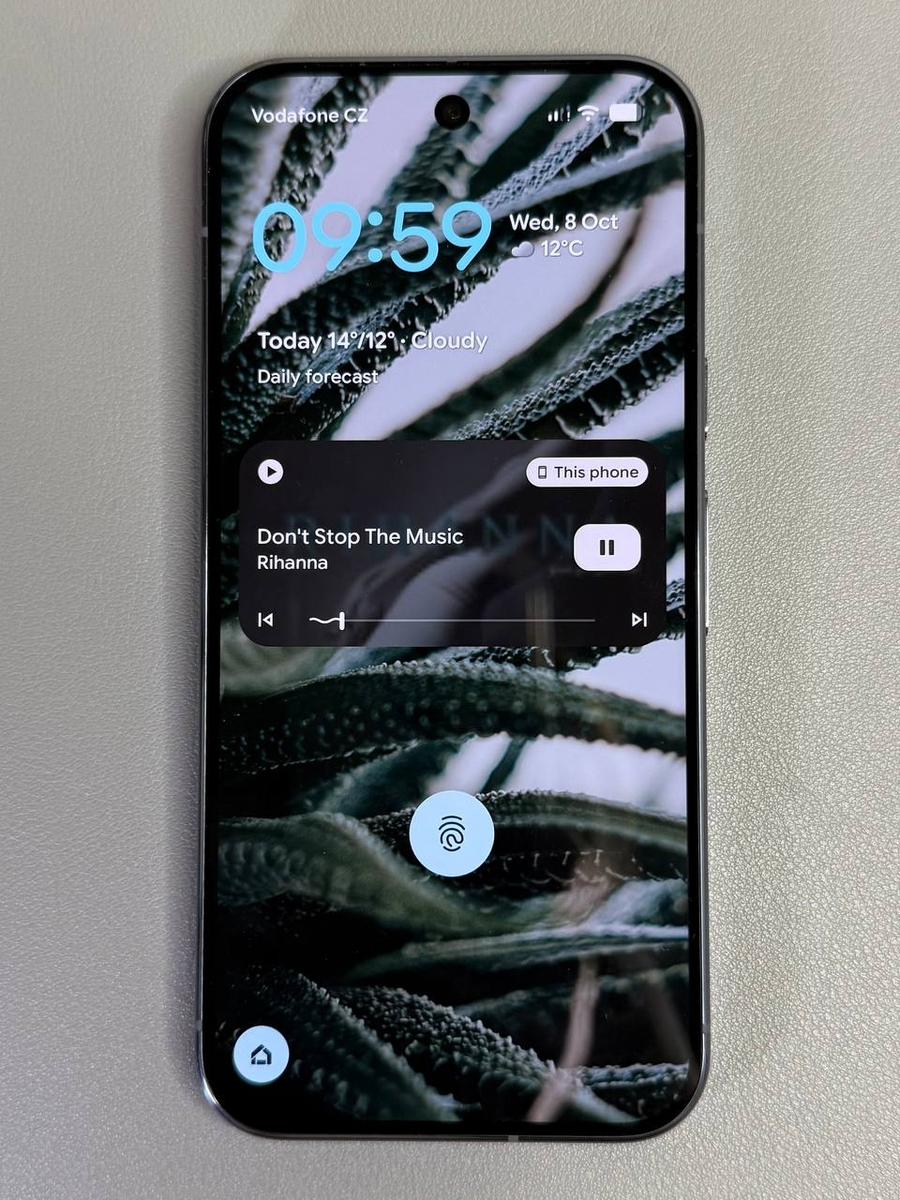
This easy-to-follow guide will help you learn how to show or hide the media player on your device's lock screen, giving you greater control over your smartphone's accessibility and privacy.
How to Show Media Player on the Lock Screen
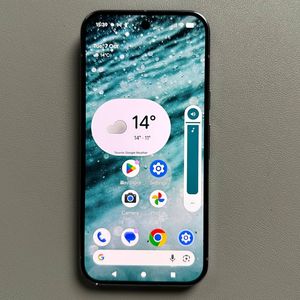
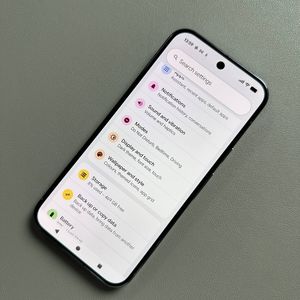
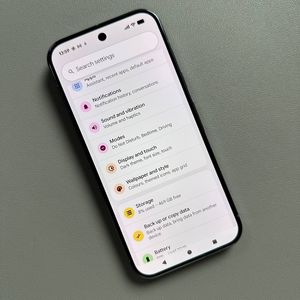
If you'd like to have quick access to your media player directly from the lock screen for easy control, follow these simple steps. First, unlock your device and go to the Settings app by locating the gear icon on your home screen or in the app drawer.

Once in Settings, scroll down and find the 'Sound and Vibration' option. Tap on it to access more options.

In the next section, scroll again until you encounter 'Media'. Here, ensure the option for 'Show Media on Lock Screen' is enabled. This allows you to see and control the media player from your lock screen, giving you access to pause, play, or scrub through your music, and view artwork or thumbnails.

How to Hide Media Player from the Lock Screen
If you prefer to keep the media player hidden from your lock screen, repeat the steps above to enter the 'Sound and Vibration' menu in the Settings app. Once there, locate the 'Media' section and simply toggle 'Show Media on Lock Screen' to off. This action will remove the media player from your lock screen, enhancing your privacy.