TCL 501, T433D, T433D1 Service Manual
- 1 General Product Information
- 2 Maintenance preparation
- 3 Factory Reset
- 4 Software Update
- 5 Function Test with Support Centre
- 6 Troubleshooting
- 7 Disassembly and reassembly
- 8 Explode View
- 9 Split View
- 10 Warning
- 11 Precautions
- 12 Contact of TCL hotline and service centers
- 13 References
- 14 Download manual
- 15 In Other Languages
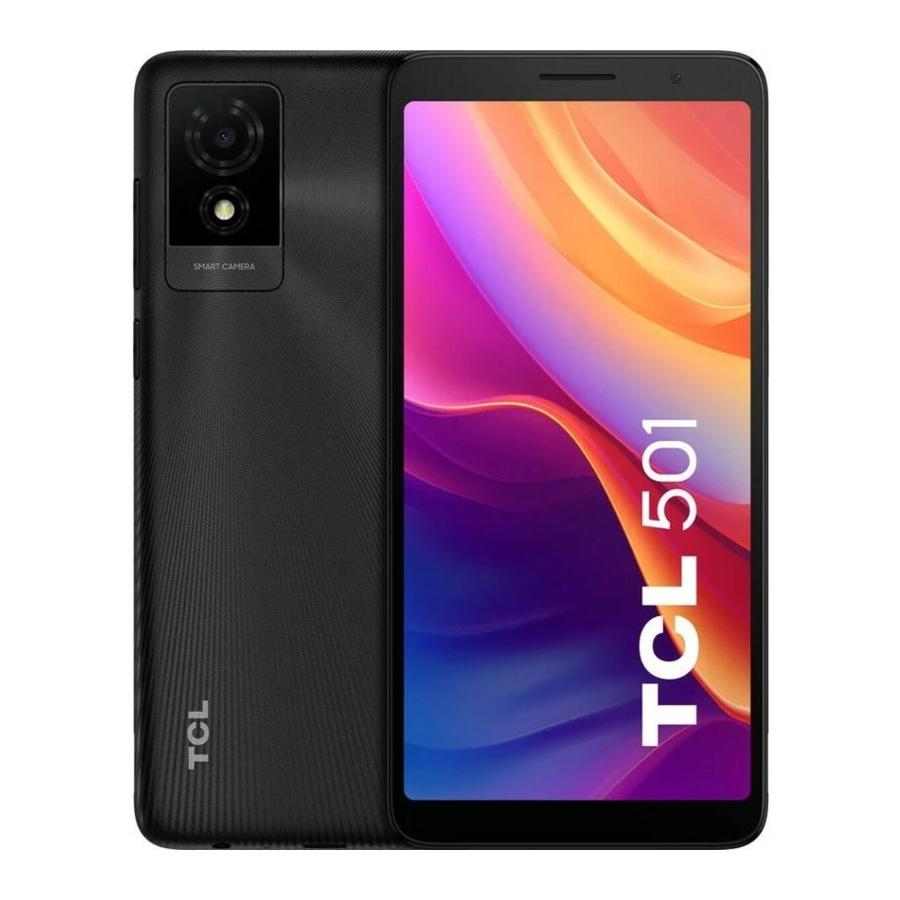
General Product Information
| Features/Hardware | Description |
| Design | Dimensions: 156.48x74.88x9.65mm; Weight: 177g |
| System | Android 14 for 2GB RAM |
| Processor | Chipset: MTK 6765V_XBA; CPU: 4xA53@ 2.2GHz+4xA53@ 1.6GHz; GPU: IMG GE8320 680MHz |
| Memory & Storage | 2GB RAM +32GBROM; Support micro SD cards up to 1TB |
| Display | 6.0 inch, 540*1092 |
| Rear Camera | 5MP rear camera: FF, 1/5, 1.12um, F2.2, field of view 76°, 3P lens. |
| Front Camera | 2MP front camera: FF, 1/5, 1.12μm, F2.8, field of view 61.4°, 2P lens |
| Battery | 3000 mAh (standard) Hardpack |
| Connectivity | 2G bands: GSM 850/900/1800/1900 3G bands: B1/B2/B5/B8 4G-FDD LTE:B1/B3/B5/B7/B8/B20/B28,4G-TDD LTE:B38/B40/B41 Wi-Fi Direct Bluetooth 5.1, Type-C Cable 2Sim+1TF card |
| Sensors | GPS: support BDS/GPS/ Glonass/ Galileo, with A-GPS Accelerometer (G sensor) |
| Accessories | QG&PSI, LCD sticker, Battery, Memory Label, 5V1A Charger & Type C Cable |
Maintenance preparation
- Handset with at least 50% battery charges
- Supported Micro SD card and SIM card, 5V 1A Charger, Type C 2.0 cable.
- PC with below configurations to do software update by using PC tool.
- CPU: Equal to Pentium 1.6 GHZ or above
- RAM: 4GB or above
- Hard Disk: 10GB or above
- Operation System: Win7/Win8/Win10
- USB port
- Internet connection with minimum internet speed of 8Mb/s
- Backup the user data before repairing. Below way is for your reference.
You need to add your Google account details first. Go to "Settings"-> "System"-> "Backup" ->"Turn on" >Touch "Back up now.
* App data, SMS text messages, Device settings, Call history, and Contacts will be backed up.
Factory Reset
Factory reset will reset your phone to restore it to its factory settings. This will delete all data including files and downloaded apps. Please backup the user data before doing factory reset.
Remove Google account before doing factory reset
If Google account is not removed before doing the factory reset, it is not possible to setup the device with another Google account at initial setup after the factory reset and it will require you to login your previous signed-in Google account. It is recommended that you log out of the Google account. Follow the below steps to remove your Google account from the device.
You can go to "Settings"-> "Accounts"->touch your google account-> "Remove account"->touch "REMOVE ACCOUNT".
Factory Reset
You can follow the below steps to perform factory reset when the phone is powered on.
Go to main menu -> "Settings"-> "System"-> "Reset options"->"Erase all data (factory reset)"->Touch "Erase all data" in the open window ->"Erase all data".
Recovery mode
How to use: Long press "Power" Key + "Volume up" key in power off mode until TCL logo appear, to enter recovery mode.
When to use: When you cannot start your handset or when there is something wrong during switch on or when cannot charge.
Consumer personal data format: It will format consumer data, and the memory and settings of your product will return as released from factory.
Click-through steps:
|
|
 |  |
|
|
 |  |
Software Update
It is suggested to upgrade the handset software to latest version for better performance. Before upgrade, please remember to backup your data and keep your phone fully charged.
Software update by FOTA
Firmware-Over-The-Air ("FOTA") is a way in which the firmware of a mobile device is updated wirelessly by the device's manufacturer. Firmware runs in the background without any input from the user, to make sure that the device's hardware runs properly. Head to your device's "Settings"-> "System"-> "System Update"->"CHECK FOR UPDATES.
Software update by using Mobile Upgrade tool
- Download the corresponding SW upgrade tool Mobile_Upgrade_S_Gotu2_v1.5.2 from website:
https://www.tcl.com/global/en/support-mobile/model/tcl-501->Software ->
![]()
- Open the download Mobile_Upgrade_S_Gotu2_v1.5.2 Setup.exe file and choose the language, install the tool according to the prompt.
- After finish install the tool, click "Finish" and restart your computer.
- Open the tool, choose the language, select the model "T433D" or "T433D1", click "Start"-> "Next" >click "Yes"->Power off your phone and connect it to computer via USB cable and waiting for loading software package.


- Click "OK" and disconnect your phone from USB cable when the tool pops up the prompt "Please disconnect your device from the USB cable to proceed".

- Click "Upgrade device" and connect your powered off phone to computer, waiting for upgrade.


- Upgrade successfully.


Function Test with Support Centre
- Check that the Nano SD card are inserted correctly.
- Power on the product to launch the auto test.
- If the product displays "input NCK code", this means the software is Network locked or SIM locked, and can only be used with dedicated SIM card hence use the relevant SIM card or enter the phone NCK code if available.
- Open the "Support Centre" app->Click "AGREE" -> "Hardware diagnosis"->"START TESTING" > Authorize the permissions required for diagnostics->Follow the instructions to test.
![]()

Troubleshooting
- What should I do if my device reboots by itself?
- If the issue appears occasionally, it may be caused by anomalies in a file. It is recommended that you continue to use the device normally.
- Check if the issue occurs during charging. If yes, we recommend trying the official charger and data cable.
- If the issue occurs while using a third-party app, make sure the app is compatible with your device and Android version. Try uninstalling the third-party app.
- If the issue occurs while using the built-in app, try to reset or update your device.
- What should I do if my device system lags or freezes?
- Try to restart your device.
- Charge your device until the battery level is at least 30%.
- Too many apps running in the background or the system cache not being cleared may cause a system lag. Touch the Menu key at the bottom corner of screen to view recently used applications. Touch "Clear all" to close the tasks.
- Uninstall unused apps from time to time to ensure that your device has sufficient storage space.
- If the issue occurs in third-party apps, please uninstall the third party apps responsible.
- If you are playing a game, watching online video or listening to online music, your device may lag or freeze because of a poor network connection. Enable Airplane mode for a few minutes, then disable it and check your network connection again. Alternatively, move to a location with a better network connection
- Try to reset or update your device.
- What should I do if my device cannot charge or charges slowly?
- Check if there is any visible damage to the charger USB, the charger itself or the charging port of your device. If yes, back up your data and take your device and proof of purchase to our repair center to get more professional technical assistance.
- Charge the device with a TCL official charger for at least 30 minutes, and then try again.
- Verify whether there are any third-party power management software apps downloaded. If so, please uninstall these.
- Please don't use the device for a long time while it is charging.
- Try to reset or update your device.
- What should I do if my device's battery drains under normal use?
- Check if the device is in a high or low temperature environment. If yes, we advise you to use it only under normal operating conditions.
- Deactivate Bluetooth, Wi-Fi, or GPS when not in use.
- The battery drains quickly when playing games and watching videos. This is normal when running large games for a long time or watching videos.
- Too many apps running in the background or the system cache not being cleared may cause battery draining. Touch the Menu key in the bottom corner of the screen to view recently used applications. Touch "Clear all" to close the apps.
- Try to reset or update your device.
- What should I do if my device auto powers off?
- Power off your device and charge the device with a TCL official charger for at least 30 minutes, then try to power on again.
- If the issue occurs while using a third-party app, make sure the app is compatible with your device and Android version. Try uninstalling the third-party app.
- Try to reset or update your device.
-
What can I do if my device heats up
A warning or sensation of heat in the device is the normal consequence of the CPU handling excessive data, which makes the battery warm. It is not harmful to the battery or device even if the device feels hot.
Use the following actions to make your device return to its normal temperature:
- It is suggested not to expose your phone in sunshine for a long period of time;
- Close large power consumption applications, such as music, chatting applications, GPS application, 3D gaming, video streaming etc.
- Reduce the brightness of the screen to lower the temperature.
- Avoid using your device while charging.
- Avoid using a protective case that does not dissipate heat. Remove your protective case if your device heats up.
- What should I do if my device cannot power on?
- Charge the device with a TCL official charger for at least 30 minutes, and then try to power on again.
- Press and hold the power key for 10 to 15 seconds until the device vibrates, to perform a forced re-boot.
- Try to reset or update your device.
If the previously described options do not help, you can contact our hotline or repair center to get more professional technical assistance. Find the hotline or repair center information from the TCL website or APP "Support center".
Disassembly and reassembly
Disassembly tools
| You may use the following tools during the disassembly and reassembly procedure: | |||
 |  |  |  |
 |  | ||
Disassembly Process
Note:The complete disassembly guide is described as below for your reference, you can selectively (except disassembly and assembly method which needs to be followed carefully) do some of those steps according to the spare part which you need to replace.
- Follow is the complete disassembly process of TCL 501.
| ||
|  | |
|  | |
 | ||
| ||
|  |  PN: HS5201-000355-000 Qty: 20 Torque: 0.85±0.1kgf.cm |
| ||
|  |  |
|  |  |
|  |  PN: HS5201-000355-000 Qty: 2 Torque: 0.85±0.1kgf.cm |
|  |  |
 | ||
|  |  |
| ||
|  |  |
|  |  |
|  |  |
Reassembly process and tools
Reassembly process is reverse order of the disassembly process. But there are some precaution as follow:
- Double-side sponge tape, all types of adhesive on battery cover must be replaced with new ones once it is disassembled.
Conductive cloth, high temperature adhesive, double-side adhesive tape, or other adhesive are selectively replaced, depend on breakage, stickiness conditions. - Pay attention to the direction of the Front camera rubber.

- Pay attention to the direction of Speaker and Motor.


Explode View

| 19 | BATTERY |
| 18 | EARPHONE RUBBER |
| 17 | VIBRATOR |
| 16 | USB RUBBER |
| 15 | CABLE |
| 14 | MTC RUBBER |
| 13 | BATTERY COVER |
| 12 | SIDE KEY |
| 11 | REAR CAMERA LENS |
| 10 | BACK CASE |
| 9 | FRONT CAMERA |
| 8 | FRONT CAMERA RUBBER |
| 7 | REAR CAMERA |
| 6 | ANTENNA PCBA |
| 5 | SIDE KEY FPC |
| 4 | SPEAKER |
| 3 | MAIN PCBA |
| 2 | FRONT CASE |
| 1 | TP+LCD |
Split View


Warning
- All features, functions, specifications, and other product information provided in this document, including but not limited to the advantages, aesthetics, price, components, performance, availability and capacity of the product are subject to change without notice.
- TCL will not be responsible for any damage to the product, injury or other safety issues caused by the result of repair by an unauthorized service provider, user repair or unprofessional product repair.
- Any damage to the product resulted from an attempt to repair the product by any person or 3rd party other than TCL authorized service provider will not be covered by warranty.
- Information and instructions given in this document are provided to highly qualified professionals repair centres. In line with its open support policy, TCL might share this document with consumers to facilitate self-repair, nevertheless TCL is not responsible for any damages or accidents which might occur during any repair operation or intervention on this device, caused by any misunderstanding or wrong manipulation or utilization of any tools or installations not supplied by or setup by TCL.
Precautions
- Use only demagnetized tools specifically designed for small electronic repairs, most electronic parts are sensitive to electromagnetic forces.
- Use only high quality screwdrivers when repairing products. Poor quality screwdrivers can easily damage the heads of the screws.
- Always use genuine spare parts. Parts from third party may not function properly or even cause damage.
- The parts below require calibration to ensure proper function after repair, please contact TCL authorized Repair Center.
Sensors (proximity, fingerprint), dual camera, touch screen panel, speaker, motherboard and more. - The IPXX degree of protection cannot be guaranteed in the event of repair by the user or by an unqualified person.
- If the device suffered from water/liquid damage, you will have the option to have a repair, but this may exceed the value of the device, depending on level of damage.
- Do not remove, damage, heat, short circuit, or disassemble the battery. If you need replace the battery, camera, screen or motherboard, we recommend contacting TCL authorized RC to get In warranty repair or out of warranty service offer.
- Before any repair, backup personal information and important data, and then proceed with the repair.
- Many semiconductors parts inside the device are sensitive to electrostatic discharges that can cause unrecoverable damages on the parts. Setup and stay in an Electrostatic Protected Area (EPA) to avoid electrostatic discharge before opening the device for repair.
- Before repairing the device, you must be absolutely certain that the device is turned off.
- Repair the device in a safe/explosion-proof environment. If the device is damaged, emits smoke or if you smell a burning odor, stop repairing/using the device immediately, use a fire extinguisher or fire-proof box, and contact TCL.
- When removing the back cover, be careful not to damage the product, especially the battery.
Recommended safety equipment: Glasses/Gloves/Mask, etc. - Before assembly, make sure that there are no screws or foreign objects around the battery.
- Before assembly, make sure that there are no abnormalities before reattaching the back cover.
Contact of TCL hotline and service centers
If you are looking for official professional repair, please visit HOTLINE & SERVICE CENTERS (tcl.com) and search for the contact in your country/region.
References

Download manual
Here you can download full pdf version of manual, it may contain additional safety instructions, warranty information, FCC rules, etc.
Download TCL 501, T433D, T433D1 Service Manual


