Samsung Galaxy A53 5G - Smartphone Quick Start Manual
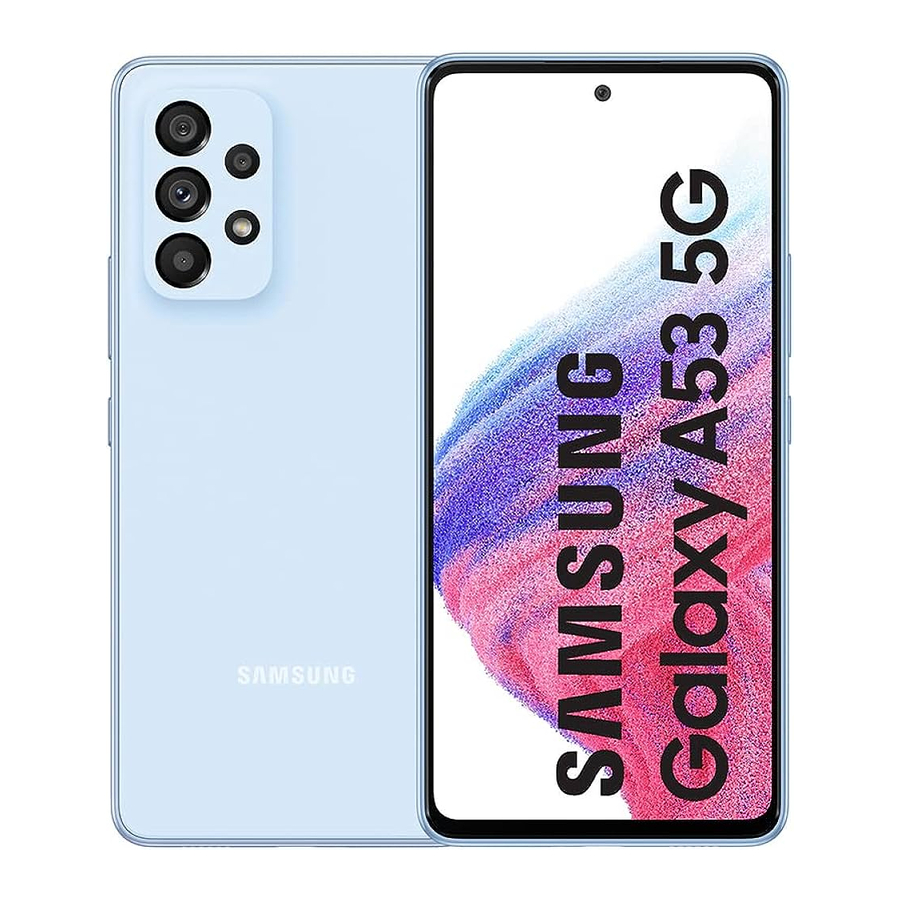
Overview


Phone setup
Inserting a SIM card

- SIM tool Use the SIM tool to open the SIM tray.
- SIM card Insert the SIM card in the tray.
Charge your device
Before turning on your device, charge it fully.
User manual
To view the User Manual on the device, tap Settings  > Tips and help
  .
.
Use only Samsung-approved chargers and cables. Damage caused by use of accessories not approved by Samsung is not covered by warranty.
microSD™ card sold separately.
Use the SIM card provided by the carrier.
Smart Switch
A sure and secure way to move your data to your Galaxy.
Whether you're coming from an iOS or Android platform, you can easily transfer your data with Smart Switch.
From your new Galaxy device swipe up and tap Settings > Accounts and backup  > Bring data from old device and follow the prompts.


Scan the QR code using your old device for more information on how to switch.
Touch screen
Navigating your phone
- From the home screen, swipe up to access Apps.
- Tap Recent
![]() to view recently viewed apps.
to view recently viewed apps. - Tap Back
![]() to return to the previous screen.
to return to the previous screen. - Tap Home
![]() at any time to return to the main Home screen.
at any time to return to the main Home screen. - Press and hold to launch Google Assistant.
 to view recently viewed apps.
 to return to the previous screen.
 at any time to return to the main Home screen.
 Notification panel

Swipe down from the top of the display to get quick access to alerts including new messages, emails, and software updates.
Personalise

Touch and hold a blank space on a home screen to personalise:
- Wallpaper and style: Change the look of the home and lock screens with a variety of wallpapers and styles.
- Themes: Change the look for system screens and icons.
- Widgets: Quickly drag a widget to an empty space on a home screen for quick access to applications.
- To move a widget, hold and drag it to a new location.
- To delete a widget, touch and hold it, and then tap Remove.
- Settings: Customize the look of the home screen.
- To add a home screen, scroll to the right (a screen is displayed with a plus sign) and tap
![]() .
. - To delete a home screen, touch and hold the screen, and then tap
![]() .
. - From the app panel, to add an app to the Home screen, press and hold the app and then tap Add to Home.
- To add a home screen, scroll to the right (a screen is displayed with a plus sign) and tap
 .
. .
.Calls and voicemail

HD Voice capable
Enjoy crystal clear conversations with HD Voice!
Make a call
- From the home screen, tap Phone
![]() .
. - Select an option to place a call:
 .
.- Keypad: Manually enter telephone number.
- Recents: Return or retry a previous call.
- Contacts: Call from your address book.
Call waiting
To answer a new call while you have a call in progress:
- Touch and slide
![]() in any direction.
in any direction.
 in any direction.
Check voicemail
- From the home screen, tap Phone
![]() .
. - Press and hold Voicemail
![]() .
.
 .
. .
.To experience Cricket HD Voice, both callers must have a compatible HD Voice capable smartphone and make the call over Cricket's LTE Network or a compatible network. Cricket's LTE coverage is not equivalent to its overall network coverage. HD Voice calls made on a compatible device and on the LTE network may not experience an HD Voice connection at times of network congestion. Other carriers' networks may interoperate with Cricket's LTE network to support an HD Voice call.
Messages

Send a message
- From the home screen, tap Messages > New conversation .
- Enter a phone number or contact name in the Recipient field.
- Tap Text message and enter your text or touch and hold
![]() to record an audio message.
to record an audio message.
 to record an audio message.
- Tap
![]() to add an image from the Gallery, capture an image or record a video.
to add an image from the Gallery, capture an image or record a video. - Tap
![]() to add an emoji, access your location, share a contact or attach a file.
to add an emoji, access your location, share a contact or attach a file.
 to add an image from the Gallery, capture an image or record a video.
 to add an emoji, access your location, share a contact or attach a file.
- Tap
![]() to send the message.
to send the message.
 to send the message.
Please don't text and drive.

Email setup
- From the home screen, swipe up for Apps, and then tap the Google folder > Gmail
![]() .
. - Tap GOT IT > Add an email address and follow the prompts to setup.
 .
.Create and send an email message
- From the home screen, swipe up for Apps, and then tap the Google folder > Gmail
![]() .
. - In the top right, tap your profile picture to switch between accounts.
- Tap Compose and enter your message.
- Tap
![]() to add attachments.
to add attachments. - Tap
![]() to send message.
to send message.
 to add attachments.
 to send message.
Note: To set up your corporate email, contact your IT administrator.
Useful apps
These services make using Cricket even better and easier!

myCricket: Access billing, make a quick payment, view usage and access support from the palm of your hand.

Visual Voicemail: Quickly view, access and play back your voicemail messages, easily save important numbers to your Favorites lists and respond to messages by calling back or texting.

theSCOOP: Get news, local weather, sports scores, entertainment and more right to your phone.

Samsung Members: Get expert support, community connections, insider tips & exclusive perks.
Camera & video

Take a picture
From the home screen, tap Camera  . .
. .
- Tap
![]() to take a photo.
to take a photo. - Pinch to zoom in or out.
- Tap
![]() or swipe up to take selfies.
or swipe up to take selfies. - Swipe right or left to select a shooting mode.
 to take a photo.
 or swipe up to take selfies.
Record a video
From the home screen, tap Camera , then swipe left for VIDEO.
- Tap
![]() to start recording.
to start recording. - Tap
![]() or swipe up to record selfies.
or swipe up to record selfies. - Tap
![]() to capture a picture while recording.
to capture a picture while recording. - Tap
![]() to pause recording.
to pause recording. - Tap
![]() to end recording.
to end recording.
 to start recording.
 or swipe up to record selfies.
 to capture a picture while recording.
 to pause recording.
 to end recording.
Share a Picture or Video
- After taking a picture, tap the Image viewer at the bottom of the screen.
- Select the photo or video you want to share, and then tap Share
![]() .
. - Select the desired option to share your photo or video and follow the prompts.
 .
.Note: Press the Side key twice to quickly launch the camera app.
More information
On the web
Detailed support information, including device specifications and full user manual, are available at cricketwireless.com/support/devices.
On the phone
- Call Customer Care at 1-855-246-2461 or
- Dial 611 from your phone
Accessories
Cricket offers a full line of accessories.
Visit cricketwireless.com/shop/accessories or your local Cricket retailer.
© 2022 Samsung Electronics America, Inc. Samsung & Samsung
Galaxy are registered trademarks of Samsung Electronics Co., Ltd. Other company and product names mentioned herein may be trademarks of their respective owners. Screen images simulated. Appearance of device may vary. Images shown are for reference only. If you use a screen protector, make sure it allows for use of touch-screen features.
© 2022 Cricket Wireless LLC. All rights reserved. Cricket and the Cricket logo are trademarks under license to Cricket Wireless LLC.

References


Download manual
Here you can download full pdf version of manual, it may contain additional safety instructions, warranty information, FCC rules, etc.
Download Samsung Galaxy A53 5G - Smartphone Quick Start Manual


