Gigabyte AORUS CO49DQ - Gaming Monitor Manual
INTRODUCTION
Package Contents
The following items come with your packaging box. If any of them is missing, please contact your local dealer.
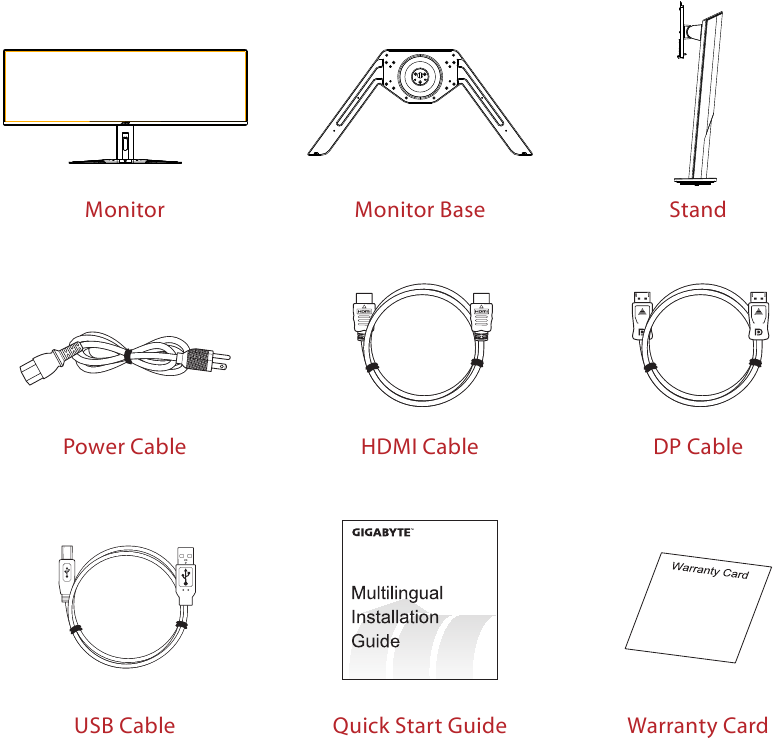
Note: Please keep the packaging box and packing materials for possible transportation of the monitor.
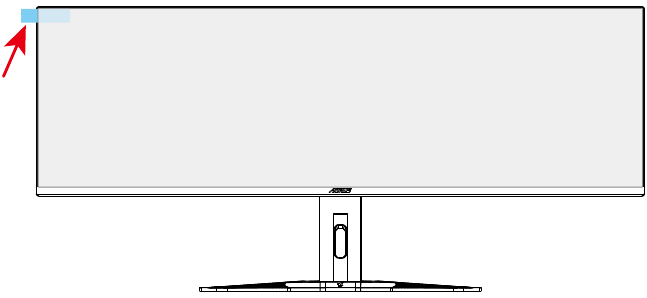
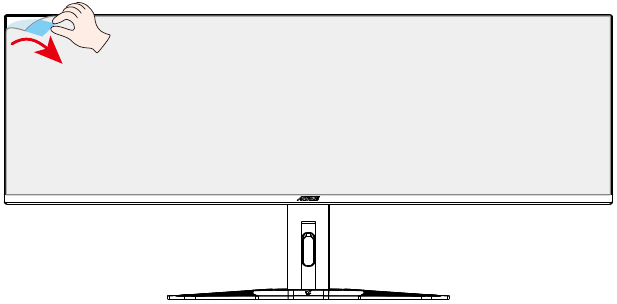
Peeling off the Screen Protective Film Using the Peel Tab
Instructions on Using the Peel Tab:
- The peel tab is located as indicated by the red arrow in the picture below.

- Remove the screen protective film in the direction indicated by the red arrow in the picture below.
Note: To prevent damage to the screen, please avoid using fingernails or any sharp objects to peel off the protective film. Instead, use adhesive tape to lift and remove the protective film.

Product Overview
Front View
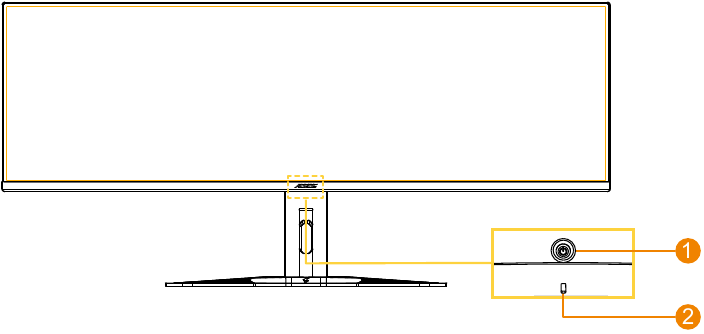
- Control button
- Power LED
Rear View
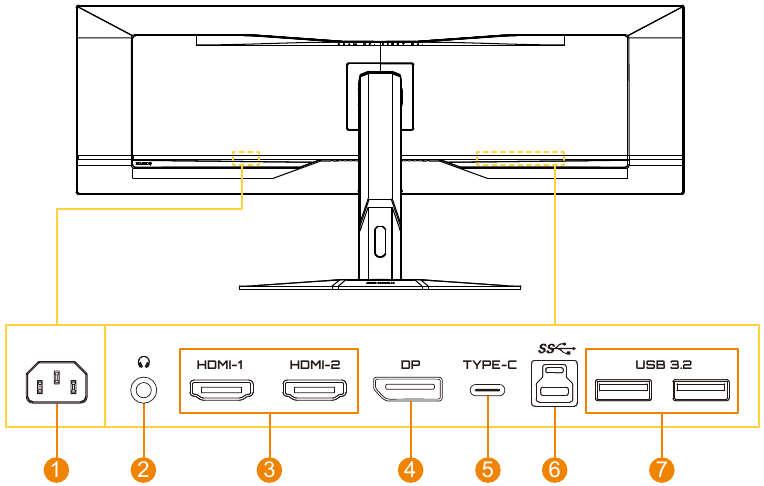
- AC IN jack
- Headphone jack
- HDMI ports (x2)
- DisplayPort
- USB Type-C port
- USB upstream port
- USB 3.2 ports (x2)
Preparing your Monitor for Wall-Mounting
Note: Use only a 100 x 100 mm VESA compatible wall mount kit to mount the monitor on the wall. Refer to the installation guide included in the wall-mount bracket kit. VESA mounting screw size: M4 x 10mm minimum.
USING THE DEVICE
Turning the Power On/Off
Power On
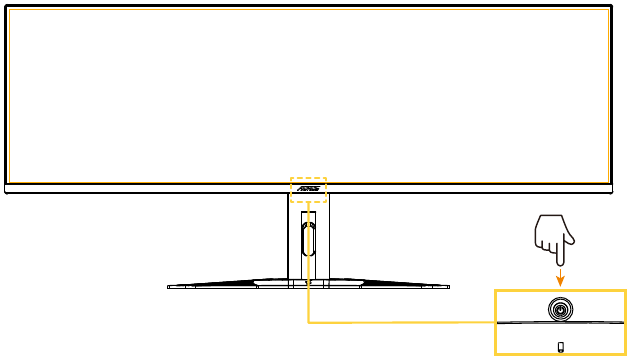
- Connect one end of the power cable to the AC IN jack at the rear of the monitor.
- Connect other end of the power cable to a power outlet.
- Press the Control button to turn on the monitor. The Power LED will light in white, indicating the monitor is ready to use.
Power Off
Press the Control button for 2 seconds to turn off the monitor.
Note: When the Main menu appears on the screen, you can also turn off the monitor by moving the Control button down ( ) and selecting "Power Off".
Selecting the Input Source
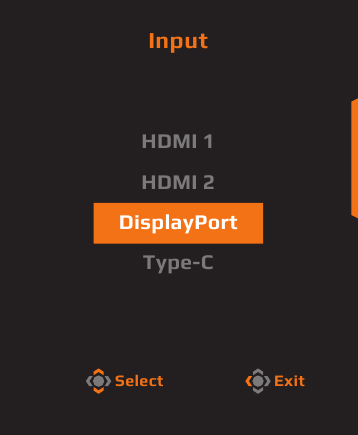
- Move the Control button right (
![]() ) to enter the Input menu.
) to enter the Input menu. - Move the Control button up/down (
![]() ) to select the desired input source. Then press the Control button to confirm.
) to select the desired input source. Then press the Control button to confirm.
 ) to enter the Input menu.
 ) to select the desired input source. Then press the Control button to confirm.
OPERATIONS
Quick Menu
By default, the Control button has been assigned with the specific function.
Note: To change the preset functions, refer to the "Quick Switch" section.
To access the Quick Switch functions, do the following:
- Move the Control button up (
![]() ) to enter the Black Equalizer menu.
) to enter the Black Equalizer menu.
Move the Control button up/down (![]() ) to adjust the setting and press the Control button to confirm.
) to adjust the setting and press the Control button to confirm.
![]()
- Move the Control button down (
![]() ) to enter the Picture Mode menu.
) to enter the Picture Mode menu.
Move the Control button up/down (![]() ) to select the desired option and press the Control button to confirm.
) to select the desired option and press the Control button to confirm.
![]()
- Move the Control button left (
![]() ) to enter the Audio Mode menu.
) to enter the Audio Mode menu.
Move the Control button up/down (![]() ) to select the desired option and press the Control button to confirm.
) to select the desired option and press the Control button to confirm.
![]()
- Move the Control button right (
![]() ) to enter the Input menu. Refer to the "Selecting the Input Source" section.
) to enter the Input menu. Refer to the "Selecting the Input Source" section.
 ) to enter the Black Equalizer menu.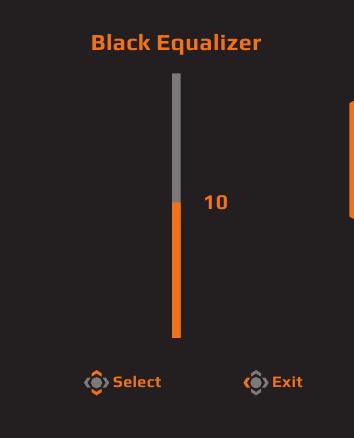
 ) to enter the Picture Mode menu.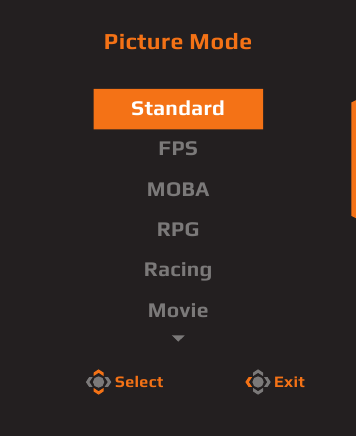
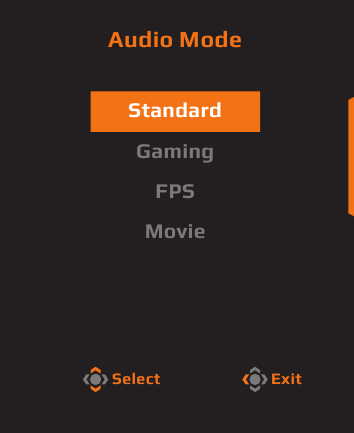
Note: To close the Quick Switch menu, move the Control button left ( ).
).
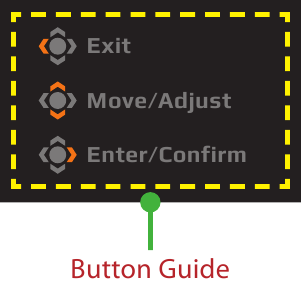
Function Key Guide
- Press the Control button to display the Main menu.

Then use the Control button to select a function page and configure the related settings.
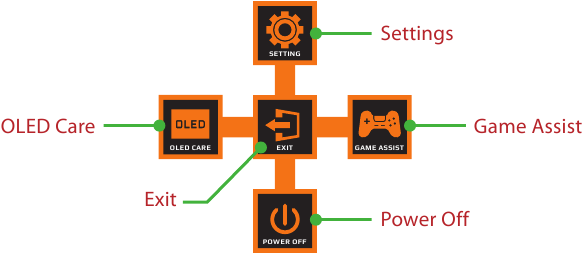
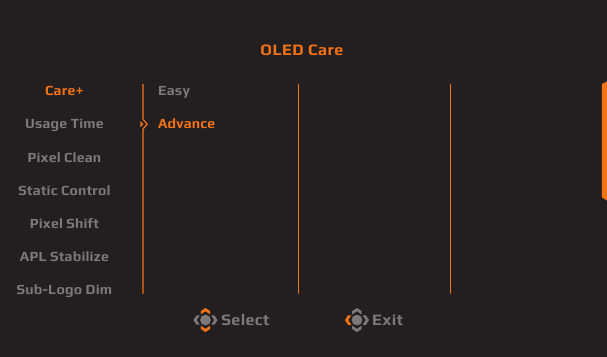
OLED Care
- When the Main menu appears on the screen, move the Control button left (
![]() ) to enter the OLED Care menu.
) to enter the OLED Care menu.
![]()
- Care+: Integrate OLED Care settings for optimal protection or select to customise your own.
- Usage Time: Shows the accumulated screen usage time.
- Pixel Clean: When the monitor is used for over 4 hours, it's recommended to initiate this process to clean and refresh the pixel compensation OLED screen.
- Static Control: Reduces screen brightness when the image remains static.
- Pixel Shift: Moves the screen content by pixels to prevent static image retention.
- APL Stabilize: Adjusts the screen brightness to stabilise Average Picture Level (APL).
- Sub-Logo Dim: Reduce the brightness of the taskbar and static logos to prevent image retention.
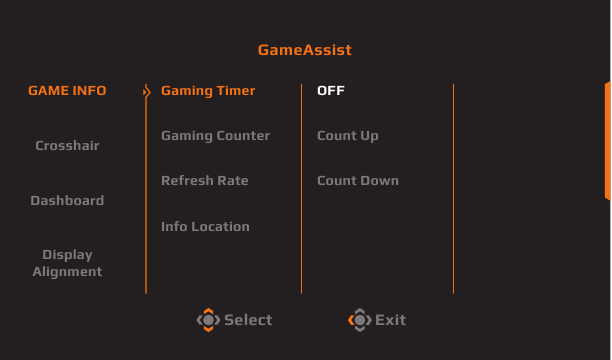
Game Assist
- When the Main menu appears on the screen, move the Control button right (
![]() ) to enter the Game Assist menu.
) to enter the Game Assist menu.
![]()
- GAME INFO: Enable/Disable the Gaming information shown on the screen.
- Crosshair: Select the type of crosshair to assist with aiming.
- Dashboard: Enable/Disable the system information of PC shown on the screen.
Note: Official software installation and a USB connection between the monitor and the PC are required. - Display Alignment: Show the alignment lines to help multiple monitor settings.
Configure the Device Settings
When the Main menu appears on the screen, move the Control button up ( ) to enter the Settings menu.
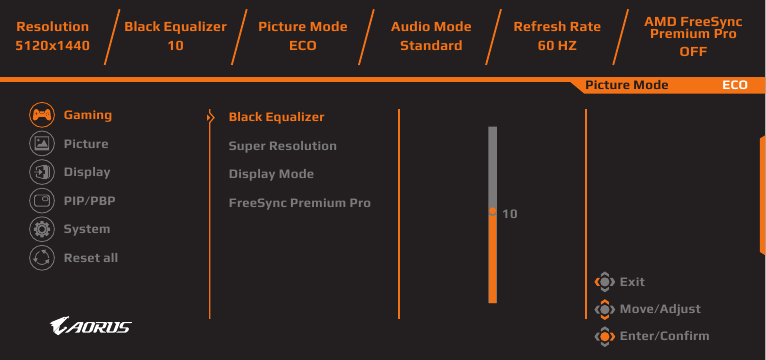
Gaming
Configure the game related settings.
| Item | Description |
| Black Equalizer | Adjust the visibility of dark areas in the image to enhance details and improve visibility in dark scenes. |
| Super Resolution | Enhance the overall image quality to provide sharper detailed visuals. |
| Display Mode | Select the screen aspect ratio. Note: This option is not compatible with AMD FreeSync Premium Pro and PIP/PBP functions. |
| AMD FreeSync Premium Pro | When this function is enabled, it eliminates the screen lag and tearing while playing games. |
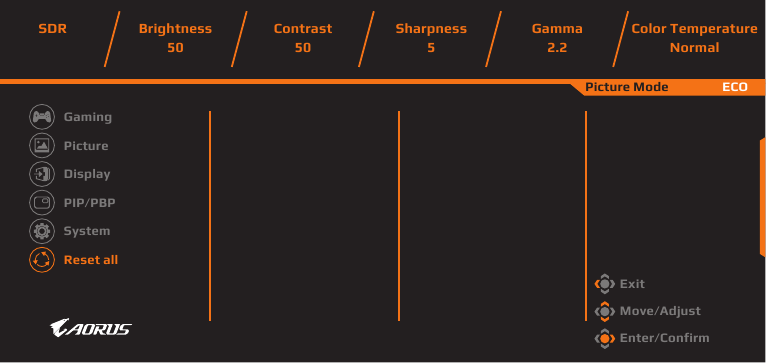
Picture
Configure the image related settings.
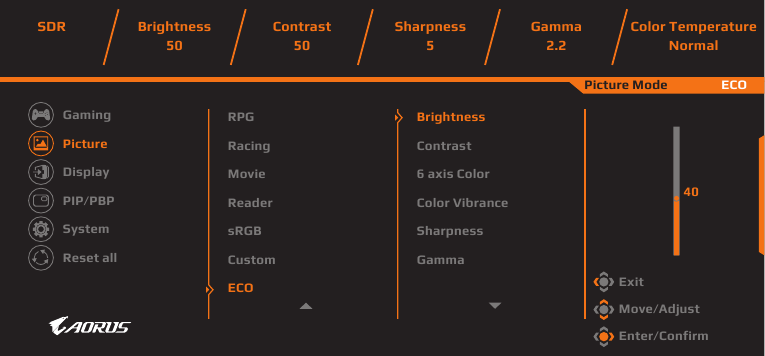
| Item | Description |
| Picture | Select different predefined settings to optimise the visual presentation based on the content type or customise personal preferences. |
Display
Configure the display screen related settings.
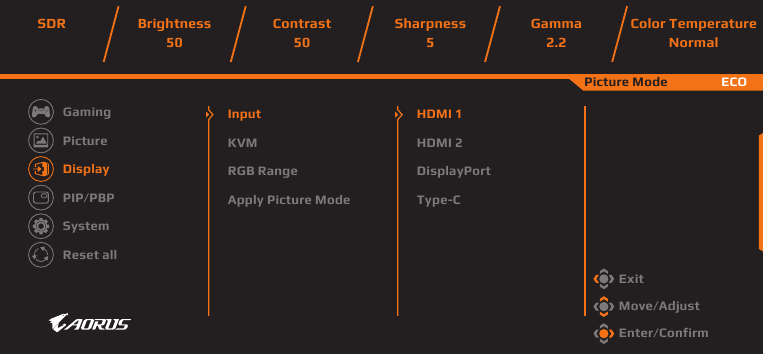
| Item | Description |
| Input | Select the input source. |
| KVM | Configure the KVM functions to control two computers or devices with single keyboard and mouse. |
| RGB Range | Manually set the range of RGB or auto-detect. |
| Apply Picture Mode | Set the Picture mode to apply to all input sources, or the current input source. |
PIP/PBP
Configure the Picture-In-Picture and Picture-By-Picture related settings.
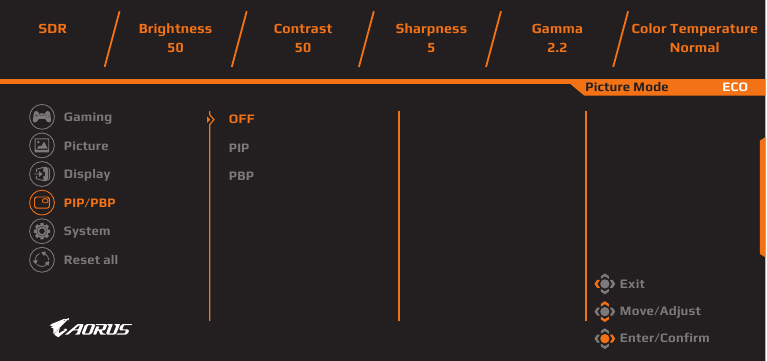
Note: PIP/PBP function cannot be enabled when receiving HDR and FreeSync signals.
System
Configure the system related settings.
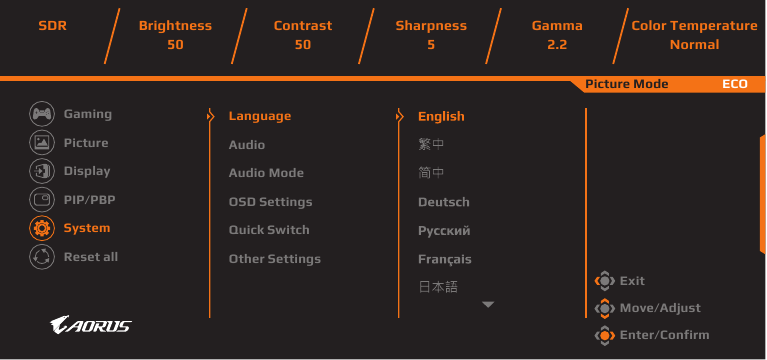
| Item | Description |
| Language | Select the desired language for the OSD menu. |
| Audio | Configure the audio related settings. |
| Audio Mode | Select the desired audio mode. |
| OSD Settings | Configure the On-Screen-Display menu related settings. |
| Quick Switch | Assign the functions of Quick Switch to the Control button. |
| Other Settings |
|
Reset All
Restore the monitor to its factory default settings.
Specifications
| Item | Specifications |
| Panel Size | 49-inch |
| Aspect Ratio | 32:9 |
| Resolution | 5120 x 1440 |
| LED Life | 30,000 H |
| Pixel Pitch | 233 x 233 um |
| Brightness | 250 nits (Typ, SDR APL 100%) 1000 nits (Typ, HDR APL 3%) |
| Contrast Ratio | 1.5M:1 |
| Color Depth | 1.07B (10 Bit) |
| Active Display Area | 1196.7 (H) x 339.2 (V) |
| Viewing Angle | 178° (H)/178° (V) |
| Input/Output Terminals | 2 x HDMI 2.1 1 x DP 1.4 1 x USB upstream 2 x USB 3.2 (downstream, 5V/1.5A) 1 x USB Type-C (5V/3A, 9V/2A, 12V/1.5A, 15V/1.2A) 1 x Headphone |
| Power Supply | AC100~240V, 50/60Hz |
| Power Consumptions |
|
| Dimensions (W x H x D) | 1194.78 x 558.80 x 261.52 mm (With Stand) 1194.78 x 372.23 x 160.51 mm (Without Stand) |
| Weight | 11.28 Kg (With Stand) 8.33 Kg (Without Stand) |
| Temperature Range (operation) | 0°C to 40°C |
Note: Specifications subject to change without notice.
Supported Timing List
| Timing List | HDMI 1 | HDMI 2 | DP (Type-C) |
| 640 x 480 / 60Hz | V | V | V |
| 640 x 480 / 67Hz | V | V | V |
| 640 x 480 / 72Hz | V | V | V |
| 640 x 480 / 75Hz | V | V | V |
| 720 x 400 / 70Hz | V | V | V |
| 720 x 480 / 60Hz | V | V | V |
| 800 x 600 / 56Hz | V | V | V |
| 800 x 600 / 60Hz | V | V | V |
| 800 x 600 / 72Hz | V | V | V |
| 800 x 600 / 75Hz | V | V | V |
| 832 x 624 / 75Hz | V | V | V |
| 1024 x 768 / 60Hz | V | V | V |
| 1024 x 768 / 70Hz | V | V | V |
| 1024 x 768 / 75Hz | V | V | V |
| 1152 x 864 / 75Hz | V | V | V |
| 1152 x 870 / 75Hz | V | V | V |
| 1280 x 720 / 50Hz | V | V | V |
| 1280 x 720 / 60Hz | V | V | V |
| 1280 x 720 / 100Hz | V | V | V |
| 1280 x 800 / 60Hz | V | V | V |
| 1280 x 960 / 60Hz | V | V | V |
| 1280 x 1024 / 60Hz | V | V | V |
| 1280 x 1024 / 75Hz | V | V | V |
| 1440 x 480 / 60Hz | V | V | V |
| 1440 x 900 / 60Hz | V | V | V |
| 1600 x 900 / 60Hz | V | V | V |
| 1680 x 1050 / 60Hz | V | V | V |
| 1920 x 1080 / 24Hz | V | V | |
| 1920 x 1080 / 50Hz | V | V | V |
| 1920 x 1080 / 60Hz | V | V | V |
| 1920 x 1080 / 100Hz | V | V | V |
| 1920 x 1080 / 120Hz | V | V | V |
| 2560 x 1440 / 60Hz | V | V | V |
| 2560 x 1440 / 120Hz | V | V | V |
| 3840 x 1080 / 60Hz | V | V | V |
| 3840 x 2160 / 24Hz | V | V | |
| 3840 x 2160 / 25Hz | V | V | V |
| 3840 x 2160 / 30Hz | V | V | V |
| 3840 x 2160 / 50Hz | V | V | V |
| 3840 x 2160 / 60Hz | V | V | V |
| 3840 x 2160 / 100Hz | V | V | V |
| 3840 x 2160 / 120Hz | V | V | V |
| 5120 x 1440 / 60Hz | V | V | V |
| 5120 x 1440 / 100Hz | V | V | V |
| 5120 x 1440 / 120Hz | V | V | V |
| 5120 x 1440 / 144Hz | V | V | V |
Supported Timing List (PIP/PBP)
| PIP | PBP | |||||
| Timing List | HDMI 1 | HDMI 2 | DP | HDMI 1 | HDMI 2 | DP |
| 640 x 480 / 60Hz | V | V | V | V | V | V |
| 640 x 480 / 67Hz | V | V | V | V | V | V |
| 640 x 480 / 72Hz | V | V | V | V | V | V |
| 640 x 480 / 75Hz | V | V | V | V | V | V |
| 720 x 400 / 70Hz | V | V | V | V | V | V |
| 720 x 480 / 60Hz | V | V | V | V | V | V |
| 800 x 600 / 56Hz | V | V | V | V | V | V |
| 800 x 600 / 60Hz | V | V | V | V | V | V |
| 800 x 600 / 72Hz | V | V | V | V | V | V |
| 800 x 600 / 75Hz | V | V | V | V | V | V |
| 832 x 624 / 75Hz | V | V | V | V | V | V |
| 1024 x 768 / 60Hz | V | V | V | V | V | V |
| 1024 x 768 / 70Hz | V | V | V | V | V | V |
| 1024 x 768 / 75Hz | V | V | V | V | V | V |
| 1152 x 864 / 75Hz | V | V | V | V | V | V |
| 1152 x 870 / 75Hz | V | V | V | V | V | V |
| 1280 x 720 / 50Hz | V | V | V | V | V | V |
| 1280 x 720 / 60Hz | V | V | V | V | V | V |
| 1280 x 720 / 100Hz | V | V | V | V | V | V |
| 1280 x 800 / 60Hz | V | V | V | V | V | V |
| 1280 x 960 / 60Hz | V | V | V | V | V | V |
| 1280 x 1024 / 60Hz | V | V | V | V | V | V |
| 1280 x 1024 / 75Hz | V | V | V | V | V | V |
| 1440 x 480 / 60Hz | V | V | V | V | V | V |
| 1440 x 900 / 60Hz | V | V | V | V | V | V |
| 1600 x 900 / 60Hz | V | V | V | V | V | V |
| 1680 x 1050 / 60Hz | V | V | V | V | V | V |
| 1920 x 1080 / 24Hz | V | V | V | V | ||
| 1920 x 1080 / 60Hz | V | V | V | V | V | V |
| 2560 x 1440 / 60Hz | V | V | V | |||
| 3840 x 1080 / 60Hz | V | V | V | |||
| 3840 x 2160 / 24Hz | V | V | V | V | ||
| 3840 x 2160 / 25Hz | V | V | V | V | V | V |
| 3840 x 2160 / 30Hz | V | V | V | V | V | V |
| 3840 x 2160 / 60Hz | V | V | V | V | V | V |
| 5120 x 1440 / 60Hz | V | V | V | |||
| 2560 x 1440 / 60Hz (PBP) | V | V | V | |||
Troubleshooting
| Problem | Possible Solution(s) |
| No power |
|
| No image appears on the screen |
|
| The image does not fill the entire screen |
|
| The colours are distorted |
|
| No sound or volume is low |
|
Note: If the problem persists, please contact our customer service for further assistance.
Basic Care
- Wipe the screen with a soft, lint-free cloth to remove any residual dust.
- Spray or apply the cleaning fluid onto a soft cloth. Then wipe the screen gently with the damp cloth.
Note:
- Make sure that the cloth is damp, but not wet.
- When wiping, avoid applying excessive pressure on the screen.
- Acidic or abrasive cleaners can damage the screen.
SAFETY INFORMATION
Safety Precautions
Read through the following Safety Precautions before using the monitor.
- Only use the accessories that are provided with the monitor or that which are recommended by the manufacturer.
- Keep the plastic packaging bag for the product in a place that cannot be reached by children.
- Before connecting the monitor to the power outlet, make sure that the voltage rating of the power cable is compatible with the power specification in the country where you are located.
- The power cord plug must be connected to a properly wired and grounded power outlet.
- Do not touch the plug with wet hands, as it can easily cause electric shock.
- Place the monitor in a stable and well-ventilated place.
- Do not place the monitor near any heat sources, such as electric radiators or direct sunlight.
- The holes or openings on the monitor are for ventilation. Do not cover or block the ventilation holes with any objects.
- Do not use the monitor near water, drinks, or all types of liquids. Failure to do so may result in electric shock or damage to the monitor.
- Make sure to unplug the monitor from the power outlet before cleaning.
- As the screen surface is easy to be scratched, avoid touching the surface with any hard or sharp object.
- Use a soft lint-free cloth instead of a tissue to wipe the screen. You may use a glass cleaner to clean the monitor if required. However, never spray the cleaner directly onto the screen.
- Disconnect the power cable if the monitor is not being used for a long period of time.
- Do not attempt to disassemble or repair the monitor yourself.
Stability Hazard Precautions
The product may fall, causing serious personal injury or death. To prevent injury, this product must be securely attached to the floor/wall in accordance with the installation instructions.
Many injuries, particularly to children, can be avoided by taking simple precautions such as:
- ALWAYS use stands or installation methods recommended by the manufacturer of the product set.
- ALWAYS use furniture that can safely support the product.
- ALWAYS ensure the product is not overhanging the edge of the supporting furniture.
- ALWAYS educate children about the dangers of climbing on furniture to reach the product or its controls.
- ALWAYS route cords and cables connected to your product so they cannot be tripped over, pulled or grabbed.
- NEVER place a product in an unstable location.
- NEVER place the product on tall furniture (for example, cupboards or bookcases) without anchoring both the furniture and the product to a suitable support.
- NEVER place the product on cloth or other materials that may be located between the product and supporting furniture.
- NEVER place items that might tempt children to climb, such as toys and remote controls, on the top of the product or furniture on which the product is placed.
- If the existing product is going to be retained and relocated, the same considerations as above should be applied.
- To prevent personal injury or damage to the product caused by tipping over due to earthquakes or other shocks, make sure to install the product in a stable location and take measures to prevent falling.
User Comfort Recommendations
The monitor adopts Flicker-Free technology which clears the eye visible monitor flicker and prevents users from suffering eye strain and fatigue.
The following are some tips for comfortable viewing of your monitor:
- Allow a minimum distance of 50 to 75cm (20" to 30") between your eyes and the monitor.
- A general guideline is to position the monitor such that the top of the screen is at or slightly below your eye-height when you are comfortably seated.
- Use adequate lighting for the type of work you are performing.
- Take regular and frequent breaks (at least for 10 minutes) every half-hour.
- Be sure to periodically look away from your monitor screen and focus on a far object for at least 20 seconds during the breaks.
- Eye exercise can help reduce eye strain. Repeat these exercises frequently:
- look up and down
- slowly roll your eye
- move your eyes diagonally.
This model has passed Flicker Free and Low Blue Light verification by TÜV Rheinland.
To learn more:
https://www.gigabyte.com/tw/Support/FAQ/4310
GIGABYTE Service Information
More service information, please visit GIGABYTE official website.
https://www.gigabyte.com/
References


Download manual
Here you can download full pdf version of manual, it may contain additional safety instructions, warranty information, FCC rules, etc.
Download Gigabyte AORUS CO49DQ - Gaming Monitor Manual


